EasyManua.ls Logo

Panasonic AV-HS450 - User Manual

Panasonic AV-HS450
190 pages
Print Icon
To Next Page IconTo Next Page
Loading...
Operating Instructions
Multi-format Live Switcher
Model No. AV-HS450N
Multi-format
Live
Switcher
AV-HS450
POWER
ALARM
POWER1
POWER1
ALARM1
OFF
POWER2
ON
OFF
ON
POWER2
ALARM2
Multi-format Live Switcher AV-HS450
Mainframe
[AV-HS450U1N]
Control panel [AV-HS450C1N]
Before operating this product, please read the instructions carefully and save this manual for
future use.
Printed in Japan 3TR006327AAC

Table of Contents

Question and Answer IconNeed help?

Do you have a question about the Panasonic AV-HS450 and is the answer not in the manual?

Summary

Safety precautions

Description

Features

Configuration

Accessories

Precautions for use

Trademarks and Registered Trademarks

Disclaimer of Warranty

1. Installation

1-1. Installing the control panel

Instructions for installing and connecting the control panel, including power and location.

1-2. Installing the mainframe

Instructions for installing and connecting the mainframe, including power, rack mounting, and location.

1-3. How to install the option boards

Procedure for installing optional boards into the mainframe slots, including safety precautions.

1-4. Connections

Details on connecting the system components, including block diagrams and specific scenarios.

1-4-1. Block diagram

Provides a block diagram illustrating the connections between the mainframe and control panel.

1-4-2. Connections when implementing gen-lock (frame synchronizer OFF)

Illustrates connections for gen-lock operation with the frame synchronizer off.

1-4-3. Connections when not implementing gen-lock (frame synchronizer ON)

Illustrates connections when the frame synchronizer is on, including optional boards.

2. Functions in each area

2-1. Control panel

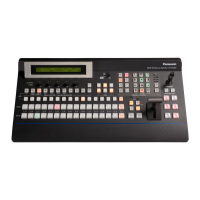
Overview of the control panel layout, including indicators and key operational areas.

2-1-1. Crosspoint area

Explains the function of PGM/A, PST/B, and AUX bus crosspoint buttons and selectors.

2-1-2. Wipe pattern;memory area

Describes selection of wipe patterns and memory operations for storing/recalling data.

2-1-3. User button area

Explains the assignment of functions to user buttons for customized operations.

2-1-4. Transition area

Details the functions of transition buttons like BKGD, KEY, MIX, WIPE, AUTO, CUT.

2-1-5. LCD menu area

Describes the LCD menu structure and delegation functions for various settings.

2-1-6. Positioner area

Explains the use of the positioner and rotary encoder for adjusting key and PinP parameters.

2-1-7. SD memory card area

Details the SD memory card slot and access LED, and recommends compatible cards.

2-1-8. Rear panel connections area

Identifies and describes the rear panel connectors on the control panel.

2-2. Mainframe

Details the front and rear panel components of the mainframe unit.

2-2-1. Front panel

Explains the front panel controls of the mainframe, including power switches and indicators.

2-2-2. Rear panel connections area

Identifies and describes the rear panel connectors on the mainframe.

3. Basic operations

3-1. Background transition

Covers selecting buses, modes, and executing manual, auto, or cut background transitions.

3-1-1. Selecting the bus

How to select input signals for background transitions using crosspoint buttons.

3-1-2. Selecting the bus using the SHIFT function

Utilizes the SHIFT function to switch between front and rear materials for crosspoint buttons.

3-1-3. Selecting the bus mode

Setting the A/B bus system or flip-flop (PGM/PST) system from the setting menu.

3-1-4. Selecting the transition mode

How to select MIX or WIPE transition modes for background and key transitions.

3-1-5. Manual transition (using the fader lever)

Operation of the fader lever for manual transitions and its effect on auto transition.

3-1-6. Auto transition

Executing transitions automatically using the transition time set in the TIME menu.

3-1-7. Cut transition

Performing an instant transition by pressing the CUT button.

3-2. IMAGE

Covers setting and executing IMAGE effects like paint, mosaic, and defocus.

3-2-1. Setting the IMAGE effects

Setting paint, mono-color, mosaic, and defocus effects for bus materials.

3-2-2. Executing the IMAGE effect

How to activate and execute the IMAGE effect, noting a one-frame delay.

3-3. Wipe

Details selecting wipe patterns, backgrounds, directions, decorations, and modifying wipes.

3-3-1. Selecting the wipe pattern

Selecting background and key transition patterns using wipe pattern selector buttons.

3-3-2. Selecting the background for the 3 D2 pattern page

Selecting still images, color background, or black for the 3D2 pattern page background.

3-3-3. Selecting the wipe direction

Selecting the direction (normal, reverse, or N/R) for background wipe transitions.

3-3-4. Wipe decorations (border, soft effect)

Adding borders, shadows, or soft effects to background wipe transitions, including color settings.

3-3-5. Setting the wipe start position

Setting the start position for WIPE and SQ patterns using positioners or menu items.

3-3-6. Modifying wipe

Adding lighting effects to specific wipe patterns for background and key transitions.

3-4. Key

Covers key types, material selection, transitions, preview, adjustments, decorations, masking, and flying key.

3-4-1. Selecting the key type

Choosing key types like Lum, Chroma, Full, or Linear for key signal generation.

3-4-2. Selecting the key material

Selecting key fill and key source signals using AUX bus buttons or CONFIG menu.

3-4-3. Key transitions

Selecting transition modes (MIX/WIPE) and directions for key transitions.

3-4-4. Key preview

Outputting key preview images and adjusting keys before final execution.

3-4-5. Adjusting the luminance key and linear key

Adjusting clip, gain, density, and invert settings for luminance and linear keys.

3-4-6. Adjusting the chroma key

Executing sampling automatically or manually to adjust chroma key parameters.

3-4-7. Key decorations

Adding borders, shadows, or outlines to keys, including edge color settings.

3-4-8. Masking the key signals

Masking key signals using box patterns to define the effective area for key combination.

3-4-9. Flying key

Using DVE effects to move, expand, or contract key signals for flying key transitions.

3-5. PinP (picture in picture)

Covers selecting PinP channels, materials, shapes, transitions, adjustments, decorations, and trimming.

3-5-1. Selecting the PinP channel and material

Selecting PinP channels and materials for combining images.

3-5-2. Selecting Shape

Choosing Square or Circle shape for PinP images and adjusting aspect ratio.

3-5-3. PinP preview

Setting whether to output PinP preview images to the preview output.

3-5-4. PinP transitions

Setting transition times and executing fade-in/fade-out for PinP images.

3-5-5. PinP adjustments

Adjusting PinP position and size using positioner or menu items.

3-5-6. Linking PinP1 and PinP2

Performing symmetrical operations for PinP1 and PinP2 axes, setting priority and reference.

3-5-7. PinP decorations

Adding borders or soft effects to PinP images, including border color settings.

3-5-8. Trimming settings

Setting trimming types and values for PinP images to adjust aspect ratio or margins.

3-6. DSK (downstream key)

Covers DSK types, channel/material selection, transitions, preview, adjustments, decorations, and masking.

3-6-1. Selecting the DSK type

Choosing DSK types like Lum, Chroma, Full, or Linear for key signal generation.

3-6-2. Selecting the DSK channel and DSK fill material

Selecting DSK channels and fill materials using AUX bus buttons or CONFIG menu.

3-6-3. DSK transitions

Setting transition times and executing fade-in/fade-out for DSK images.

3-6-4. DSK preview

Setting whether to output DSK preview images to the preview output.

3-6-5. DSK adjustments

Adjusting clip, gain, density, and invert settings for DSK.

3-6-6. DSK decorations

Adding borders, shadows, or outlines to DSK, including edge color settings.

3-6-7. Masking the DSK signals

Masking DSK signals using box patterns to define the effective area for DSK combination.

3-7. FTB (fade to black)

Fading out to a black screen or fading in from a black screen with adjustable transition duration.

3-8. Internal color signals

Setting the internal color background using hue, saturation, luminance, or preset colors.

3-8-1. Setting the color background

Setting the color background using Hue, Sat, Lum adjustments or preset colors.

3-9. Switching the AUX output

Covers selecting AUX output materials, AUX1 transitions, and enabling/disabling AUX transitions.

3-9-1. Selecting the AUX output materials

Selecting output materials for AUX1 to AUX4 using AUX bus selector and crosspoint buttons.

3-9-2. AUX1 transitions

Executing MIX transitions for AUX1 output by switching output signals.

3-9-3. Setting enable;disable for the AUX1 transition

Setting the transition time and enabling or disabling AUX1 transitions.

3-10. Memory

Covers memory registration, recall, storage, deletion, and effect dissolve.

3-10-1. Memory registration and recall items

Lists materials, transitions, and patterns that can be stored/recalled in SHOT, BKGD/WIPE, PinP, CAM memories.

3-10-2. Storing the settings in the memory (Store)

Procedure for storing images or operations into memory using number keys and memory type buttons.

3-10-3. Recalling the operations stored in the memory (Recall)

Procedure for recalling stored operations from memory using number keys and memory type buttons.

3-10-4. Deleting the operations stored in the memory (Delete)

Procedure for deleting stored operations from memory using number keys and memory type buttons.

3-10-5. Effect dissolve

Performing smooth switching between current image and stored operations using SHOT memory.

3-11. Frame memories

Covers transferring images from AUX bus and saving images to flash memory.

3-11-1. Transferring images from the AUX bus

Importing still images from AUX bus to internal frame memories (FMEM1-4).

3-11-2. Saving Images in Flash Memory

Saving frame memory data to the mainframe's flash memory for retention when power is off.

3-12. SD memory cards

Covers initializing, saving, loading, deleting files, and displaying information for SD memory cards.

3-12-1. Initializing the SD memory cards

Formatting SD/SDHC memory cards to prepare them for use in the unit.

3-12-2. Saving data on SD memory cards

Saving frame memory data or setup data onto SD memory cards.

3-12-3. Loading data from SD memory cards

Loading frame memory or setup data from SD memory cards into the unit.

3-12-4. Deleting files on SD memory cards

Deleting specific files (still image or setup data) from SD memory cards.

3-12-5. Displaying the SD memory card information

Showing the number of images and free space available on the SD memory card.

4. Input;output signal settings

4-1. Input signal settings

Covers frame synchronizer, input mode, freezing, color corrector, up-converter, and analog/DVI settings.

4-1-1. Setting the frame synchronizer

Enabling or disabling the frame synchronizer for each input signal, except for DVI.

4-1-2. Setting the input mode

Setting input modes (Normal, D by D, UC, Auto) for HD signals based on system format.

4-1-3. Freezing the input signals

Freezing input signals frame by frame or field by field for display.

4-1-4. Color corrector

Enabling the color corrector to adjust colors of input signals for IN9 to IN16.

4-1-5. Setting the up-converter

Configuring up-converter settings for specific inputs and scaling methods (SQ, EC, LB).

4-1-6. Setting the analog input gain (option)

Setting the input signal gain for analog input boards using AnaGain item.

4-1-7. Setting the analog composite input signals (option)

Adjusting chroma, pedestal, and hue levels for analog composite input signals.

4-2. Setting the DVI input signals (option)

Setting DVI input signals by selecting signal system (Dig/Ana) and resolution.

4-2-1. Setting the DVI input signals

Setting DVI input signals by selecting signal system (Dig/Ana) and resolution.

4-2-2. Adjusting the DVI input signals

Adjusting clock/phase and horizontal/vertical position of DVI-I input signals.

4-3. Setting the output signals

Assigning output signals to connectors and setting output modes.

4-3-1. Assigning the output signals

Assigning output signals (PGM, PVW, CLN, AUX, KeyOut) to output connectors.

4-4. Setting the DVI output signals (OUT5 and OUT6 standard outputs and options)

Setting DVI output signals by selecting signal system, resolution, and scaling method.

4-5. Setting the down-converter (option)

Configuring down-converter settings for SDI output boards, including scaling and delay.

4-6. Setting the sync signals

Selecting external or internal sync signals (BBST, BBAD, TRI, INT) for system synchronization.

4-7. Adjusting the output signal phase

Adjusting H-phase and V-phase of output video signals relative to the system REF signal.

4-8. Setting the multi view display

Covers screen layouts, split frame/character settings, tally displays, and material name changes.

4-8-1. Setting the screen layout

Configuring multi view display modes (16, 10, 9, 4 split) and assigning inputs to subscreens.

4-8-2. Setting the split frame and characters

Setting split frame brightness, character display, and background for multi view displays.

4-8-3. Setting the tally displays

Superimposing tally displays (red/green) onto split frames of the multi view display.

4-8-4. Changing the material names

Changing names of input materials displayed on the multi view display (default, preset, user).

4-8-5. High-resolution multi view mode

Enabling high-resolution output for DVI-D on OUT5/OUT6 when the system mode is SD.

4-9. Setting the on-screen display (OSD)

Superimposing menu screens onto preview or multi view outputs for display.

4-10. Setting the ancillary data

Setting passage of V ancillary data and embedded audio data through the SDI input signals.

5. System settings

5-1. Selecting the video format

Selecting the system's video format (e.g., 1080/59.94i) and 16:9 squeeze mode.

5-2. Setting the crosspoints

Assigning signals to crosspoints and setting the timing for switching them.

5-2-1. Assigning signals to the crosspoints

Assigning external video input and internal signals to crosspoint buttons 1 to 32.

5-2-2. Setting the crosspoint switching

Setting the timing for switching crosspoints (Any, Field1, Field2) for live or editing applications.

5-3. Button assignments

Assigning various functions to six user buttons for customized operations.

5-3-1. Setting the user buttons

Assigning various functions to six user buttons for customized operations.

5-4. Setting the date and time

Setting the date and time for SD memory card timestamps.

5-5. Network settings

Configuring IP address, subnet mask, and viewing MAC address for LAN connection.

5-6. Other settings

Setting LCD backlight behavior and enabling/disabling menu delegation function.

5-7. External device control

Enabling/disabling control of external devices (editor, pan-tilt head) via RS-422.

5-7-1. Enable;Disable Setting for Control of External Devices

Enabling or disabling control of external devices (editor, pan-tilt head) via RS-422.

5-7-2. Editor control

Lists functions controllable by an editor controller (AG-A850) via RS-422 protocol.

5-7-3. Setting the GPI

Setting functions controllable from GPI ports and enabling/disabling control for each port.

5-8. Status displays

Displays alarm statuses and alarm messages for power supply and cooling fan.

5-8-1. Alarm status displays

Displaying alert statuses for power supply and cooling fan on the LCD.

5-8-2. Alarm message

Displays alarm messages on LCD, detailing trouble type and recommended operation.

5-8-3. Displaying the version information and option information

Shows software/hardware versions of the unit and connected optional boards.

5-9. Initialization

Resets setting data to factory defaults and initializes the fader lever range.

5-9-1. Initializing Setting Data

Resets all set data to factory shipment status, excluding network and date/time.

5-9-2. Initializing Fader

Initializes the fader lever range for transitions when it fails to complete.

6. External interfaces

6-1. Connecting the control panel and mainframe

Instructions for connecting the control panel and mainframe using the CAT5E cable.

6-2. Mainframe

Details LAN, EDITOR, COM, and TALLY/GPI connectors on the mainframe.

6-2-1. LAN

Connecting a host computer to the mainframe's LAN connector for image transfer.

6-2-2. EDITOR

Pin assignments for connecting an external device to the EDITOR connector for control.

6-2-3. COM

Pin assignments for connecting Panasonic pan-tilt head systems to the COM connector.

6-2-4. TALLY;GPI

Details the TALLY/GPI connector pinout for input, output, and alarm signals.

6-3. Control panel

Details the TALLY/GPI connector pinout on the control panel.

6-3-1. TALLY;GPI

Details the TALLY/GPI connector pinout on the control panel for input, output, and alarm signals.

7. Image transmission functions

How to install the software

Step-by-step guide for installing the HS450 Tool image transmission software.

Operation

Describes how to operate the HS450 Tool software, including startup, exit, and IP address settings.

<Transmitting images to the unit>

Steps for selecting mode, destination, image file, size, and aspect ratio for transmission.

<Transmitting images from the unit>

Steps for selecting mode and images to import from the unit to the host computer.

9. Appearance

10. Specifications

Summary

Safety precautions

Description

Features

Configuration

Accessories

Precautions for use

Trademarks and Registered Trademarks

Disclaimer of Warranty

1. Installation

1-1. Installing the control panel

Instructions for installing and connecting the control panel, including power and location.

1-2. Installing the mainframe

Instructions for installing and connecting the mainframe, including power, rack mounting, and location.

1-3. How to install the option boards

Procedure for installing optional boards into the mainframe slots, including safety precautions.

1-4. Connections

Details on connecting the system components, including block diagrams and specific scenarios.

1-4-1. Block diagram

Provides a block diagram illustrating the connections between the mainframe and control panel.

1-4-2. Connections when implementing gen-lock (frame synchronizer OFF)

Illustrates connections for gen-lock operation with the frame synchronizer off.

1-4-3. Connections when not implementing gen-lock (frame synchronizer ON)

Illustrates connections when the frame synchronizer is on, including optional boards.

2. Functions in each area

2-1. Control panel

Overview of the control panel layout, including indicators and key operational areas.

2-1-1. Crosspoint area

Explains the function of PGM/A, PST/B, and AUX bus crosspoint buttons and selectors.

2-1-2. Wipe pattern;memory area

Describes selection of wipe patterns and memory operations for storing/recalling data.

2-1-3. User button area

Explains the assignment of functions to user buttons for customized operations.

2-1-4. Transition area

Details the functions of transition buttons like BKGD, KEY, MIX, WIPE, AUTO, CUT.

2-1-5. LCD menu area

Describes the LCD menu structure and delegation functions for various settings.

2-1-6. Positioner area

Explains the use of the positioner and rotary encoder for adjusting key and PinP parameters.

2-1-7. SD memory card area

Details the SD memory card slot and access LED, and recommends compatible cards.

2-1-8. Rear panel connections area

Identifies and describes the rear panel connectors on the control panel.

2-2. Mainframe

Details the front and rear panel components of the mainframe unit.

2-2-1. Front panel

Explains the front panel controls of the mainframe, including power switches and indicators.

2-2-2. Rear panel connections area

Identifies and describes the rear panel connectors on the mainframe.

3. Basic operations

3-1. Background transition

Covers selecting buses, modes, and executing manual, auto, or cut background transitions.

3-1-1. Selecting the bus

How to select input signals for background transitions using crosspoint buttons.

3-1-2. Selecting the bus using the SHIFT function

Utilizes the SHIFT function to switch between front and rear materials for crosspoint buttons.

3-1-3. Selecting the bus mode

Setting the A/B bus system or flip-flop (PGM/PST) system from the setting menu.

3-1-4. Selecting the transition mode

How to select MIX or WIPE transition modes for background and key transitions.

3-1-5. Manual transition (using the fader lever)

Operation of the fader lever for manual transitions and its effect on auto transition.

3-1-6. Auto transition

Executing transitions automatically using the transition time set in the TIME menu.

3-1-7. Cut transition

Performing an instant transition by pressing the CUT button.

3-2. IMAGE

Covers setting and executing IMAGE effects like paint, mosaic, and defocus.

3-2-1. Setting the IMAGE effects

Setting paint, mono-color, mosaic, and defocus effects for bus materials.

3-2-2. Executing the IMAGE effect

How to activate and execute the IMAGE effect, noting a one-frame delay.

3-3. Wipe

Details selecting wipe patterns, backgrounds, directions, decorations, and modifying wipes.

3-3-1. Selecting the wipe pattern

Selecting background and key transition patterns using wipe pattern selector buttons.

3-3-2. Selecting the background for the 3 D2 pattern page

Selecting still images, color background, or black for the 3D2 pattern page background.

3-3-3. Selecting the wipe direction

Selecting the direction (normal, reverse, or N/R) for background wipe transitions.

3-3-4. Wipe decorations (border, soft effect)

Adding borders, shadows, or soft effects to background wipe transitions, including color settings.

3-3-5. Setting the wipe start position

Setting the start position for WIPE and SQ patterns using positioners or menu items.

3-3-6. Modifying wipe

Adding lighting effects to specific wipe patterns for background and key transitions.

3-4. Key

Covers key types, material selection, transitions, preview, adjustments, decorations, masking, and flying key.

3-4-1. Selecting the key type

Choosing key types like Lum, Chroma, Full, or Linear for key signal generation.

3-4-2. Selecting the key material

Selecting key fill and key source signals using AUX bus buttons or CONFIG menu.

3-4-3. Key transitions

Selecting transition modes (MIX/WIPE) and directions for key transitions.

3-4-4. Key preview

Outputting key preview images and adjusting keys before final execution.

3-4-5. Adjusting the luminance key and linear key

Adjusting clip, gain, density, and invert settings for luminance and linear keys.

3-4-6. Adjusting the chroma key

Executing sampling automatically or manually to adjust chroma key parameters.

3-4-7. Key decorations

Adding borders, shadows, or outlines to keys, including edge color settings.

3-4-8. Masking the key signals

Masking key signals using box patterns to define the effective area for key combination.

3-4-9. Flying key

Using DVE effects to move, expand, or contract key signals for flying key transitions.

3-5. PinP (picture in picture)

Covers selecting PinP channels, materials, shapes, transitions, adjustments, decorations, and trimming.

3-5-1. Selecting the PinP channel and material

Selecting PinP channels and materials for combining images.

3-5-2. Selecting Shape

Choosing Square or Circle shape for PinP images and adjusting aspect ratio.

3-5-3. PinP preview

Setting whether to output PinP preview images to the preview output.

3-5-4. PinP transitions

Setting transition times and executing fade-in/fade-out for PinP images.

3-5-5. PinP adjustments

Adjusting PinP position and size using positioner or menu items.

3-5-6. Linking PinP1 and PinP2

Performing symmetrical operations for PinP1 and PinP2 axes, setting priority and reference.

3-5-7. PinP decorations

Adding borders or soft effects to PinP images, including border color settings.

3-5-8. Trimming settings

Setting trimming types and values for PinP images to adjust aspect ratio or margins.

3-6. DSK (downstream key)

Covers DSK types, channel/material selection, transitions, preview, adjustments, decorations, and masking.

3-6-1. Selecting the DSK type

Choosing DSK types like Lum, Chroma, Full, or Linear for key signal generation.

3-6-2. Selecting the DSK channel and DSK fill material

Selecting DSK channels and fill materials using AUX bus buttons or CONFIG menu.

3-6-3. DSK transitions

Setting transition times and executing fade-in/fade-out for DSK images.

3-6-4. DSK preview

Setting whether to output DSK preview images to the preview output.

3-6-5. DSK adjustments

Adjusting clip, gain, density, and invert settings for DSK.

3-6-6. DSK decorations

Adding borders, shadows, or outlines to DSK, including edge color settings.

3-6-7. Masking the DSK signals

Masking DSK signals using box patterns to define the effective area for DSK combination.

3-7. FTB (fade to black)

Fading out to a black screen or fading in from a black screen with adjustable transition duration.

3-8. Internal color signals

Setting the internal color background using hue, saturation, luminance, or preset colors.

3-8-1. Setting the color background

Setting the color background using Hue, Sat, Lum adjustments or preset colors.

3-9. Switching the AUX output

Covers selecting AUX output materials, AUX1 transitions, and enabling/disabling AUX transitions.

3-9-1. Selecting the AUX output materials

Selecting output materials for AUX1 to AUX4 using AUX bus selector and crosspoint buttons.

3-9-2. AUX1 transitions

Executing MIX transitions for AUX1 output by switching output signals.

3-9-3. Setting enable;disable for the AUX1 transition

Setting the transition time and enabling or disabling AUX1 transitions.

3-10. Memory

Covers memory registration, recall, storage, deletion, and effect dissolve.

3-10-1. Memory registration and recall items

Lists materials, transitions, and patterns that can be stored/recalled in SHOT, BKGD/WIPE, PinP, CAM memories.

3-10-2. Storing the settings in the memory (Store)

Procedure for storing images or operations into memory using number keys and memory type buttons.

3-10-3. Recalling the operations stored in the memory (Recall)

Procedure for recalling stored operations from memory using number keys and memory type buttons.

3-10-4. Deleting the operations stored in the memory (Delete)

Procedure for deleting stored operations from memory using number keys and memory type buttons.

3-10-5. Effect dissolve

Performing smooth switching between current image and stored operations using SHOT memory.

3-11. Frame memories

Covers transferring images from AUX bus and saving images to flash memory.

3-11-1. Transferring images from the AUX bus

Importing still images from AUX bus to internal frame memories (FMEM1-4).

3-11-2. Saving Images in Flash Memory

Saving frame memory data to the mainframe's flash memory for retention when power is off.

3-12. SD memory cards

Covers initializing, saving, loading, deleting files, and displaying information for SD memory cards.

3-12-1. Initializing the SD memory cards

Formatting SD/SDHC memory cards to prepare them for use in the unit.

3-12-2. Saving data on SD memory cards

Saving frame memory data or setup data onto SD memory cards.

3-12-3. Loading data from SD memory cards

Loading frame memory or setup data from SD memory cards into the unit.

3-12-4. Deleting files on SD memory cards

Deleting specific files (still image or setup data) from SD memory cards.

3-12-5. Displaying the SD memory card information

Showing the number of images and free space available on the SD memory card.

4. Input;output signal settings

4-1. Input signal settings

Covers frame synchronizer, input mode, freezing, color corrector, up-converter, and analog/DVI settings.

4-1-1. Setting the frame synchronizer

Enabling or disabling the frame synchronizer for each input signal, except for DVI.

4-1-2. Setting the input mode

Setting input modes (Normal, D by D, UC, Auto) for HD signals based on system format.

4-1-3. Freezing the input signals

Freezing input signals frame by frame or field by field for display.

4-1-4. Color corrector

Enabling the color corrector to adjust colors of input signals for IN9 to IN16.

4-1-5. Setting the up-converter

Configuring up-converter settings for specific inputs and scaling methods (SQ, EC, LB).

4-1-6. Setting the analog input gain (option)

Setting the input signal gain for analog input boards using AnaGain item.

4-1-7. Setting the analog composite input signals (option)

Adjusting chroma, pedestal, and hue levels for analog composite input signals.

4-2. Setting the DVI input signals (option)

Setting DVI input signals by selecting signal system (Dig/Ana) and resolution.

4-2-1. Setting the DVI input signals

Setting DVI input signals by selecting signal system (Dig/Ana) and resolution.

4-2-2. Adjusting the DVI input signals

Adjusting clock/phase and horizontal/vertical position of DVI-I input signals.

4-3. Setting the output signals

Assigning output signals to connectors and setting output modes.

4-3-1. Assigning the output signals

Assigning output signals (PGM, PVW, CLN, AUX, KeyOut) to output connectors.

4-4. Setting the DVI output signals (OUT5 and OUT6 standard outputs and options)

Setting DVI output signals by selecting signal system, resolution, and scaling method.

4-5. Setting the down-converter (option)

Configuring down-converter settings for SDI output boards, including scaling and delay.

4-6. Setting the sync signals

Selecting external or internal sync signals (BBST, BBAD, TRI, INT) for system synchronization.

4-7. Adjusting the output signal phase

Adjusting H-phase and V-phase of output video signals relative to the system REF signal.

4-8. Setting the multi view display

Covers screen layouts, split frame/character settings, tally displays, and material name changes.

4-8-1. Setting the screen layout

Configuring multi view display modes (16, 10, 9, 4 split) and assigning inputs to subscreens.

4-8-2. Setting the split frame and characters

Setting split frame brightness, character display, and background for multi view displays.

4-8-3. Setting the tally displays

Superimposing tally displays (red/green) onto split frames of the multi view display.

4-8-4. Changing the material names

Changing names of input materials displayed on the multi view display (default, preset, user).

4-8-5. High-resolution multi view mode

Enabling high-resolution output for DVI-D on OUT5/OUT6 when the system mode is SD.

4-9. Setting the on-screen display (OSD)

Superimposing menu screens onto preview or multi view outputs for display.

4-10. Setting the ancillary data

Setting passage of V ancillary data and embedded audio data through the SDI input signals.

5. System settings

5-1. Selecting the video format

Selecting the system's video format (e.g., 1080/59.94i) and 16:9 squeeze mode.

5-2. Setting the crosspoints

Assigning signals to crosspoints and setting the timing for switching them.

5-2-1. Assigning signals to the crosspoints

Assigning external video input and internal signals to crosspoint buttons 1 to 32.

5-2-2. Setting the crosspoint switching

Setting the timing for switching crosspoints (Any, Field1, Field2) for live or editing applications.

5-3. Button assignments

Assigning various functions to six user buttons for customized operations.

5-3-1. Setting the user buttons

Assigning various functions to six user buttons for customized operations.

5-4. Setting the date and time

Setting the date and time for SD memory card timestamps.

5-5. Network settings

Configuring IP address, subnet mask, and viewing MAC address for LAN connection.

5-6. Other settings

Setting LCD backlight behavior and enabling/disabling menu delegation function.

5-7. External device control

Enabling/disabling control of external devices (editor, pan-tilt head) via RS-422.

5-7-1. Enable;Disable Setting for Control of External Devices

Enabling or disabling control of external devices (editor, pan-tilt head) via RS-422.

5-7-2. Editor control

Lists functions controllable by an editor controller (AG-A850) via RS-422 protocol.

5-7-3. Setting the GPI

Setting functions controllable from GPI ports and enabling/disabling control for each port.

5-8. Status displays

Displays alarm statuses and alarm messages for power supply and cooling fan.

5-8-1. Alarm status displays

Displaying alert statuses for power supply and cooling fan on the LCD.

5-8-2. Alarm message

Displays alarm messages on LCD, detailing trouble type and recommended operation.

5-8-3. Displaying the version information and option information

Shows software/hardware versions of the unit and connected optional boards.

5-9. Initialization

Resets setting data to factory defaults and initializes the fader lever range.

5-9-1. Initializing Setting Data

Resets all set data to factory shipment status, excluding network and date/time.

5-9-2. Initializing Fader

Initializes the fader lever range for transitions when it fails to complete.

6. External interfaces

6-1. Connecting the control panel and mainframe

Instructions for connecting the control panel and mainframe using the CAT5E cable.

6-2. Mainframe

Details LAN, EDITOR, COM, and TALLY/GPI connectors on the mainframe.

6-2-1. LAN

Connecting a host computer to the mainframe's LAN connector for image transfer.

6-2-2. EDITOR

Pin assignments for connecting an external device to the EDITOR connector for control.

6-2-3. COM

Pin assignments for connecting Panasonic pan-tilt head systems to the COM connector.

6-2-4. TALLY;GPI

Details the TALLY/GPI connector pinout for input, output, and alarm signals.

6-3. Control panel

Details the TALLY/GPI connector pinout on the control panel.

6-3-1. TALLY;GPI

Details the TALLY/GPI connector pinout on the control panel for input, output, and alarm signals.

7. Image transmission functions

How to install the software

Step-by-step guide for installing the HS450 Tool image transmission software.

Operation

Describes how to operate the HS450 Tool software, including startup, exit, and IP address settings.

<Transmitting images to the unit>

Steps for selecting mode, destination, image file, size, and aspect ratio for transmission.

<Transmitting images from the unit>

Steps for selecting mode and images to import from the unit to the host computer.

9. Appearance

10. Specifications

Panasonic AV-HS450 Specifications

General IconGeneral
Aux Buses4
Keyers4
Frame Memories2
Multi-viewerYes
Video Inputs16 SDI inputs
Audio Inputs16 channels embedded in SDI
Control InterfaceEthernet, RS-422
Video Formats1080i, 720p
Transition EffectsMix, Wipe

Related product manuals