EasyManua.ls Logo

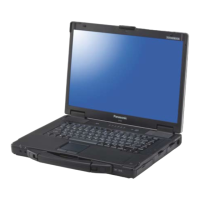
Panasonic CF-74 Series - User Manual

Panasonic CF-74 Series
32 pages
Print Icon
To Next Page IconTo Next Page
Loading...
Please read these instructions carefully before using this product and save this manual for future use.
Contents
Getting Started
Useful Information
Troubleshooting
Getting StartedUseful InformationTroubleshootingAppendix
Appendix
OPERATING INSTRUCTIONS
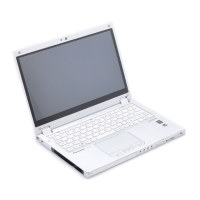
Personal Computer
Model No. CF-74 series
Introduction.................................................2
Read Me First ..............................................3
Description of Parts .......................................9
First-time Operation .....................................11
On-screen Manual.......................................13
Handling and Maintenance.............................14
Hard Disk Backup Function ............................16
Hard Disk Data Erase Utility ...........................19
Reinstalling Software....................................20
Error Code/Message ....................................22
Troubleshooting (Basic) ................................23
LIMITED USE LICENSE AGREEMENT..............26
Contrat de licence d’usage limité ......................27
Specifications ............................................28
LIMITED WARRANTY ..................................30
For further information about the com-
puter, you can refer to the on-screen
manual.
To access the on-screen manual
Î page 13 “On-screen Manual”
CF-74MK2_X_E_OI_XA.book 1 206年月1日 曜日 午前時1

Other manuals for Panasonic CF-74 Series

Questions and Answers

  • C
    Caitlin DawsonAug 17, 2025
    What to do if Panasonic CF-74 cannot enter hibernation?
    • R
      Ronald GrantAug 18, 2025
      To troubleshoot why your Panasonic Laptop won't enter standby or hibernation: * Temporarily remove USB devices and restart the computer, allowing one or two minutes. * Note that the computer may not enter standby while communicating via modem. * Also, the computer needs approximately one minute after resuming to enter standby or hibernation. * If a disc formatted using B’s CLiP is in the CD/DVD drive, remove the disc.
  • C
    Chad Hayes MDAug 20, 2025
    Why volume control not working on Panasonic CF-74 Laptop?
    • M
      Matthew BarnettAug 20, 2025
      If you cannot change the volume on your Panasonic Laptop using Fn+F5 or Fn+F6, make sure the Windows sound function is active. The volume will not change if it is inactive, even if the volume display appears.
  • S
    Samantha MccormickAug 22, 2025
    What to do if the sensor does not enroll or authenticate my fingerprint on my Panasonic CF-74 Laptop?
    • M
      margaret48Aug 22, 2025
      If the sensor on your Panasonic Laptop fails to enroll or authenticate your fingerprint, ensure you slide your finger correctly. Try washing or drying your hands, or use a different finger for registration or authentication. If your skin is rough or dry, apply hand cream. Also, try cleaning the fingerprint sensor.
  • A
    Albert PetersenAug 25, 2025
    What to do if I lost “My Safe” backup password on my Panasonic Laptop?
    • V
      Vincent WestAug 26, 2025
      If you've lost your “My Safe” backup password on your Panasonic Laptop, you will need to: 1. Unlock “My Safe”. 2. Copy the data from “My Safe” to another folder. 3. Delete “My Safe” from “My Safe” settings. 4. Create a new “My Safe” and define a new “My Safe” backup password.
  • C
    Carl CrossAug 27, 2025
    What to do if I cannot use enrolled finger (e.g. injury) on my Panasonic Laptop?
    • M
      Michael Buckley DDSAug 28, 2025
      If you cannot use an enrolled finger on your Panasonic Laptop, and you have enrolled multiple fingers, use another finger. If you only enrolled one finger, use the “Enroll or Edit Fingerprints” wizard to enroll additional fingerprints. If you do not use “Advanced Security”, you can log in using your Windows password. If you use “Advanced Security” with a backup password, use the backup password. If you use “Advanced Security” without a backup password, either wait until your finger is usable again, or delete the passport (using the “Delete” wizard) and re-enroll new fingerprints.
  • C
    christina85Aug 30, 2025
    What happens when accessing “My Safe” after computer crash on my Panasonic CF-74?
    • D
      Donald HernandezAug 30, 2025
      If you have an exported passport for your Panasonic Laptop, import it to access “My Safe” directly using fingerprints. Otherwise, you can access “My Safe” using the “My Safe” backup password.
  • E
    efergusonSep 1, 2025
    How to fix TPM failure on my Panasonic CF-74?
    • A
      Alejandro GillSep 1, 2025
      If you use “Advanced Security” with TPM (Trusted Platform Module) on your Panasonic Laptop, and the TPM is broken, erased, or disabled, follow these steps: 1. Enter the “Enroll or Edit Fingerprints” wizard using the backup password. 2. Disable “Advanced Security” and finish. 3. After the TPM is repaired and enabled (or if you only erased its contents), enter the “Enroll or Edit Fingerprints” wizard again using your finger and re-enable “Advanced Security” with TPM.
  • M
    Mitchell BrownSep 4, 2025
    What happens when accessing “My Safe” after Protector Suite QL uninstallation on my Panasonic CF-74 Laptop?
    • W
      William TurnerSep 4, 2025
      “My Safe” data on your Panasonic Laptop can only be accessed using Protector Suite QL. If you accidentally uninstalled Protector Suite QL, you must reinstall it.
  • G
    griffinkimberlySep 6, 2025
    How to remove data from the reader on my Panasonic CF-74?
    • A
      Adrienne HarrisSep 6, 2025
      To remove data from the reader on your Panasonic Laptop, go to the “Delete” passport wizard and delete existing passports.
  • K
    Kayla DaySep 9, 2025
    Why my Panasonic CF-74 Laptop doesn't resume?
    • D
      Donald PorterSep 9, 2025
      The computer might not resume if the power was forcibly turned off by pressing and holding the power button for four seconds or longer, which results in data loss. Also, disconnecting the AC adapter and battery during standby will prevent resuming and cause data loss. Low battery can also prevent resuming, as standby and hibernation consume power.

Summary

Getting Started

Introduction

Provides an overview and important notes for using the Panasonic computer.

Read Me First

Contains crucial information regarding FCC regulations, safety warnings, and model-specific notices.

Description of Parts

Identifies and explains the various external components and ports of the computer.

First-time Operation

Guides users through initial setup, including battery insertion, power connection, and Windows setup.

Useful Information

On-screen Manual

Explains how to access the Reference Manual and Important Tips on the computer.

Handling and Maintenance

Provides guidelines for operating environment, handling cautions, and cleaning the computer.

Hard Disk Backup Function

Details how to create a backup area and perform data backup/restore on the hard disk.

Hard Disk Data Erase Utility

Explains how to securely erase all data from the hard disk before disposal or transfer.

Reinstalling Software

Guides users on how to reinstall the operating system and software to the default condition.

Troubleshooting

Error Code;Message

Lists common error codes and messages with their corresponding solutions.

Troubleshooting (Basic)

Provides basic troubleshooting steps for common startup and operational issues.

Appendix

LIMITED USE LICENSE AGREEMENT

Outlines the terms and conditions for using the software programs included with the product.

Specifications

Lists the detailed technical specifications of the computer hardware and components.

LIMITED WARRANTY

Details the warranty terms, coverage, and limitations for the computer product and accessories.

Panasonic CF-74 Series Specifications

General IconGeneral
ProcessorIntel Core 2 Duo
RAMUp to 4GB DDR2
Operating SystemWindows XP Professional
WirelessBluetooth
Optical DriveDVD Super Multi

Related product manuals