EasyManua.ls Logo

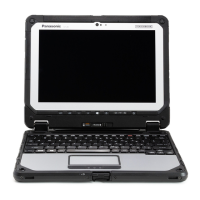
Panasonic CF-C2 series - User Manual

Panasonic CF-C2 series
48 pages
Print Icon
To Next Page IconTo Next Page
Loading...
Contents
OPERATING INSTRUCTIONS
Personal Computer
Model No.
CF-C2
series
Introduction ...............................................................
12
Description of Parts ..................................................
14
First-time Operation ..................................................
18
Turning On / Turning Off ...........................................
21
Useful Information
Handling and Maintenance .......................................
22
Installing Software ....................................................
27
Troubleshooting
Troubleshooting (Basic) ............................................
31
Appendix
LIMITED USE LICENSE AGREEMENT ...................
36
Speci cations ...........................................................
38
LIMITED WARRANTY ..............................................
42
Please read these instructions carefully before using this product, and save this manual for future use.
Getting Started
Useful Information
Troubleshooting
Appendix Read Me First
Getting Started
Safety Precautions .....................................................
2
Regulatory Information ...............................................
6
Read Me First

Questions and Answers

  • J
    joseph97Sep 23, 2025
    Why does the battery indicator light briefly on my Panasonic CF-C2 Laptop?
    • J
      Jeffrey BurkeSep 23, 2025
      When the battery is fully charged and the computer is not operating (i.e., it is turned off or in sleep mode), the power supply from the AC adaptor stops and power consumption is inhibited. In such cases, the indicator will light green upon connecting the AC adaptor, but only for a moment.
  • T
    Tina CastanedaAug 23, 2025
    How to fix a Panasonic CF-C2 Laptop that cannot start, and the power indicator is off?
    • H
      Heather BradfordAug 25, 2025
      To potentially resolve the issue, try the following: * Connect the AC adaptor. * Insert a fully charged battery. * Remove the battery pack and the AC adaptor, then connect them again. * If a device is connected to the USB port, disconnect the device, or set [USB Port] or [Legacy USB Support] to [Disable] in the [Advanced] menu of the Setup Utility. * If a device is connected to the ExpressCard slot, disconnect the device, or set [ExpressCard Slot] to [Disable] in the [Advanced] menu of the Setup Utility. * Press Fn + F8 to turn off the concealed mode. * Check the [UEFI Boot] setting of the Setup Utility. [UEFI Boot] should be set to [Enabled] / [Disabled].
  • L
    Linda StevensAug 25, 2025
    What to do if my Panasonic CF-C2 Windows does not shut down?
    • C
      Christine MartinezAug 26, 2025
      Here are some steps you can take: * Remove the USB device and the ExpressCard. * Wait one or two minutes. It is not a malfunction.
  • X
    xreeseAug 26, 2025
    How to troubleshoot no display on my Panasonic CF-C2 Laptop?
    • R
      Richard ArmstrongAug 27, 2025
      To resolve this: * Press Fn + F3 or key + P to switch the display. Wait until the display has been switched completely before pressing Fn + F3 or key + P again. * When using an external display: * Check the cable connection. * Turn on the display. * Check the settings of external display. * The display is turned off by the power-saving function. To resume, do not press the direct selection keys, but press any other key like Ctrl. * The computer entered sleep or hibernation by the power-saving function. To resume, press the power switch.
  • D
    Debra WheelerAug 27, 2025
    What to do if 'Remove disks or other media' appears on my Panasonic Laptop?
    • D
      Diane GarciaAug 27, 2025
      If you see this message, it might be due to: * A floppy disk is in the drive and it does not contain system startup information. Remove the floppy disk and press any key. * If a device is connected to the USB port, disconnect the device, or set [USB Port] or [Legacy USB Support] to [Disable] in the [Advanced] menu of the Setup Utility. * If a device is connected to the ExpressCard slot, disconnect the device, or set [ExpressCard Slot] to [Disable] in the [Advanced] menu of the Setup Utility. If the problem persists after removing the disk, it may be a hard disk failure. Contact Panasonic Technical Support.
  • M
    Mitchell FernandezSep 18, 2025
    What to do if the Windows 8 recovery disc isn't working on my Panasonic CF-C2?
    • C
      christina35Sep 18, 2025
      To resolve this, perform recovery using the recovery disc for Windows 7 first, and then perform recovery using the recovery disc for Windows 8.
  • B
    Brian MaddenSep 13, 2025
    What causes my Panasonic CF-C2 Laptop to fail to resume?
    • S
      Sandy PeckSep 13, 2025
      To resolve this, the following may have occurred. Data not saved will be lost. * In sleep mode, the AC adaptor or battery pack was disconnected, or a peripheral was connected or disconnected. * The power switch was slid for four seconds or longer to forcibly turn off the computer. * An error may occur when the computer automatically enters the sleep or hibernation mode while the screensaver is active. In this case, turn off the screensaver or change the pattern of the screensaver.
  • T
    thomascalhounSep 14, 2025
    What to do if I cannot log on to Windows on my Panasonic CF-C2?
    • K
      kduncanSep 15, 2025
      To resolve the issue: * The user name (account name) includes an “@” mark. * If another user account name exists: Log on to Windows using another user account name, and delete the account name that includes “@”. Then create a new account name. * If no other account name exists: You need to reinstall Windows.
  • A
    Antonio WilliamsSep 5, 2025
    Why does the password input screen reappear on my Panasonic Laptop?
    • A
      amcdonaldSep 5, 2025
      To resolve this: * The computer may be in ten-key mode. If the NumLk indicator lights, press NumLk to disable the ten-key mode, and then input. * The computer may be in Caps Lock mode. If the Caps Lock indicator lights, press Caps Lock to disable the Caps Lock mode, and then input.
  • C
    Cassandra MossSep 3, 2025
    What to do if my Panasonic CF-C2 Laptop shows “Warming up the system”?
    • A
      Anthony YorkSep 3, 2025
      To resolve this, the computer should be in an environment of 5 °C or higher temperature for about an hour, then turn on the power again.

Summary

Read Me First

Safety Precautions

Essential safety guidelines for product usage, handling, and potential hazards.

Regulatory and Compliance Information

Compliance statements, FCC/IC regulations, and safety advisories for various wireless and regional standards.

Getting Started

Introduction and Manual Conventions

Welcome message, overview of manual conventions, and product trademarks.

Accessing Manuals and Tips

Guidance on accessing on-screen manuals, reference materials, and battery optimization tips.

Device Components and Handling

Identification of computer parts, display modes, pen attachment, and hand strap usage.

Initial Setup and Power Management

Step-by-step guide for initial setup, connecting power, turning the device on/off, and basic configuration.

Useful Information

Handling, Maintenance, and Disposal

Guidelines for operating environment, handling precautions, cleaning, and computer disposal procedures.

Software Installation and System Recovery

Procedures for installing software, performing hard disk recovery, and managing operating system versions.

Troubleshooting

Basic Troubleshooting Procedures

Solutions for common startup issues, password problems, display errors, and connectivity problems.

Appendix

Software License Agreement

Legal terms and conditions for software usage and licensing.

Technical Specifications

Detailed technical specifications for hardware components, wireless capabilities, and software configurations.

Warranty Information

Warranty terms and conditions for hardware, software, and accessories in different regions (USA, Canada).

Panasonic CF-C2 series Specifications

General IconGeneral
Resolution1366 x 768
RAM4GB
Storage500GB HDD
Display12.5-inch
GraphicsIntel HD Graphics
Operating SystemWindows 7 Professional
Battery LifeUp to 11 hours
TouchscreenYes
ConvertibleYes
Battery6-cell
WirelessWi-Fi 802.11a/b/g/n
PortsVGA, Ethernet, SD card

Related product manuals