EasyManua.ls Logo

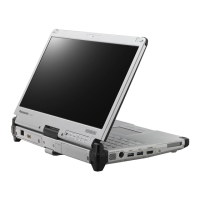
Panasonic CF-C2 series - User Manual

Panasonic CF-C2 series
48 pages
Print Icon
To Next Page IconTo Next Page
Loading...
Contents
OPERATING INSTRUCTIONS
Personal Computer
Model No.
CF-C2
series
Introduction ...............................................................
12
Description of Parts ..................................................
14
First-time Operation ..................................................
18
Turning On / Turning Off ...........................................
21
Useful Information
Handling and Maintenance .......................................
22
Installing Software ....................................................
27
Troubleshooting
Troubleshooting (Basic) ............................................
31
Appendix
LIMITED USE LICENSE AGREEMENT ...................
36
Specifi cations ...........................................................
38
LIMITED WARRANTY ..............................................
42
Please read these instructions carefully before using this product, and save this manual for future use.
Getting Started
Useful Information
Troubleshooting
Appendix Read Me First
Getting Started
Safety Precautions .....................................................
2
Regulatory Information ...............................................
6
Read Me First

Questions and Answers

  • E
    Elizabeth HallSep 7, 2025
    Why is one of the screens disordered during simultaneous display on my Panasonic Laptop?
    • T
      Theodore GarciaSep 7, 2025
      To address this issue: * When using the Extended Desktop, use the same display colors for the external display as those used by the LCD. If you continue to experience problems, try changing the display. Right-click on the desktop, and click [Graphics Properties...] - [Display]. * Simultaneous display cannot be used until Windows startup is complete (during Setup Utility, etc.).
  • N
    Nicole YoungAug 22, 2025
    Why does the external display not work normally with my Panasonic CF-C2 Laptop?
    • J
      jeremy28Aug 22, 2025
      If the external display does not support the power saving function, it may not work normally when the computer enters the power saving mode. Turn off the external display.
  • F
    fchanSep 4, 2025
    Why is the screen disordered on my Panasonic CF-C2 Laptop?
    • W
      webermeganSep 4, 2025
      To resolve the issue when the display is disordered: * Changing the number of display colors and resolution may affect the screen. Restart the computer. * Connecting/disconnecting an external display may affect the screen. Restart the computer. Under factory default settings, the brightness of the display screen will adjust automatically based on the ambient light detected by the ambient light sensor. You can adjust the settings for this sensor.
  • C
    Cassandra MossSep 3, 2025
    What to do if my Panasonic CF-C2 Laptop shows “Warming up the system”?
    • A
      Anthony YorkSep 3, 2025
      To resolve this, the computer should be in an environment of 5 °C or higher temperature for about an hour, then turn on the power again.
  • T
    Thomas RyanSep 1, 2025
    What should I do if my Panasonic CF-C2 won't turn on or resume from sleep?
    • J
      Janet WilliamsSep 2, 2025
      To resolve this issue, the computer should be in an environment of 5 °C or higher temperature for about an hour, then turn on the power again.
  • R
    rebekahhooverAug 31, 2025
    Why is my Panasonic CF-C2 Laptop Windows startup and operation slow?
    • R
      Randall WallaceAug 31, 2025
      To address slow Windows performance on your Panasonic Laptop: * Press F9 in the Setup Utility to return the Setup Utility settings (excluding the passwords) to the default values. Start the Setup Utility and make the settings again. (Note that the processing speed depends on the application software, so this procedure may not make Windows faster.) * If you installed a resident software after purchase, turn off the residence.
  • K
    kennethhallAug 30, 2025
    How to brighten a dark screen on a Panasonic CF-C2 Laptop?
    • K
      karenhughesAug 30, 2025
      To fix a dark screen on your Panasonic Laptop: * The screen is darker when the AC adaptor is not connected. Press Fn + F2 and adjust the brightness. As you increase the brightness, battery consumption increases. * You can separately set the brightness for when the AC adaptor is connected and when not connected. * Press Fn + F8 to turn off the concealed mode.
  • E
    Emily ConwayAug 28, 2025
    How to resolve network connection issues on a Panasonic Laptop?
    • H
      Hunter MullenAug 28, 2025
      Try the following: * Slide the wireless switch to turn on the wireless devices. * Set the device ([Wireless LAN] / [Bluetooth] / [Wireless WAN] of [Wireless Configuration]) to [Enabled] in the [Advanced] menu of the Setup Utility (Wireless Configuration). * Click [Charm] - [Change PC Settings] - [Wireless]. Set [Airplane mode] to [Off], and then; set [Wi-Fi] in “Wireless device” to [On] (for wireless LAN). set [Mobile broadband] in “Wireless device” to [On] (for wireless WAN). set [Bluetooth] in “Wireless device” to [On] (for Bluetooth).
  • D
    Debra WheelerAug 27, 2025
    What to do if 'Remove disks or other media' appears on my Panasonic Laptop?
    • D
      Diane GarciaAug 27, 2025
      If you see this message, it might be due to: * A floppy disk is in the drive and it does not contain system startup information. Remove the floppy disk and press any key. * If a device is connected to the USB port, disconnect the device, or set [USB Port] or [Legacy USB Support] to [Disable] in the [Advanced] menu of the Setup Utility. * If a device is connected to the ExpressCard slot, disconnect the device, or set [ExpressCard Slot] to [Disable] in the [Advanced] menu of the Setup Utility. If the problem persists after removing the disk, it may be a hard disk failure. Contact Panasonic Technical Support.
  • X
    xreeseAug 26, 2025
    How to troubleshoot no display on my Panasonic CF-C2 Laptop?
    • R
      Richard ArmstrongAug 27, 2025
      To resolve this: * Press Fn + F3 or key + P to switch the display. Wait until the display has been switched completely before pressing Fn + F3 or key + P again. * When using an external display: * Check the cable connection. * Turn on the display. * Check the settings of external display. * The display is turned off by the power-saving function. To resume, do not press the direct selection keys, but press any other key like Ctrl. * The computer entered sleep or hibernation by the power-saving function. To resume, press the power switch.

Summary

Read Me First

Safety Precautions

Essential safety guidelines for product usage, handling, and potential hazards.

Regulatory and Compliance Information

Compliance statements, FCC/IC regulations, and safety advisories for various wireless and regional standards.

Getting Started

Introduction and Manual Conventions

Welcome message, overview of manual conventions, and product trademarks.

Accessing Manuals and Tips

Guidance on accessing on-screen manuals, reference materials, and battery optimization tips.

Device Components and Handling

Identification of computer parts, display modes, pen attachment, and hand strap usage.

Initial Setup and Power Management

Step-by-step guide for initial setup, connecting power, turning the device on/off, and basic configuration.

Useful Information

Handling, Maintenance, and Disposal

Guidelines for operating environment, handling precautions, cleaning, and computer disposal procedures.

Software Installation and System Recovery

Procedures for installing software, performing hard disk recovery, and managing operating system versions.

Troubleshooting

Basic Troubleshooting Procedures

Solutions for common startup issues, password problems, display errors, and connectivity problems.

Appendix

Software License Agreement

Legal terms and conditions for software usage and licensing.

Technical Specifications

Detailed technical specifications for hardware components, wireless capabilities, and software configurations.

Warranty Information

Warranty terms and conditions for hardware, software, and accessories in different regions (USA, Canada).

Panasonic CF-C2 series Specifications

General IconGeneral
Resolution1366 x 768
RAM4GB
Storage500GB HDD
Display12.5-inch
GraphicsIntel HD Graphics
Operating SystemWindows 7 Professional
Battery LifeUp to 11 hours
TouchscreenYes
ConvertibleYes
Battery6-cell
WirelessWi-Fi 802.11a/b/g/n
PortsVGA, Ethernet, SD card

Related product manuals