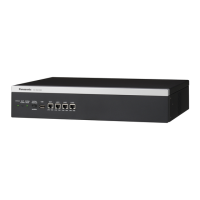
Starting the P2 Streaming Server Web Application
1. Open Google Chrome.
2. Access “http://[IP address of P2SS]/p2ssweb”.
Replace the part “[IP address of P2SS]” with the IP
address of P2SS.
(Example: http://192.168.0.1/p2ssweb)
Or
Open P2 Streaming Server Software by double clicking
shortcut on the desktop
3. The default User ID and Password are as follows:
User ID: Admin
Password: Admin (Case Sensitive)
Adding Source in Local Mode
P2SS allows streaming of Locally available sources via Local
mode of the software. Below instructions will help define a
locally available source.
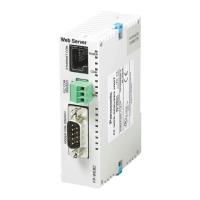
1. From the P2SS Camera List, Click on Add button to add
a new local source
2. Enter items described below, and than click [OK].
• Type: P2, AW, Other
• P2: P2 Camera
• AW: Panasonic AW PTZ camera
• Other: Other RTSP transmission
• Name: Define Camera Name
• Host Name: IP address of the camera
• Control ID: User ID for control
• Control Password: Password for control
• RTSP Port:
• HTTP Port:
• Protocol: Select RTSP Port
• Description:
Setting IP Address
As a default, P2SS is set to work with DHCP. Please set a Static IP address by
following below steps:
1. Open Network and Sharing Center from Control Panel.
2. Click on “Change adapter settings” on the left pane.
3. Right click on the suitable Local Area Connection to open properties.
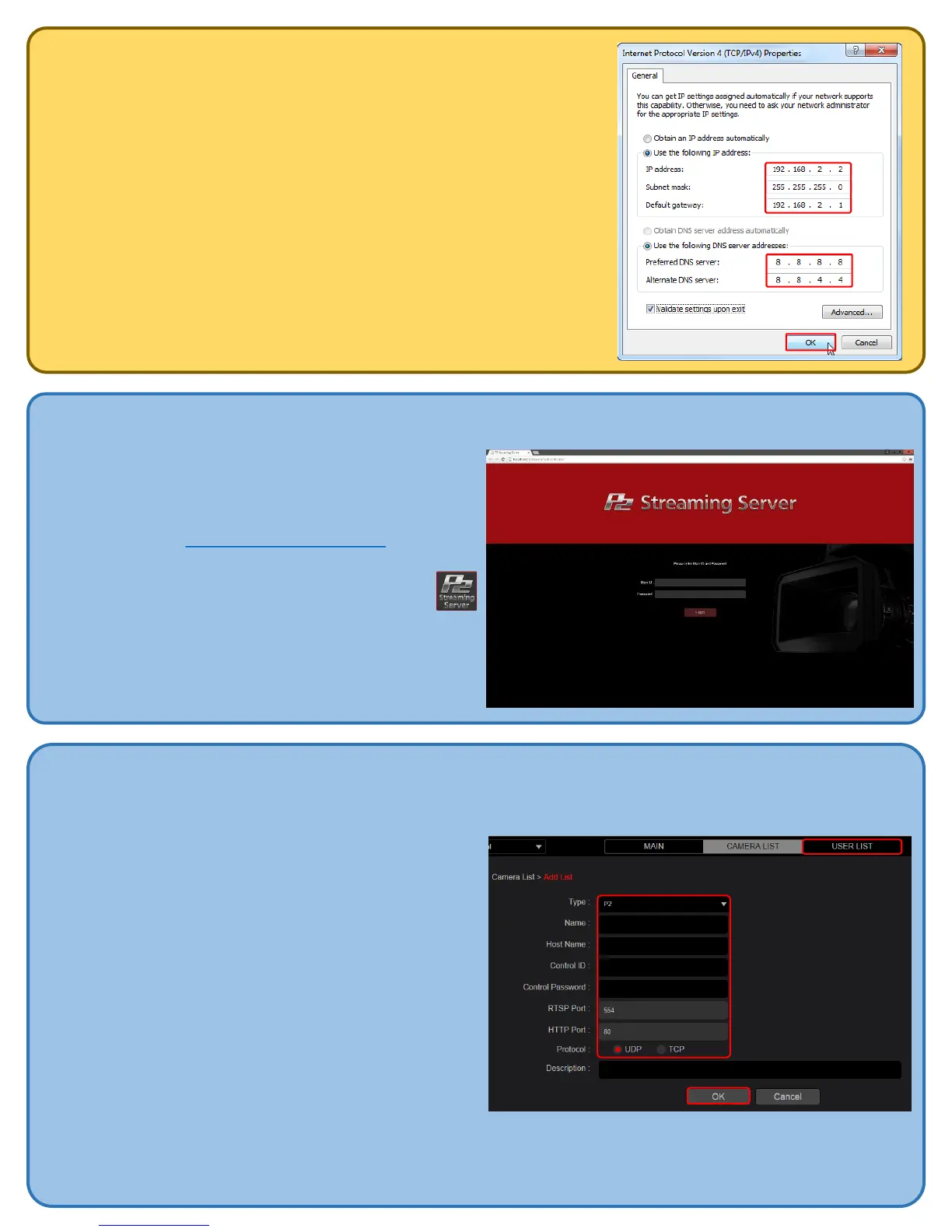
4. Select “Internet Protocol Version 4 (TCP/IPv4) than click on Properties.
5. Select “Use the following IP address and enter IP address, Subnet Mask
and Default Gateway
6. Select “Use the following DNS Server addresses:” than enter preferred
DNS server & Alternate DNS server if available.
7. Click Ok
8. Close the LAN Area Connection Properties.











 To Next Page