EasyManua.ls Logo

Panasonic SC-PT953 - User Manual

Panasonic SC-PT953
44 pages
Print Icon
To Next Page IconTo Next Page
Loading...
RQTX0064-3P
P PC
Operating Instructions
DVD Home Theater Sound System
Model No. SC-PT950
SC-PT1050
SC-PT953
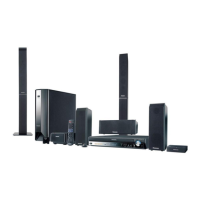
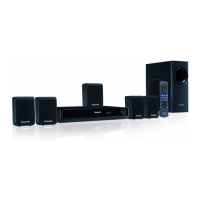
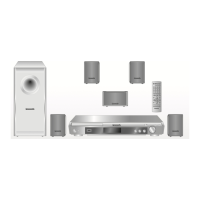
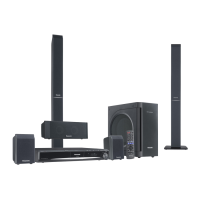
The illustration shows SC-PT950.
PX
Region number
The player plays DVD-Video marked with labels containing the region
number “1” or “ALL”.
Example:
§
For Canada only: The word “Participant” is used in place of the word
“Partner”.
Before connecting, operating or adjusting this product, please
read the instructions completely.
Please keep this manual for future reference.
If you have any questions contact
In the U.S.A.: 1-800-211-PANA (7262)
In Canada: 1-800-561-5505
1 ALL
2
4
1
As an ENERGY STAR Partner,
Panasonic has determined that
this product meets the ENERGY STAR
guidelines for energy efficiency.
®
®
[U.S.A.[and[Canada[
Wireless surround
speakers
[PT1050]
Wireless subwoofer
5
High-quality picture
HDMI capability, Advanced
progressive scan and more.
7
XM
®
Satellite Radio
Enjoy a variety of digital radio
channels.
30
0064 En_p01-02.fm Page 1 Monday, March 26, 2007 12:51 PM

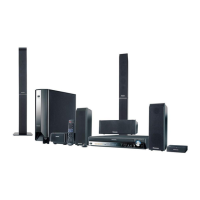
Table of Contents

Questions and Answers

  • S
    Scott MckinneySep 9, 2025
    Why does my Panasonic Home Theater System display “XM RADIO”?
    • C
      Colton MorseSep 9, 2025
      If the Panasonic Home Theater System displays “XM RADIO”, it takes a short time for the XM radio to power up after turning on the main unit. Wait a few seconds for this process to complete.
  • T
    thomasbauerSep 7, 2025
    What does “U70?” mean on my Panasonic Home Theater System?
    • R
      Robert SmithSep 7, 2025
      If your Panasonic Home Theater System displays “U70?”, it indicates the HDMI connection acts unusually. Use HDMI cables that have the HDMI logo. The connected equipment may not be HDMI-compatible, the HDMI cable might be too long, or the HDMI cable could be damaged.
  • P
    Pamela HamptonAug 22, 2025
    Why is my Panasonic SC-PT953 Home Theater System remote not working?
    • D
      Danielle HerreraAug 22, 2025
      If the Panasonic Home Theater System remote control is not responding, check if the batteries are installed correctly. If they are, replace them with new ones. Also, make sure to aim the remote control at the remote control signal sensor during operation.
  • W
    William MartinezSep 5, 2025
    Why does my Panasonic Home Theater System automatically turn off?
    • W
      wallmeganSep 5, 2025
      If the Panasonic Home Theater System is automatically switching to standby mode, the Sleep timer was working and had reached the set time limit.
  • S
    Steven CarrSep 4, 2025
    What does “NO MIC” mean on Panasonic SC-PT953 Home Theater System?
    • M
      Morgan WuSep 4, 2025
      If your Panasonic Home Theater System displays “NO MIC”, ensure that the setup microphone is properly connected to the SETUP MIC terminal.
  • B
    bradleyjodiSep 2, 2025
    How to brighten the display on Panasonic SC-PT953?
    • H
      heather14Sep 3, 2025
      If the display of your Panasonic Home Theater System is dark, select “Bright” in “FL Dimmer” in the “Others” menu.
  • L
    Lauren MyersSep 1, 2025
    Why is the picture on my TV not displaying correctly with Panasonic SC-PT953?
    • S
      Susan KingSep 1, 2025
      If the picture on the television connected to your Panasonic Home Theater System is not displayed correctly or disappears, ensure that the unit is connected directly to the television, and not through a video cassette recorder. Move the television antenna wire away from the unit. If you are using an indoor television antenna, change to an outdoor antenna. If you are using the COMPONENT VIDEO OUT terminal, press and hold [CANCEL] until the picture is displayed correctly. (The output will return to '480i'.)
  • C
    Carol DunlapAug 31, 2025
    Why does my Panasonic Home Theater System say “NOPLAY”?
    • J
      James SkinnerAug 31, 2025
      If your Panasonic Home Theater System displays “NOPLAY”, it could be due to several reasons: you inserted a disc the unit cannot play, you inserted a blank disc, or you inserted a disc that has not been finalized. Insert a disc that the unit can play.
  • C
    Caleb SolomonAug 30, 2025
    Why is there no picture or sound from my Panasonic Home Theater System?
    • I
      ismithAug 30, 2025
      If there is no picture or sound from your Panasonic Home Theater System, check the video or speaker connections. Check the power or input setting of the connected equipment and the main unit. Also, verify that the disc has something recorded on it.
  • B
    bryceskinnerAug 28, 2025
    What does “DVD H??” or “DVD F???” mean on Panasonic SC-PT953?
    • M
      Mike SimpsonAug 28, 2025
      If your Panasonic Home Theater System displays “DVD H??” or “DVD F???” an unspecified trouble may have occurred. Turn the unit off and then back on. Alternatively, turn the unit off, disconnect the AC power supply cord, and then reconnect it.

Summary

Assembling Front Speakers

Speaker Assembly Options

Guidance on threading speaker cables and attaching speakers securely to bases or stands.

Preventing Speakers from Falling

Safety instructions for securing speakers to walls or pillars to prevent tipping.

Speaker Positioning

Placement Examples

Diagrams illustrating optimal placement for various system components like speakers and the main unit.

Wireless System Positioning

Guidelines for placing the wireless system and avoiding interference with other devices.

Speaker Usage Notes

Important advice on using supplied speakers and warnings about high volume levels.

Speaker Installation Options

Instructions for fitting speaker stands and attaching speakers to walls.

Cable Connections

Audio and Video Connections

Details on connecting audio and video sources like TV, VCR, and component video.

Speaker and Wireless System Connections

Guidance on connecting speakers to the main unit and linking the wireless system.

Radio Antenna Connections

Instructions for connecting FM and AM antennas to the main unit.

Digital Transmitter Connection

Connecting Outdoor Antennas

Optional setup for improving FM/AM reception using outdoor antennas.

iPod Connection

Connecting and Charging iPod

Steps for connecting an iPod to the main unit and initiating charging.

AC Cord Connections

Remote Control Setup

Inserting Batteries

Instructions for correctly inserting batteries into the remote control.

Performing Quick Setup

Control Reference Guide

Main Unit Controls

Overview of buttons and indicators on the main unit for operation.

Television Operation with Remote

How to use the remote control to operate connected televisions.

Remote Control Mode Settings

Adjusting remote control modes to avoid interference with other equipment.

Playable Discs

Commercial Disc Compatibility

Information on commercial DVD-Video, Video CD, and CD formats supported.

Recorded Disc Compatibility

Details on playback compatibility for recorded discs like DVD-RAM, DVD-R/RW, and CD-R/RW.

Disc Handling Precautions

Essential guidelines for handling discs to prevent damage or playback issues.

Data Disc Creation Tips

Naming Folders and Files

Recommendations for naming files and folders for optimal playback of data discs.

Maintenance

Cleaning Discs

Instructions on how to properly clean discs for optimal performance.

Cleaning the Unit

Guidance on how to clean the main unit using a soft, dry cloth.

Basic Playback

Using the Main Unit for Playback

Steps for turning on the unit, selecting discs, and starting playback.

Remote Control Operations

Basic Playback Controls

Explanation of remote buttons for play, stop, pause, skip, and search functions.

Disc Menu Navigation

How to use the remote to navigate disc menus, playlists, and programs.

Main Unit Display Information

Understanding information displayed on the main unit during playback.

Convenient Functions

Sequential CD Playback

Enables sequential playback of multiple music CDs.

Repeat Playback

Options for repeating a track, chapter, or the entire disc.

Checking and Selecting Discs

How to view disc information and select a specific disc for playback.

Displaying Playback Status

Shows current playback condition, title, chapter, and elapsed time.

Program and Random Playback

Program Playback

Allows programming up to 32 items for playback in a specific order.

Random Playback

Enables playback of items in a random order.

Data Disc Navigation Menus

Navigating Submenus

Using the FUNCTIONS button to access and select submenu items.

Playing Items in Order

How to play items sequentially using the playback menu.

Searching Content Titles

Locating specific content or group titles within data discs.

CD Text Track Selection

Selecting individual tracks from discs that display CD Text information.

Advanced Disc Playback

Playing HighMAT Discs

Instructions for navigating and playing HighMAT formatted discs.

Playing DVD-VR Programs

Accessing and playing recorded programs from DVD-VR discs.

Playing DVD-VR Playlists

Selecting and playing playlists recorded on DVD-VR discs.

On-Screen Menu Operations

Main Menu Navigation

Selecting and navigating through the main menu options.

Number Selection

Using numbered buttons to select items or enter values.

Thumbnail Display

Showing thumbnail images for JPEG content on screen.

Subtitle Settings

Adjusting subtitle display options like language and position.

Slideshow and Other Settings

Configuring slideshow timing and other miscellaneous settings.

Changing Player Settings

Disc Menu Configuration

Setting audio language, subtitle language, menu language, and ratings.

Video Settings

Adjusting TV aspect, type, time delay, still mode, and black level.

Audio Settings

Configuring Dolby Digital, DTS, dynamic range, and speaker settings.

HDMI and Display Settings

Managing HDMI output, RGB range, video mode, and display options.

Speaker Delay Time Adjustment

Others Menu Options

Adjusting FL dimmer and re-initializing setup settings.

Adjusting Speaker Delay

Setting speaker delay times for optimal surround sound based on room dimensions.

EZ Sync HDAVI Control Features

One Touch Play Function

Starting playback of discs and TV simultaneously with one button.

Auto Input Switching

Automatically switching the system's input source based on TV activity.

Speaker Output Control

Selecting between home theater and TV speakers for audio output.

Power Off Link

Automatically putting the home theater system into standby when the TV is turned off.

TV Remote Control Operation

Controlling the home theater system's disc menus using the TV remote.

FM;AM Radio Operation

Noise Reduction

Using MONO mode to reduce noise during FM reception.

Manual Tuning

Manually tuning to FM or AM radio stations.

Automatic Station Presets

Automatically scanning and storing available radio stations.

Selecting Preset Channels

Choosing stored radio stations using the numbered buttons.

FM Frequency Step Adjustment

Changing the FM tuning step for reception in different regions.

XM Satellite Radio

Activation and Setup

Confirming the XM Satellite Radio ID and preparing for service activation.

Signal Reception Optimization

Using the signal strength indicator to optimize XM reception.

Channel Selection Methods

Selecting XM channels by direct entry, category, or preset channels.

Channel Information Display

Changing the display to show channel number, artist, song title, or category.

Sound Effects and Adjustment

Center Focus Enhancement

Making center speaker sound appear to come from the television.

Stereo Sound Enhancement

Using Dolby Pro Logic II or Super Surround for enhanced stereo sound.

Equalizer Function

Selecting sound quality presets like FLAT, HEAVY, CLEAR, or SOFT.

Surround Music Mode

Enjoying sound from all speakers for an immersive surround effect.

Subwoofer Level Adjustment

Adjusting the bass level for the subwoofer from 1 (weakest) to 4 (strongest).

Speaker Level and Sound Optimization

Speaker Level Adjustments

Manually adjusting volume levels for individual speakers for optimal surround effects.

Auto Speaker Setup

Automatically calibrating speaker balance and volume using a setup microphone.

H.BASS Bass Enhancement

Enhancing low-frequency sound for clearer heavy bass.

Surround Enhancer Effect

Automatically adjusting speakers to enhance surround sound effect.

External Audio Sources

Audio from Television

Connecting and enjoying audio from a television through the AUX input.

Music Port Input

Connecting external audio devices like MP3 players to the Music Port.

iPod Playback

Playing audio content from an iPod connected to the unit.

External Digital Input

Connecting cable TV boxes, digital broadcasting, or satellite receivers.

Glossary

Technical Terms Definitions

Definitions of technical terms used in the manual, such as HDMI, Dolby Digital, JPEG.

Product Service and Information

Service Requirements

Conditions requiring service and procedures for obtaining repairs.

Product Support Contact

Information on contacting customer service for assistance or product information.

Troubleshooting Guide

Power and Display Issues

Solutions for problems related to power, unit display, and no response.

Operational and Remote Control Issues

Troubleshooting steps for general operation, remote control response, and interference.

Playback and Sound Problems

Resolving issues with disc playback, distorted sound, humming, or no sound.

Picture and iPod Issues

Solutions for picture display problems and iPod connectivity issues.

Connectivity and Video Issues

Addressing HDMI, radio, wireless, and television display related problems.

XM Satellite Radio Advisory Messages

Antenna Status Indicators

Interpreting flashing messages related to antenna connection and status.

Signal and Update Messages

Understanding messages regarding signal strength, updates, and loading.

Subscription and Channel Issues

Resolving problems related to service activation, expired subscriptions, and channel availability.

Specifications

Amplifier and Video Specifications

Technical details for amplifier sections and video output capabilities.

Subwoofer and Tuner Specifications

Specifications for the subwoofer and FM/AM tuner sections.

General and Disc Specifications

Overall system specifications, including power, dimensions, and disc formats.

Speaker System Specifications

Detailed specifications for front, center, and surround speaker units.

General System Specifications

Overall system power, consumption, operating conditions, and wireless module specs.

Wireless and Transmitter Specifications

Technical details for the wireless system and digital transmitter components.

Limited Warranty (U.S.A.)

Warranty Coverage Details

Information on what is covered under the limited warranty, parts, and labor.

Customer Service and Accessory Info

How to obtain product information, dealers, parts, and accessories.

Limited Warranty (Canada)

Warranty Limitations and Exclusions

Details on warranty exclusions, limitations, and non-covered issues.

Warranty Service Contact

Contact information for product operation assistance and repair services.

Accessories

Supplied Accessories List

List of accessories included with the product and their part numbers.

Important Safety and Disposal Notes

Safety precautions for installation and environmentally friendly disposal.

Panasonic SC-PT953 Specifications

General IconGeneral
TypeHome Theater System
Total Power Output1000 W
Speaker Configuration5.1
DVD PlayerYes
HDMI Output1
USB PortYes
BluetoothNo
Playback mediaDVD, CD, USB
Optical Digital Input1
System Type5.1 Channel
DVD Player CompatibilityDVD-R/RW, DVD+R/RW, CD, CD-R/RW
Audio formats supportedDolby Digital, DTS

Related product manuals