EasyManua.ls Logo

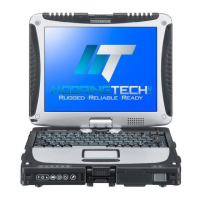
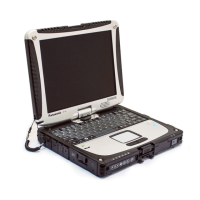
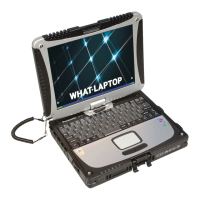
Panasonic Toughbook CF-19KHRAG2M - User Manual

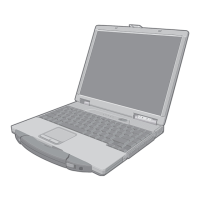
Panasonic Toughbook CF-19KHRAG2M
36 pages
Print Icon
To Next Page IconTo Next Page
Loading...
Contents
Getting Started
OPERATING INSTRUCTIONS
Personal Computer
Model No.
CF-19
series
Introduction .................................................................
2
Read Me First .............................................................
3
Description of Parts ....................................................
9
First-time Operation ..................................................
12
Useful Information
On-screen Manual ....................................................
19
Handling and Maintenance .......................................
21
Reinstalling Software ................................................
23
Troubleshooting
Troubleshooting (Basic) ............................................
25
Appendix
LIMITED USE LICENSE AGREEMENT ...................
29
Specifi cations ...........................................................
30
Please read these instructions carefully before using this product and save this manual for future use.
For further information about the com-
puter, you can refer to the on-screen
manual.
To access the on-screen manual
page 19 “On-screen Manual”
Getting StartedUseful InformationTroubleshootingAppendix

CF-19CTQZZBM.indb 1CF-19CTQZZBM.indb 1 6/15/2009 2:10:20 PM6/15/2009 2:10:20 PM

Other manuals for Panasonic Toughbook CF-19KHRAG2M

Questions and Answers

  • L
    Larry AshleyAug 17, 2025
    Why my Panasonic Laptop will not automatically enter sleep/hibernation?
    • A
      Anna LittleAug 17, 2025
      If your Panasonic Laptop is not automatically entering sleep or hibernation, ensure you've configured access point settings if you're connected to a network via wireless LAN. If you are not using wireless LAN, disable the wireless LAN function. Also, ensure that you are not running any software that regularly accesses the hard disk.
  • C
    Colin PerezAug 20, 2025
    How to fix Panasonic Toughbook CF-19KHRAG2M that won't shut down?
    • S
      Suzanne HarveyAug 20, 2025
      If your Panasonic Laptop will not shut down or restart, try removing any connected USB devices. Shutdown may take one or two minutes.
  • J
    John NelsonAug 23, 2025
    What to do if my Panasonic Toughbook CF-19KHRAG2M cannot enter sleep or hibernation?
    • D
      Denise FrancisAug 23, 2025
      If your Panasonic Laptop is unable to enter sleep or hibernation, try temporarily removing any USB devices. If the issue continues, restart your computer. Remember that it might take a minute or two to enter sleep or hibernation. Also, the computer might not enter sleep mode if it's communicating via modem, or immediately after resuming.
  • A
    Aaron RomeroAug 26, 2025
    Why my Panasonic Toughbook CF-19KHRAG2M cannot enter sleep or hibernation automatically?
    • A
      Alicia YoungAug 26, 2025
      To resolve the issue of your Panasonic Laptop not automatically entering sleep or hibernation, disconnect any peripheral devices.
  • J
    Jordan AndersonAug 28, 2025
    What to do if Panasonic Toughbook CF-19KHRAG2M Laptop Accessories sensor does not recognize fingerprint?
    • V
      vrobinsonAug 28, 2025
      If the sensor on your Panasonic Laptop Accessories isn't recognizing your fingerprint, there might be a few reasons. Ensure you slide your finger correctly. Your finger may be too rough, dry, wet with water or sweat, or soiled with mud or oil. Try washing and drying your hands or cleaning the fingerprint sensor. If your skin is extremely dry, use hand cream. If your fingerprint has faded, consider registering or authenticating with a different finger.
  • J
    James HolmesAug 31, 2025
    What to do if I can't use my enrolled finger on Panasonic Laptop Accessories?
    • M
      maldonadojenniferAug 31, 2025
      If you can't use an enrolled finger on your Panasonic Laptop Accessories (e.g., due to injury), and you only enrolled one finger, enroll additional fingerprints using the “Enroll or Edit Fingerprints” wizard. If you enrolled multiple fingers, simply use another finger. You may also try logging on to Windows as an Administrator, or updating the enrolled fingerprints.
  • R
    robinsonethanSep 2, 2025
    Why is the TPM failing on my Panasonic Toughbook CF-19KHRAG2M Laptop Accessories?
    • J
      Jared PhillipsSep 3, 2025
      A TPM failure on your Panasonic Laptop Accessories may occur if the TPM is broken, erased, or disabled. If you do not use the “Advanced Security” backup password, follow the “Starting Over” instructions. If you use the “Advanced Security” backup password, follow these steps: Enter the “Enroll or Edit Fingerprints” wizard using the backup password and disable “Advanced Security” and finish.
  • G
    Gina BarkerSep 5, 2025
    What happens when replacing the sensor on Panasonic Toughbook CF-19KHRAG2M Accessories?
    • S
      Shannon BrooksSep 6, 2025
      When replacing the sensor on your Panasonic Laptop Accessories, if enrollment to hard disk is used, “Protector Suite QL” has not stored any data on the device, so there is no problem to continue after you replaced the sensor. If the fingerprint has been enrolled to the device, a new passport will be required.
  • J
    James BellSep 8, 2025
    What to do if I can't access “My Safe” after uninstalling Protector Suite QL on Panasonic Toughbook CF-19KHRAG2M Laptop Accessories?
    • M
      Mario WheelerSep 8, 2025
      If you accidentally uninstalled Protector Suite QL on your Panasonic Laptop Accessories and can't access “My Safe”, reinstall it.
  • S
    Scott GuzmanSep 12, 2025
    How to back up “My Safe” data file on Panasonic Laptop Accessories?
    • S
      Stacey AndersonSep 12, 2025
      To back up your “My Safe” data file on your Panasonic Laptop Accessories, use the Quick Backup/Complete Backup functions in Recover Pro and back up each data.

Summary

Getting Started

Introduction

Welcome message and initial safety and performance guidelines for the computer.

Read Me First

Crucial safety warnings, compliance declarations, and important product information.

Precautions

Detailed safety guidelines and warnings for safe operation and handling of the computer.

First-time Operation

Step-by-step guide for initial setup, including battery insertion and system configuration.

Useful Information

On-screen Manual

Instructions on accessing the Reference Manual and Important Tips on the computer screen.

Handling and Maintenance

Guidelines for optimal operation environment, careful handling, and cleaning procedures.

Reinstalling Software

Procedures for restoring the computer to its default condition by reinstalling software.

Troubleshooting

Troubleshooting (Basic)

Solutions for common problems related to starting up, resuming, and shutting down the computer.

Appendix

LIMITED USE LICENSE AGREEMENT

Legal terms and conditions governing the use of software programs provided with the Panasonic product.

Specifications

Detailed technical specifications of the computer, including hardware, software, and operating parameters.

Panasonic Toughbook CF-19KHRAG2M Specifications

General IconGeneral
ModelCF-19KHRAG2M
ProcessorIntel Core i5
RAM4 GB
Resolution1024 x 768
Operating SystemWindows 7 Professional
Display10.4" Touchscreen
GraphicsIntel HD Graphics
WirelessWi-Fi 802.11 a/b/g/n
WaterproofIP65
ShockproofMIL-STD-810G
DustproofIP65

Related product manuals