How to Use Menu Functions
35
Menu
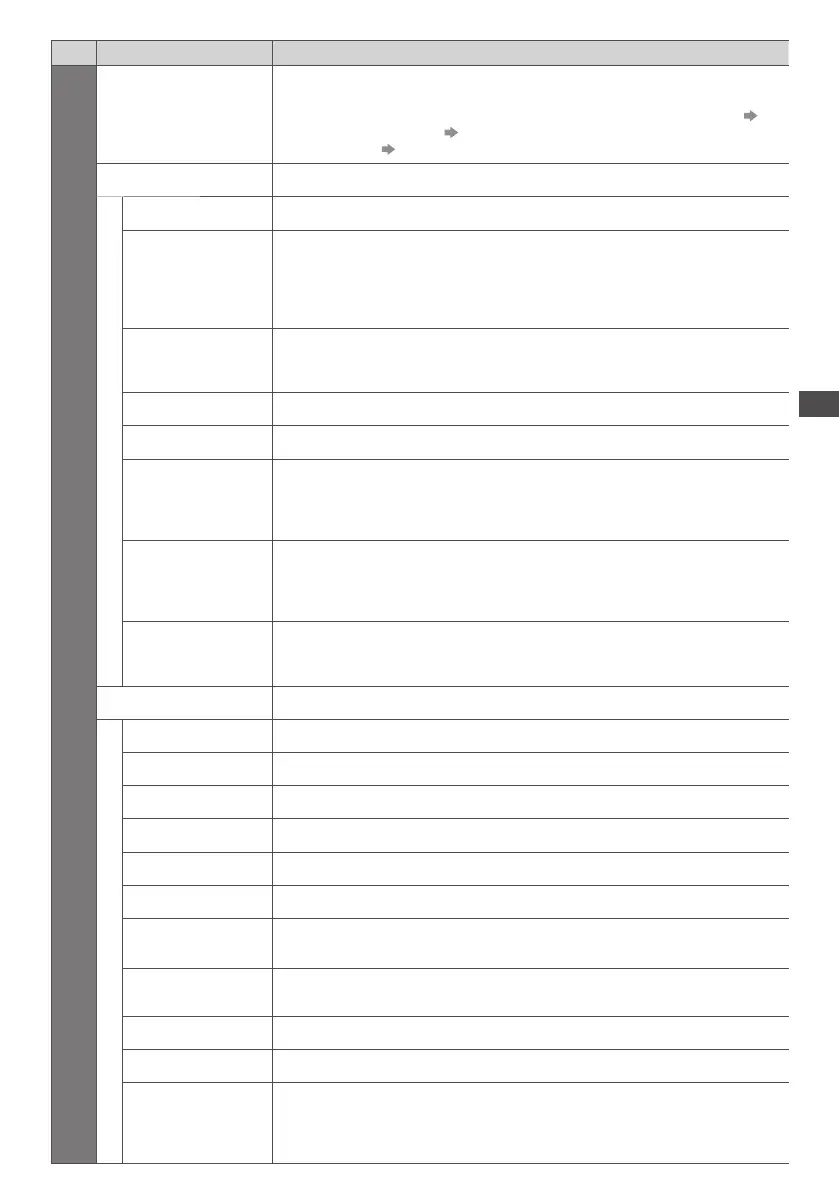
Item Adjustments / Configurations (alternatives)
Setup
Eco Navigation
Automatically sets the TV to the most suitable energy-saving mode
•
If you press the OK button, the following items are set as below :
[Eco Mode], [VIERA Link], [Power off Link], [Standby Power Save], [Power Save] [On]
[Intelligent Auto Standby] [On (No reminder)]
[Auto Standby] [2 hours]
Recording Setup F ormats the connected USB HDD and sets the condition (p. 55)
Link Settings
VIERA Link Sets to use VIERA Link functions [Off] / [On] (p.85)
HDMI Content Type
Adjusts the picture settings according to the content type signal from the connected
equipment via HDMI cable [Off] / [Auto]
•
T his function is available if the connected equipment supports HDMI Content Type.
•
T he content type information will be displayed for several seconds when this function
works.
AV1 out
C hooses the signal to be transmitted from the TV to Q-Link [TV] / [AV2] / [Monitor]
[Monitor] : Image displayed on screen
•
C omponent and HDMI signals cannot be output.
Power on Link Sets to use Power on Link function [Off] / [On] (p.84,85)
Power off Link Sets to use Power off Link function [Off] / [On] (p.84,85)
Standby Power Save
C ontrols the power consumption in Standby mode of the conne
cted equipment to
reduce the consumption [Off] / [On] (p.86)
•
T his function is available when [VIERA Link] is set to [On] and [Power off Link] is set
to [On].
Intelligent Auto
Standby
M akes non-watched or non-used connected equipment go into Standby mode to
reduce the powe
r consumption
[Off] / [On (With reminder)] / [On (No reminder)] (p.86)
•
T his function is available when [VIERA Link] is set to [On].
Download
D ownloads channel, language, country / region settings to a Q-Link or VIERALink
compatible equipment connected to the TV
•
DVB-C channel settings cannot be downloaded.
Child Lock L ocks a channel / AV input to prevent access to it (p.47)
DVB-C Tuning Menu
Favourites Edit Creates list of favourite DVB-C channels (p.40)
Channel List Skips the unwanted DVB-C channels or edits DVB-C channels (p.41)
Auto Setup Automatically sets the DVB-C channels supplied (p.38)
Manual Tuning Sets the DVB-C channels manually (p.42)
Update Channel List U pdates DVB-C Channel List while keepin
g your settings (p.42)
Favourite Network Selects your favourite network for each broadcasters (only available in some countries)
New Channel
Message
Selects whether to give a notification message when a new DVB-C channel
is found
[Off] / [On] (p.42)
Service Replacement
Set to [On] to enable a message to switch to the available service (only available in
some countries) [Off] / [On]
Signal Condition C hecks the DVB-C signal condition (p.42)
Attenuator Autom
atically reduces the DVB-C signal to avoid the interference [Off] / [On] (p.42)
Add TV Signal
Adds the TV mode
•
T his function is available if you skip any modes to tune in [Auto Setup] for first using
the TV.
•
T o operate, refer to the “Auto Setup” operations for first using the TV (p.13,14).






 To Next Page