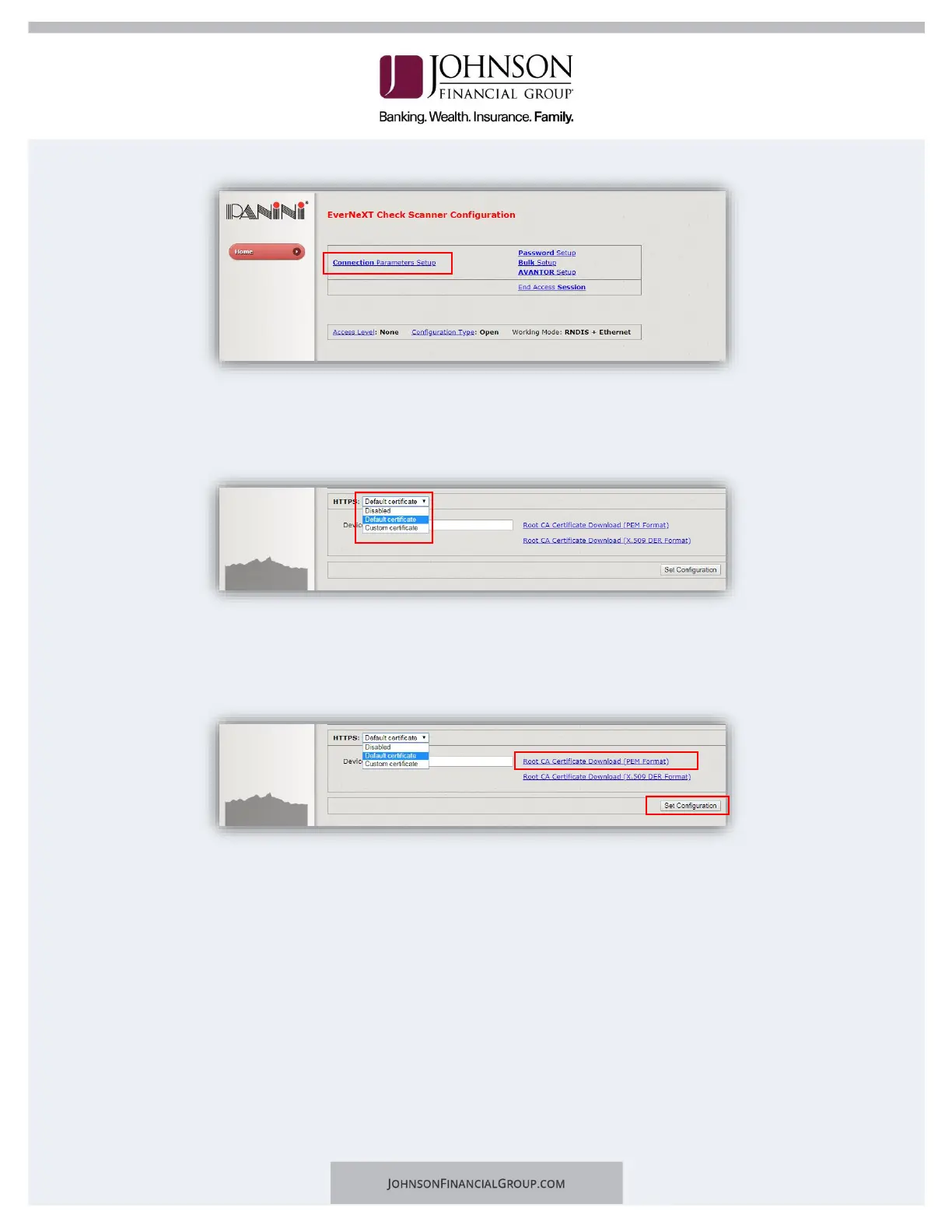
c. Click Next.
d. Scroll to the bottom of the page.
e. Next to HTTPS: verify Default Certificate is selected.
f. Type “evernext” in the field for device name.
4. Download Root Certificate
a. Click on the Root CA Certificate (PEM Format) link.
b. After the Certificate has been downloaded, click Set Configuration.
5. Reboot the scanner by clicking the Reboot button. Leave the scanner plugged in.
a. The LCD panel will turn orange and tell you it is rebooting. It will then go from
green to blue and is now finished.
b. Close the browser.
6. Keychain Access
a. Click Go in the menu bar at the top of the screen. Select Utilities from the
dropdown.


 To Next Page