Need help?
Do you have a question about the Panini mI:Deal and is the answer not in the manual?
Connect the scanner, review system requirements, and download the Panini ml:Deal Setup.exe.
Run the setup wizard, finalize installation, and configure HTTPS settings for the scanner.
Reboot the scanner, then register it within the DepositPartner system.
Scan and deposit checks using the installed Panini ml:Deal scanner.
Connect the scanner and navigate to the Panini homepage via web browser.
Handle security warnings in Firefox or Chrome to access the Panini homepage.
Configure HTTPS, download the root certificate, and set it to 'Always Trust'.
Log in to DepositPartner, navigate to registration, and register the Panini ml:Deal scanner.
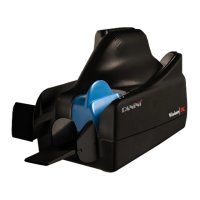
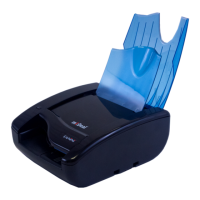
The Panini ml:Deal is a check scanner designed to facilitate the process of depositing checks electronically. This device is an integral part of a system that allows users to scan checks and submit them via a web-based platform, such as DepositPartner. The installation guide provides comprehensive instructions for setting up the scanner on both Windows and Mac operating systems, ensuring broad compatibility for users.
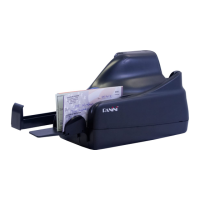
The primary function of the Panini ml:Deal is to capture images and data from paper checks for electronic deposit. When a check is inserted into the scanner, it processes the document, capturing front and back images, as well as magnetic ink character recognition (MICR) data, which includes the bank routing number, account number, and check number. This data is then transmitted to a designated online platform, such as DepositPartner, for processing. The scanner is designed to streamline the check deposit workflow, reducing the need for physical trips to the bank and accelerating funds availability. It supports remote deposit capture, making it a valuable tool for businesses and individuals who handle a volume of checks. The device integrates with a web interface, accessible via a local IP address, which allows for configuration and status monitoring. This interface enables users to manage various settings, including connection parameters and security protocols, ensuring secure and efficient operation. The scanner's ability to handle multiple checks sequentially enhances productivity, allowing for batch processing of deposits.
The Panini ml:Deal offers several user-friendly features that simplify its operation. The physical connection involves a USB cable for data transfer to the computer and a power cable for electrical supply. The scanner is equipped with blue flaps that need to be open during operation, and a light indicator provides visual feedback on its status (e.g., solid orange for ready). The installation process is guided by an InstallShield Wizard on Windows, making it straightforward for users to set up the necessary software. For both Windows and Mac users, accessing the scanner's homepage through a web browser (e.g., Safari, Google Chrome, Firefox) is a key step for configuration. This web interface allows users to adjust settings, such as enabling HTTPS for secure communication, which is crucial for protecting sensitive financial data. The device supports various network configurations, including RNDIS + Ethernet, providing flexibility in how it connects to the network.
Once installed and configured, the scanner is registered with the online deposit platform (e.g., DepositPartner). This registration typically involves selecting the scanner type and entering its host name (e.g., 192.168.4.1). The process is designed to be intuitive, guiding users through steps like clicking "Registration" and "Re-Register" tabs on the platform. The scanner's web interface also includes options for firmware updates, status checks, and scan configuration, giving users control over the device's performance. The "Start Scan" button on the web interface initiates the scanning process, making it easy to begin depositing checks. The device is designed for continuous operation, allowing users to scan and deposit checks efficiently once the initial setup is complete. In case of network issues or configuration changes, the scanner can be rebooted via the web interface, which helps in resolving minor operational glitches.
Maintenance of the Panini ml:Deal primarily involves software updates and ensuring secure communication. The device's web interface provides access to firmware updates, which are essential for keeping the scanner's software current and ensuring optimal performance and security. Users are advised to regularly check for and apply these updates to benefit from the latest features and security enhancements. Security is a significant aspect of the scanner's maintenance, particularly the management of certificates. For users accessing the scanner's homepage via HTTP, enabling HTTPS is a critical step to secure data transmission. This involves selecting "Default Certificate" in the configuration settings and, for Mac users, downloading and trusting the Root CA Certificate. The process of managing certificates, including adding exceptions in web browsers like Firefox or Chrome, is detailed in the installation guide to ensure secure connections.
For Mac users, the Keychain Access utility plays a vital role in managing the scanner's security certificates. Users are guided to open Keychain Access, locate the Panini Certification Authority certificate, and configure its trust settings to "Always Trust." This step is crucial for preventing browser warnings about insecure connections and ensuring smooth operation. The guide also outlines the process of entering computer credentials to update certificate trust settings, reinforcing the importance of administrative rights for security-related maintenance. In the event of operational issues, the scanner's light indicator provides visual cues, such as flashing from orange to red, which can help in diagnosing problems. Rebooting the scanner, as instructed in the guide, is a common troubleshooting step that can resolve many temporary issues. For more complex problems or if the homepage does not open, users are directed to contact Treasury Management Support, indicating that professional assistance is available for maintenance and troubleshooting. The comprehensive nature of the installation and configuration guide itself serves as a maintenance resource, providing clear steps for setting up and securing the device.
 General
| Feeder Capacity | Up to 100 documents |
|---|---|
| Resolution | 300 dpi |
| Interface | USB 2.0 |
| Document Feeder | Yes |
| Optical Resolution | 300 dpi |
| Scan Speed | Up to 60 documents per minute |
| Operating System | Windows |
| Output Formats | JPEG, TIFF |
| Supported Document Sizes | A4, A5, A6, B5, B6, Business Card, ID Card |

 To Next Page