* Download the drivers from: http://www.parblo.com/support.
* Open the driver file, please install “Displaylink Driver” firstly and the Graphic
Monitor will display after you installed it. Then, please install the "Digitizer Driver"
and go to the next step: Driver Setting.
(Notes: There are two drivers for Parblo Coast10 Graphic Monitor, one is Digitizer
Driver and the other is Diaplaylink Driver. If you are the computer users of Windows
XP, please go to www.displaylink.com to download the newest Displaylink Driver.)
Windows System:
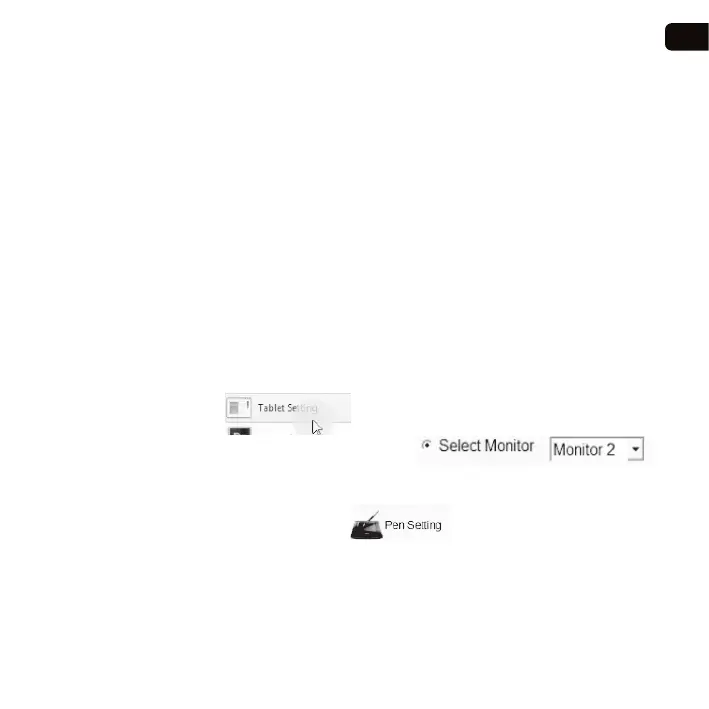
* Find “Tablet Setting” in the start stray and go to “Mapping” ,
and then choose “Monitor 2” in “Select Monitor”.
If you have three monitors, please choose “Moniitor3” and click “Calibration” to
do pen calibation.
* Afterwards, please go to “Pen Setting” and use the pen to draw in
the “Try Here” area. If it has pen pressure, it means the driver installed successfully.
You can also adjust the pressure sensitivity through the turntablet in the bottom
right corner.
EN
2. Drive installation
3. Driver Setting


 To Next Page