Cleaning Cloth
Artist Glove
8
Quick Start Guide Warranty Card
QUICK START GUIDE
WARRANTY CARD
Before installing and using this product, please read the following precautions
carefully:
1. Compatibility:
Windows 7, 8 and 10,Mac OS X 10.11 and above(If your computer operating system
is lower than the above version, please upgrade firstly in order not to aect the
usage.)
2. Instructions Before Installation
1 Disable any anti-virus software and firewall temporarily.
2 Close other computer software that has been opened, such as Photoshop,
SAI, Oice software, etc.
3 Please uninstall any other driver if the computer has installed the driver for
any other graphic tablet or monitor and restart the computer.
1. Connection
Please select a suitable connection method according to your computer port. After
the successful connection, the Coast16 Pro will display the computer homepage.
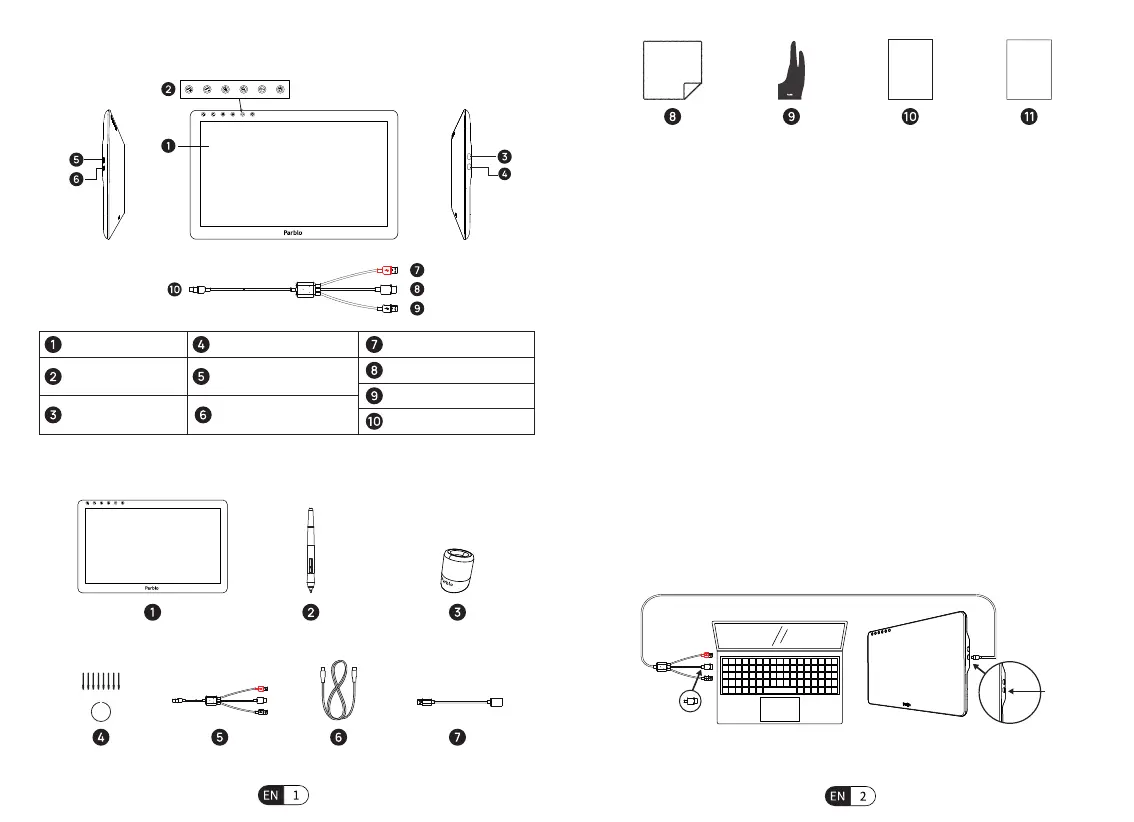
Method 1:Use the 3-in-1 USBC data cable to connect the pen display with the
computer (Connect the "HDMI connector and two USB connectors" with the
computer’s HDMI and USB Ports, Connect another USB Type-C connector with the
HDMI Port of the Pen Display)
3. PRECAUTIONS FOR USE
4. INSTALLATION GUIDE
Notice:When the computer cannot supply suicient power to the pen display, it
needs an external power supply. You can use the power extension cable to connect
it with the power adapter of the mobile phone to oer power to the pen display.
HDMI
HDMI
P10 Passive Pen
H01 Pen Holder
Coast16 Pro
8 Replacement Nibs
and Nib Removal Tool
1. OVERVIEW
2. PACKAGE CONTENTS
3-in-1 USBC
data cable
Full-featured
USBC cable
USB power
extension cable
Display/active area
Capacitive touch
shortcut keys
Full-featured USB
Type-C port
HDMI input port
OSD menu key
Power buon/indicator light
Red USB port (power supply)
HDMI
Black USB port (transfer data)
Type-C



 To Next Page