(2)When you meet issues with Coast16 Pro, you can find a solution from the FAQ
on the Parblo support page.
(3)Check for the updated driver of Coast16 Pro driver: support.parblo.com
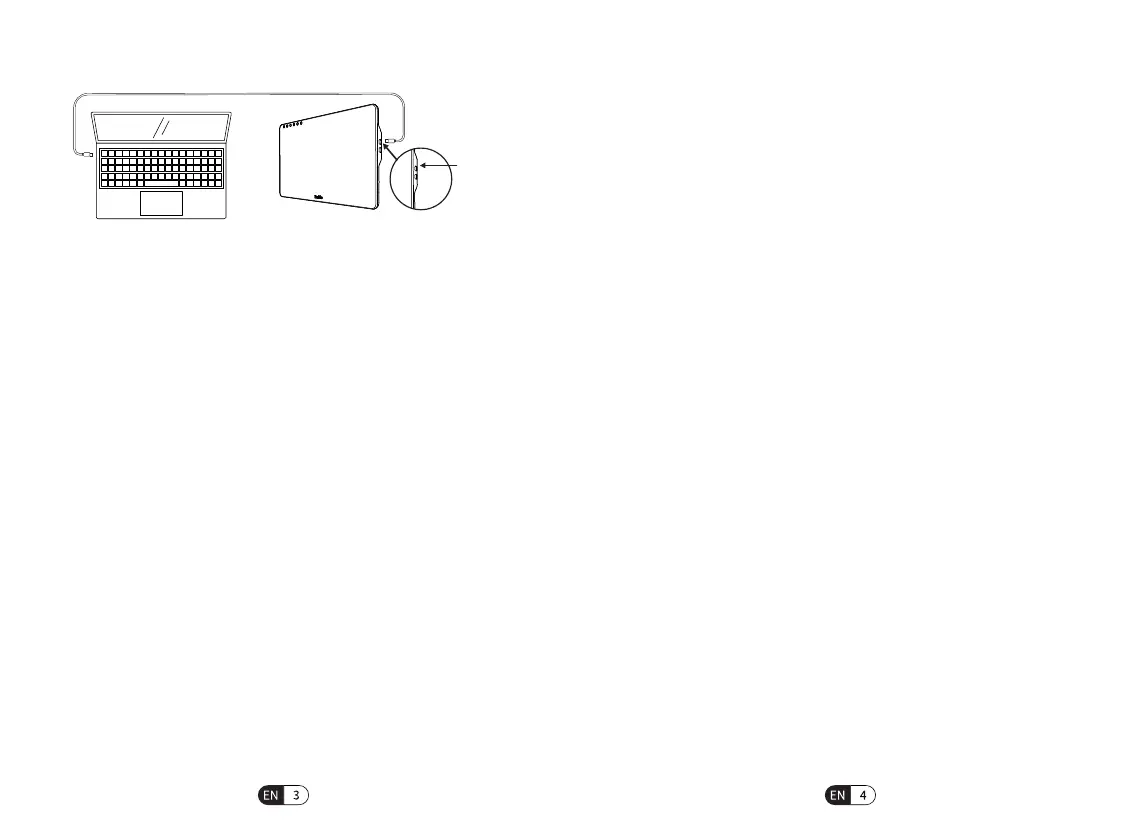
Method 2:Use the "Full-featured USBC Cable" to connect with the Type-C port of
the computer and pen display.(Suitable for computers with full-featured ports that
support USB3.1 and above protocols)
2. Windows Driver Installation
(
1
)Driver download and installation: Download the latest driver from Parblo oicial
website (support.parblo.com), unzip the package after downloading, and then
double-click the ".exe" file to complete the installation according to the instructions.
(2)After the driver is installed, you can see the small driver icon in the taskbar at
the right corner of the computer desktop. If you cannot see the icon, please
reinstall the driver.
(3)Right-click on desktop and select “Display seings”. Use the slider to
“change the size of text, app, and other items”. It might be set to 100%.
(4)Under the“Multiple displays”section, you can set the Coast16 Pro to be
“Duplicate these displays”or“Extend these displays”.
(5)If set it to be“Extend these displays”, please set the resolution of the
Coast16 Pro to“1920*1080”, and set the handwriting control area to the
Coast16 Pro in the driver seing interface.
3. Mac Driver Installation
(
1
)Driver download and installation: Download the latest driver from Parblo
oicial website (support.parblo.com), unzip the file package after
downloading, and then double-click the“.pkg”file to complete the
installation according to the instructions.
(2)If your computer system is Mac OS X 10.14 and above, please follow the
operating instructions for security seings. After installation, the driver
can be opened for normal use (for versions below Mac OS 10.14, please
ignore this step).
(3)After the driver installation is complete, click the computer
“System Preferences > Displays”, and set the resolution of the Coast16 Pro
to the default value of 1920*1080 in the display window.
(4)Click "Arrangement" at the top under the "System Preferences > Displays"
page, you can select "Mirror Displays" or choose the extended desktop
according to your needs.
TYPE-C
(
1
)Visit the Parblo support page (support.parblo.com) to get the latest drivers,
user manuals, and FAQs.
5. CUSTOMER SUPPORT



 To Next Page