B. Hold the Function button while simultaneously pressing either the Left Stick Button (LSB) or
Right Stick Button (RSB), then releasing. The Function LED will start blinking purple to indicate it
is in calibration mode.
C. Rotate the selected Analog Stick 3 times in full 360º circles then release to the idle center
position.
D. Press the Function button to complete the calibration. The LED will stop blinking.
E. Recalibrating the controller’s sticks can also be done through the Victrix Control Hub app,
available on your console or PC in the Microsoft Store.
12. Adjusting Audio Settings:
A. To adjust the game volume, hold down the “Function” button and press Up/Down on the D-pad.
B. To adjust the Game/Chat balance, hold down the "Function" button and press Left/Right on the
D-pad.
C. Cycle through different audio mode profiles by holding down the “Function” button and
pressing LB/RB. The LED on the “Function” button will cycle between Purple (Pure Audio), Blue
(Bass Boost), or Green (Treble Boost) to indicate the profile.
D. To mute your microphone, press the “Function” button twice; the LED will illuminate Amber.
E. You can make additional audio adjustments with the Victrix Control Hub app, available on your
console or PC in the Microsoft Store.
13. Dolby Atmos:
The Pro BFG controller comes with a lifetime subscription for Dolby Atmos for spatial, surround sound
gaming.
A. After connecting your Pro BFG controller to the Xbox console (in Wired or Wireless mode), there
will be a popup on the bottom of your screen informing you that Dolby Atmos is available and to
hold the Xbox button to activate in settings.
B. Follow the instructions on screen to complete the set up.
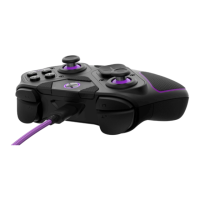
14. Changing the Analog Stick Caps:


 To Next Page