5.4 Menu Description
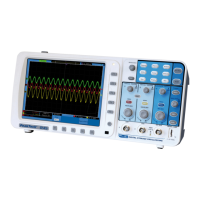
The following example shows how to use the tool’s menus to select a function, as shown in the following figure.
1.) Press the MENU key to display the Function Menu on the right of the screen and the corresponding optional
settings on the bottom. Press MENU again will hide the Function Menu.
2.) Press the MENU ▲ or MENU ▼ key to select different function menus.
3.) Choose one key from F1 to F5 and press it to change function setting.
See the following figure 5:
Figure 5: the Tool’s Menus
5.5. Manually Setting the Vertical System, Horizontal System and Trigger Position
5.5.1. Setting the Vertical System
To set the vertical position of channel:
1.) The key ▲ (red) and ▼ (red) (near “Vertical ZERO”) can be used to adjust the vertical position of channel; the
relevant information will be displayed at the left bottom of the screen.
2.) The key ▲ (red) and ▼ (red) (near “Channel Setting”) can be used to adjust the voltage scale of channel; the
relevant information will be displayed at the left bottom of the screen.
Note:
Press VERTICAL ZERO (red) key to set the vertical position of channel to zero.
-73-


 To Next Page