10 11
This option allows you to review or present to an officer during a roadside inspection the
log detail for a single day including a daily HOS recap, company and terminal location,
24-hour period starting time, vehicle number and starting or ending odometer, trailer
number, co-driver, time and location of each duty status change, miles traveled, override
miles and co-driver prior to certification.
This option allows you to record the time of pre-, inter-, post- and DOT inspections.
Check with your safety manager to see whether paper documentation is still required.
This information will appear in your log detail for the day.
These options allow you to enter shipping or trailer information. This information
appears in your log detail for the day and should be updated as it changes.
These options allow you to enter citation information or remarks that you want to appear
in your log. Use the Remark option to add any additional notes you want to appear in your
daily log such as weather or traffic delays.
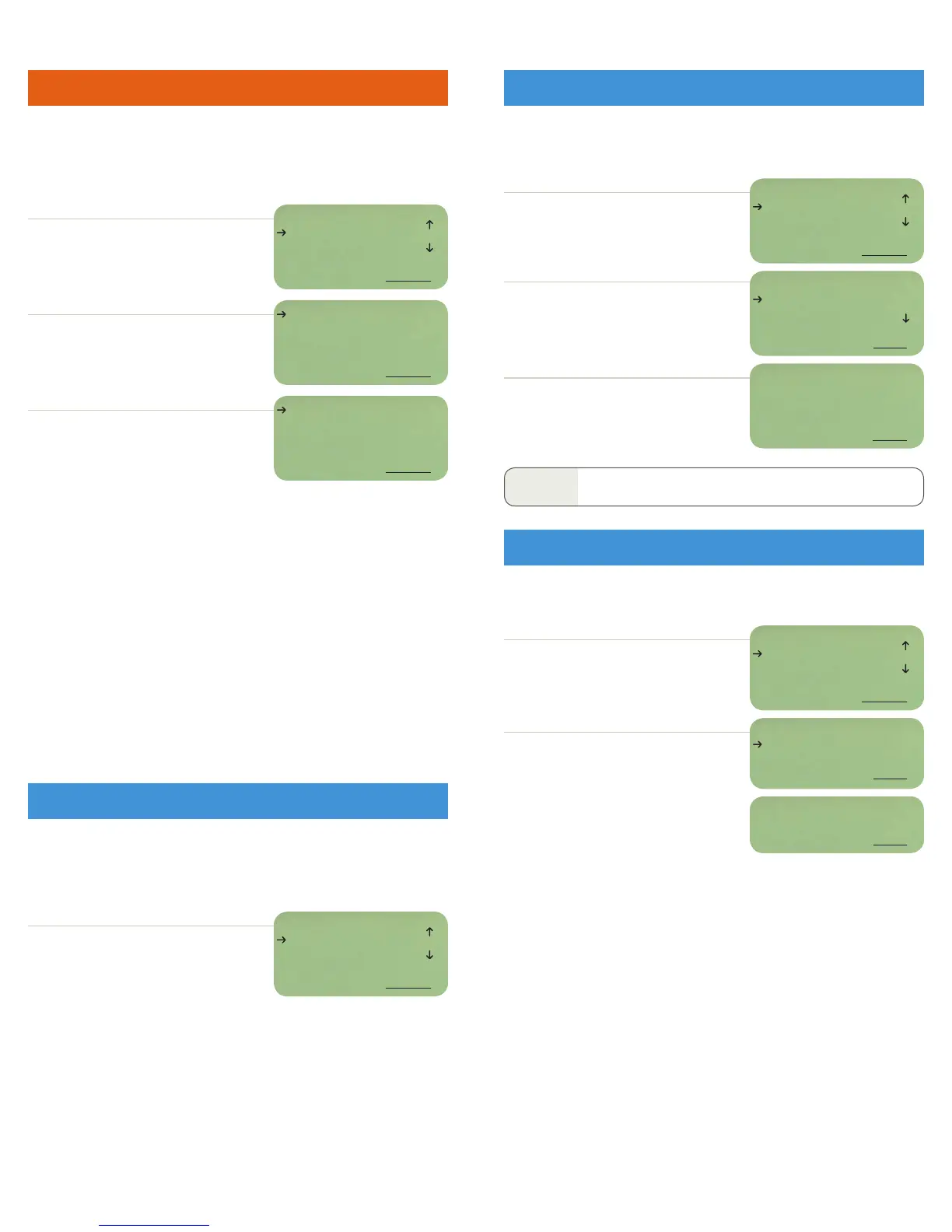
SELECT Review Log Sheets.
Arrow down to the day you want to view and
press SELECT.
SELECT Enter Citation or Enter Remark from
the driver log menu.
Enter citation information or remark and press
NEXT/DONE.
You will return to the driver log menu.
Arrow up or down to view the log item you want
to see and press SELECT.
Press SELECT to view more detail about any entry.
Sheet: 24-hour period start and end time. Press
SELECT to see whether daylight saving time is
observed, your starting duty status, company
information and the daily HOS recap.
Vehicle: Starting vehicle #.
Trailer: Starting trailer #.
Shipping: Starting shipping info.
Co-driver: Starting co-driver.
Terminal: Terminal assigned and address.
Duty status: Status entered, date, time, time zone and location (#DS indicates
an automatic duty status change, * indicates a Safety Manager correction).
Scroll down to view information that is updated throughout the day.
Miles (km): Distance traveled by the driver today.
SELECT Vehicle Inspection from the driver
log menu.
SELECT Change Shipping or Change Trailer
from the driver log menu.
Enter the new information using the keyboard
and press NEXT.
On the next screen, remarks are optional. Press
DONE to skip.
You will return to the driver log menu.
Arrow down to the type of inspection being
performed. Choose from pre-, inter-, post- and
DOT inspections. Press NEXT.
Enter the details associated with this inspection
and press DONE.
You will return to the driver log menu.
NOTE
Inspections can’t be entered while vehicle is in motion.
DRIVER: Glenn
REVIEW LOG SHEETS
VIEW START STOP
BACK SELECT
DRIVER: Glenn
ENTER CITATION
ENTER REMARK
BACK SELECT
02/09/07
02/08/07
02/07/07
BACK SELECT
SHEET: 02/09/07
VEHICLE: 321
TRAILER: RF203
BACK SELECT
DRIVER: Glenn
VEHICLE INSPECTION
ENTER CITATION
BACK SELECT
DRIVER: Glenn
CHANGE SHIPPING
CHANGE TRAILER
BACK SELECT
SHIPPING INFO:
Paper
BACK NEXT
REMARK:
BACK NEXT
INSPECTION TYPE:
PRE-TRIP
INTER-TRIP
BACK NEXT
INSPECTION DETAIL:
OKAY
BACK DONE
REVIEW LOG SHEETS
ENTER CITATION/REMARK
VEHICLE INSPECTION
CHANGE SHIPPING/TRAILER


 To Next Page
 Loading...