USB/SD MODE
NEVER USE THE USB SOCKET OR AUX-IN SOCKET IN RAINY OR MOIST
CONDITIONS TO PREVENT MOIST FROM ENTERING THE RADIO!! KEEP THE
RUBBER COVER CLOSED UNDER THESE CONDITIONS.
USB memory devices and Secure Digital (SD, SDHC) cards can be used with the radio
forplaybackofMP3andWMAles.
The radio has been tested with a range of SD cards up to 2GB and SDHC cards and
USB memory devices up to 32GB. However, there are many different SD card and USB
memory device variants available and not all of them can be guaranteed to work in this
radio.MemorymustusetheFATorFAT32lingsysteminordertooperateinthisradio.
Audio formats supported for playback are MP3 and WMA. Playback does not support
lesencodedusingWMAlossless,WMAvoice,WMA10professional,orlesofany
format that have DRM protection.
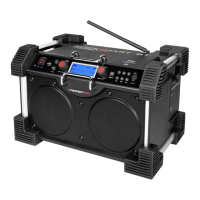
The SD card slot and USB socket are located on the side behind the rubber cover. Make
sure the rubber cover is closed well after use to prevent moist and dirt from entering the
radio.
The USB memory device or SD card should not be removed during playback as damage
orcorruptionoflesmayoccur.
SD cards and USB memory devices are not included with this radio.
Note: When the radio is playing a USB stick, due to additional power consumption
of this, the charging of the batteries will stop in order to maintain normal functioning
and quality of the USB playback. Once the USB stick is removed normal charging will
continue.
Insert and remove a USB memory device
Carefully insert a USB memory device into the USB socket.
To remove the USB memory device, simply pull the device out.
Insert and remove a SD card
To insert a SD card into the radio, hold the “golden” contacts side facing towards you (front
of the radio) and push carefully into the SD Card slot.
Close the rubber cover to prevent moist or dust from entering into the sockets and slot.
To remove the card, push the card slightly and it will pop out, allowing removal.
Playing MP3 and WMA les
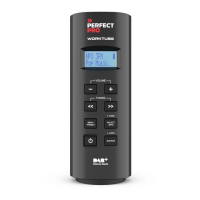
1. Press the ON/OFF button to turn on the radio.
2. Press the SOURCE button to select the USB or SD mode.
The display shows “READING”. It may take some time before the radio has read in
thefoldersandlesdataonthememorydevice.
3. AfterreadingtheUSBmemorydeviceorSDcard,theradiowillstarttoplaytherst
le(song)intherstfolder.
If no USB memory device or SD card is inserted, the display will show “NO USB
STICK” or “NO SD CARD” respectively.
4. To pause the playback, press the PLAY/PAUSE button.
Press the PLAY/PAUSE button again to resume the playback from pause position.
5. Toskiptothenextle,presstheFAST FORWARD button.
6. Toskiptothepreviousle,presstheREWIND button.
7. Whiletheleisplaying,pressandholddowneithertheFAST FORWARD button
or REWIND button.Releasethebuttonwhenthedesiredpartoftheleisreached.
8. To skip to the next folder, presses the FOLDER + button.
9. To skip to the previous folder, presses the FOLDER - button.
File searching
1. Press and hold the TUNING/SEEK knob for a few seconds until the display shows
thecurrentfoldernumberandthetotalfoldernumberintherstline.
The second line shows the name of the current folder.
2. Rotate the TUNING/SEEK knob to search the desired folder. Press the TUNING/
SEEK knob to select the folder.
Thedisplaywillshowtherstleoftheselectedfolder.
3. Rotate the TUNING/SEEK knobtosearchthedesiredle.PresstheTUNING/
SEEK knobtoselectthele.Theradiowillstarttoplaytheselectedle.
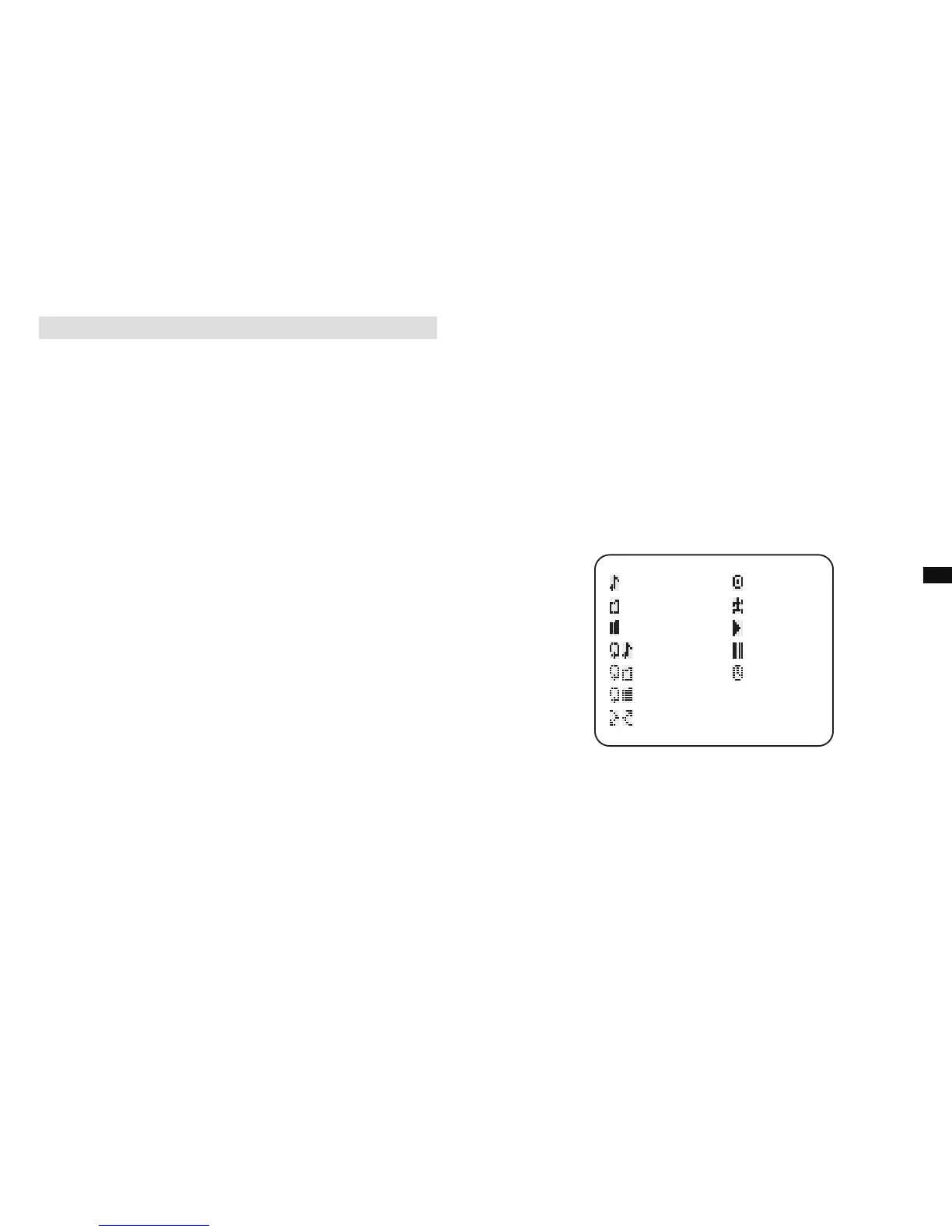
Track
Playing folder
Total Folder
Repeat 1
Repeat folder
ALBUM info.
ARTIST info.
PLAY
PAUSE
CLOCK info.
Repeat All
Random
GB
1817


 To Next Page