9
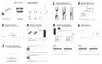
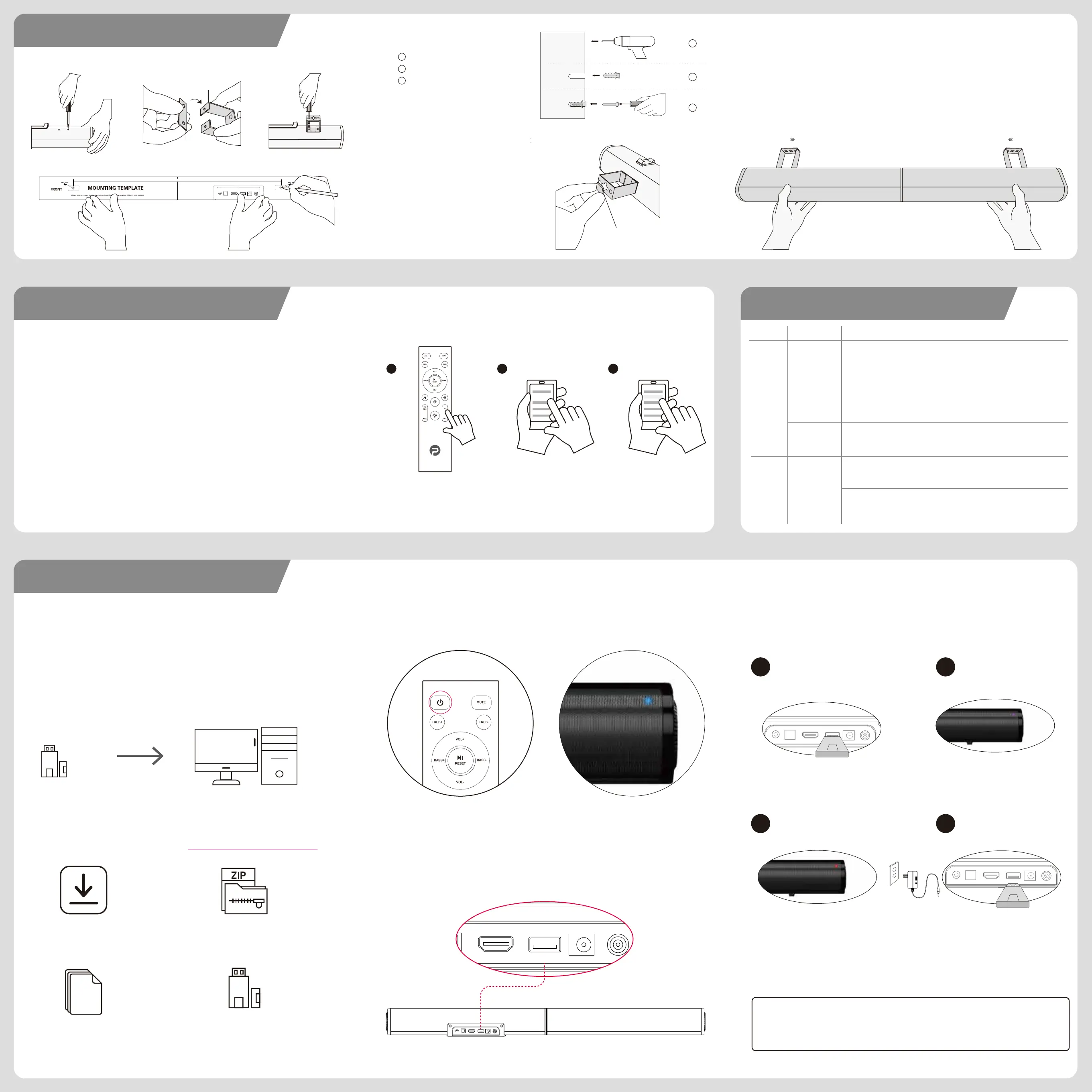
1. Press the (Bluetooth) button on the Soundbar (or remote
control unit) until the Bluetooth LED blinks in blue.
2. Go to the Bluetooth settings on your device and make sure
Bluetooth is turned ON.
3. Select “D6”.
•The Bluetooth LED turns solid blue to indicate that the Sound-
bar is being paired with your Bluetooth device
BLUETOOTH CONNECTION (OPTIONAL)
1
Bluetooth ON
2
D5
3
TROUBLESHOOTING
10
Bluetooth
A device cannot
connect with the
SoundBar
The SoundBar is already connected with another Bluetooth device. Disconnect the
connected device, then try again.
You have not enabled the Bluetooth function of the device. See the user manual of the
device on how to enable the function.
Distorted sound orlf you play audio from the TV through the SoundBar, make sure that the
TV is muted.
ISSUES PROBLEMS SOLUTIONS
Sound
No sound from
SoundBar speakers
Distorted sound
or echo
1. Make sure that the soundbar is plugged into a power source
2. Make sure the soundbar’s HDMI cable is inserted into an HDMI ARC or Audio Return
Channel connector on your TV, not a standard HDMI connector.
3. If the soundbar is connected to your TV’s HDMI ARC connector, make sure that
Consumer Electronics Control (CEC) is enabled in your TV system menu. Your TV may
refer to CEC by a different name. Refer to your TV owner’s guide.
4. On the remote control, select the correct audio input.
5. Ensure the audio output format is set to PCM
8
FIRMWARE UPDATE
1 1
Occasionally, PHEANOO provides important firmware updates for your soundbar. Updating the
firmware on your soundbar gives you all the benefits of the latest improvements. If an update is
available from PHEANOO, you can download it onto a USB device, and then upload it to your
soundbar.
IMPORTANT
Mounting your PHEANOO D6 Sound Bar
2.Paste the EVA foam A (with
holes) on the wall bracket
1.Remove the 2 screws from
the main unit
3.Install the wall bracket into
the main unit
7.Hang the soundbar on the wall
4.Mark the wall
wall
wall
wall
1
2
5. Drill screw holes at markings
Insert the wall anchors
Insert the screws into the wall anchors
1
2
3
3
6.Paste the EVA foam B (without
holes) on the wall brackt
EVA foam A
EVA foam B
bracket
Recommended USB 2.0 Drives
PC/MAC
Step 1. Preparing the USB Drive
1. Important Specs for USB Drive:USB2.0; Max Drive Size:32GB
2. Plug anUSB driveinto your PC / Mac
3. Reformat the USB drive to"FAT16"or"FAT32"format.
Step 2.
Download the Firmware Version from www.pheanoo.com/firmware.html
A. Download the “D5 FIRMWARE” B. Unzip the download file
C. Open the folder to locate “fw5000.upd”
firmware files
D. Copy and Paste the “fw5000.upd” files into your USB drive.
Do not change the name of the files
(Do not copy the folder or the update will not work)
Step 3. Press the Power on button on your remote control
Power on the soundbar
Step 4. Plug USB Drive into USB Port
Back of PHEANOO soundbar
Step 5. Upgrading the Soundbar
Soundbar will automatically start upgrading after
the USB drive is inserted .
The front indicator on the soundbar will be Purple
while upgrading.
After the upgrading completed, The front indicator
will change to RED .
Then unplug the soundbar from wall outlet and
remove the USB Drive.
USB
(FOR UPGRADE ONLY)
USB
(FOR UPGRADE ONLY)
1 2
43
1. Only drives with these specs will work:USB2.0;Max Drive Size: 32GB.
2. Do notremove USB drive or turn off your Soundbar while upgrading.
* If soundbar system does not work after the firmware upgrade, please contact our support
immediately atsupport@pheanoo.com


 To Previous Page
 Loading...