Re-chargeable Battery and Charging
This wireless karaoke mic has a 3.7V rechargeable Lithium battery. For best results, the first time you use the mic, let it charge for 3-4 hours until fully charged.
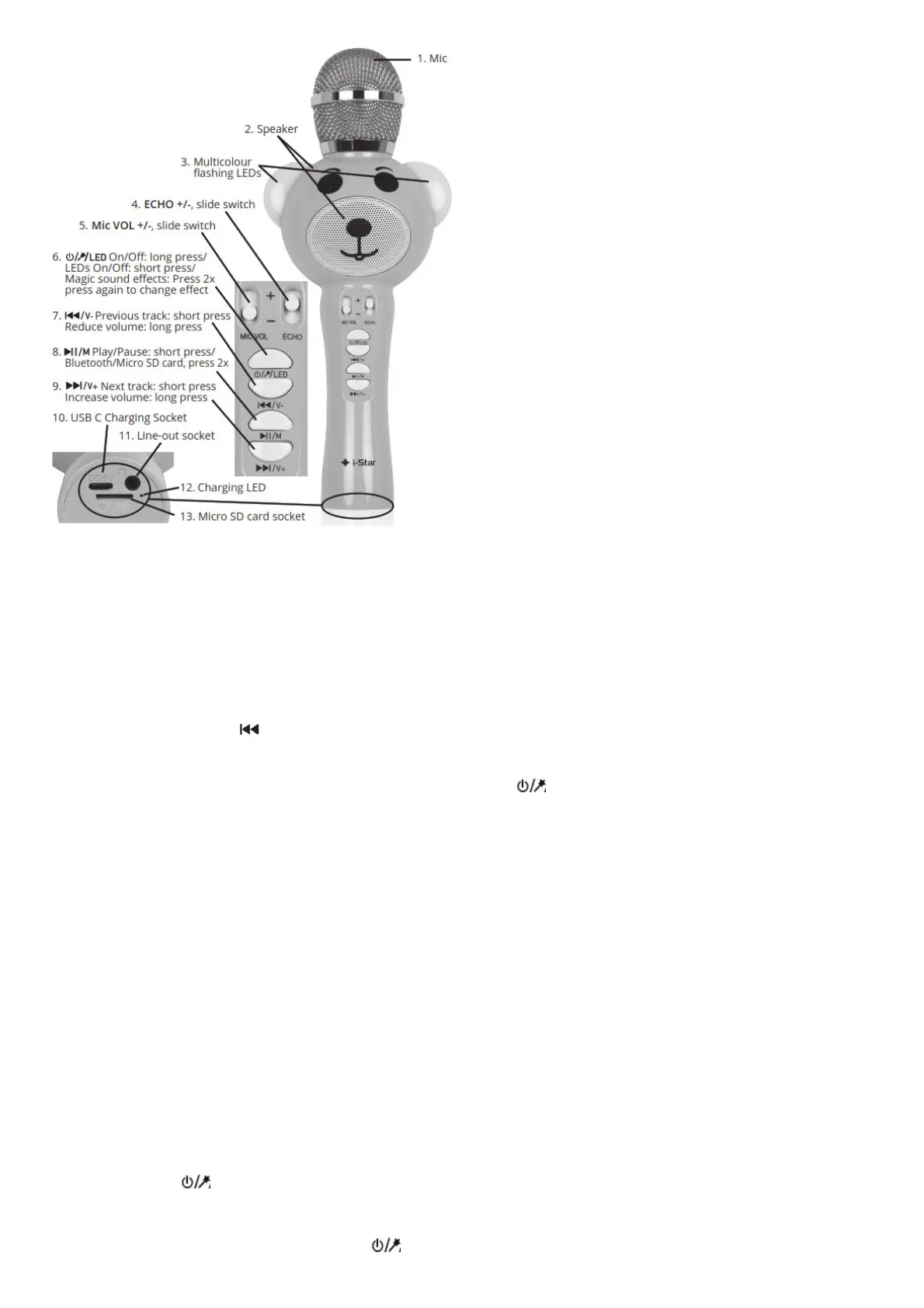
1. Plug the USB C charging cable into the USB C charging socket (10) and into the USB port on a computer, charging adaptor or power bank.
2. Charging LED indicator (12) will light up red while the battery is charging.
3. Charging LED indicator (12) will turn off when the battery is fully charged.
4. Disconnect the charging cable when the battery is fully charged.
Battery care warning:
If the battery is completely drained, to ensure maximum battery life, charge fully within 48 hrs. If the mic is likely to be left unused for a long period of time, to avoid
damage to the battery, fully charge the battery first.
Please Note: Before pairing use the /V-(7) and Mic VOL +/- (5) to set the speaker and mic volume to low
Pairing your mic with Bluetooth enabled phones / tablets
1. Place the mic and phone/tablet within 1 metre of each other. Press and hold down the /LED button (6) to turn on the mic, the ear LEDs (3) will flash, you
will hear a dual 4 beat tone and the message “Bluetooth mode” your mic is now ready to pair with a Bluetooth device.
2. Select the Bluetooth function on your phone and search for Bluetooth devices, the mic will appear as “Karaoke mic” in the Bluetooth device list, select and
pair.
3. Connection will normally be automatic if a password is required enter (0000). After successful pairing, select “Karaoke mic” in the Bluetooth device list, and
press “connect”. After successful connection you will hear a voice message “connected”.
Please Note:
1. If the pairing is not successful, turn off the mic and try pairing again.
2. After successful pairing, paired devices will remember each other.
Unless pairing information is deleted, pairing will be automatic when both devices are switched on in range of each other.
3. To pair with a new device follow steps 1-3 above after disconnecting the previously paired device.
Pairing your mic with a PC/laptop Mac running OSX 10 or above
To pair to a PC or Mac follow the same procedure as for a phone or tablet. After pairing to a Mac you will need to open System Preferences, click on Sound, click
Output and select the Karaoke mic. Then click Input and select your mic. Adjust the Input and Output volume to suit. You can also click on the “Show volume in
menu bar” if you would like to control the volume from the menu bar. To show the Bluetooth status in the menu bar go to the Bluetooth preferences and click on the
appropriate checkbox. During the pairing process, if you are asked for a password enter (0000).
Re-connecting to a paired device
Each time the mic is turned on, there are two possible outcomes. The mic will connect automatically to the last connected device, just press play on your device for
playback. The mic will be listed on your devices screen as an available output channel, select the mic as the output channel and play your music.
Operation
Power ON/OFF, Magic Voice Effect and LED ON/OFF
Press and hold down the /LED button (6) to switch on the mic, the ear LEDs (3) will flash. If the mic is already paired to a Bluetooth device you will hear
the messages “Bluetooth mode” and then “connected”. Once on, press and hold down the button (6) to switch the mic off (you will hear a 4 beat tone and the ear
LEDs (3) will flash).
To save battery power switch off the mic when it is not in use.
Magic voice effects: There are 4 magic voice effects, press the /LED button (6) twice to activate the first magic voice effect, press again to change to the next


 To Next Page
 Loading...