Q: How can I remove the LightFrame™ software from my system?
A: Software can be easily uninstalled with the Windows Add/remove software function in Control Panel or
through the Uninstall feature in the Philips LightFrame program group. From the Control Panel Add/remove
software screen, select Philips LightFrame™. Then select Add/remove. Alternatively, open the Start
menu and select Philips LightFrame from Programs. Select Uninstall and follow the steps of the uninstall
feature.
Q: How can I quickly check to see if my Philips monitor has LightFrame™ or LightFrame™2?
A: Every monitor equipped with LightFrame™ has a logo on the front. The logo looks like this:
If your monitor came with LightFrame™2, than you will find a 2 with the logo. If your monitor doesnt have a
LightFrame™2 logo, you can still use the LightFrame™2 software.
Q: Is LightFrame™ software as well as hardware driven? If it is software driven, what happens when
a monitors is switched? How will the system react when a monitor with LightFrame™ is substituted
for monitor without LightFrame™?
A: The LightFrame™ feature is a combination of both hardware and software and will not function without
both components in place. During installation, the software will check if the monitor is LightFrame™ enabled.
Afterwards the computer cannot detect whether the monitor has been exchanged with one without
LightFrame™. Without a LightFrame™ monitor, LightFrame™ will not function; however, the system will
otherwise operate normally.
Q: Does LightFrame™ effect moving images or just still images?
A: LightFrame™ can be used on both still pictures and movies.
A: The principle behind LightFrame™ makes use of a luminance reserve that is normally present in a CRT
monitor. Because the brightness reserve degrades display of text and other native computer documents,
it is normally not used. As a rule, LCD monitors do not feature brightness reserve. In LCDs, brightness is
normally set at the maximum level.
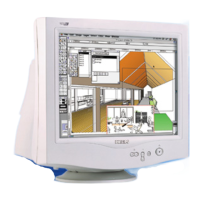
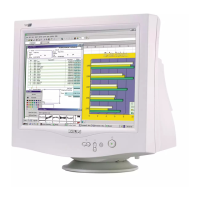
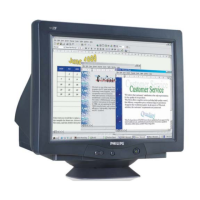
Q: What models support LightFrame™?
A: Following models support LightFrame™: 105B2x, 107S2x, 107T2x, 107B2x, 107B3x, 107P2x, 109S2x
and 109B2x
Q: What computer configuration is required to run the feature?
A: LightFrame™s main component is embedded in the monitor and as such is not dependant on your
system configuration.The LightFrame™ software that controls the hardware in the monitor is available for
Windows 95, Windows 98, Windows Millenium Edition (Windows Me), Windows 2000 Professional, Windows
XP
®
, MacOS8 and MacOS9.
All the applications use little to no system resources and therefore don't put higher demands to your system
configuration than the operating system does.
Q: Does the feature effect my colored printout quality?
A: No. LightFrame™ is a feature that only effects the on-screen display. The enhancement is "enclosed"
within the monitor and has no influence whatsoever on the quality of printouts.
Q: How can I change settings for LightFrame™?
A: Its easy: Open the Windows control panel by clicking Settings | Control Panel from your Start panel. In
file:///D|/rita/LF2/LF2/LFa1/multi_manual/english/107B3/PRODUCT/PRODUCT.HTM (7 of 12) [8/29/2001 2:47:29 PM]



 To Next Page