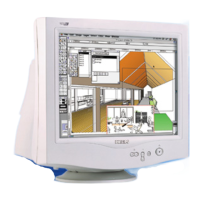
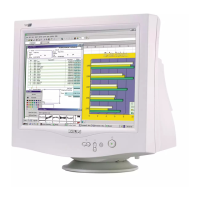
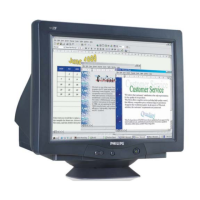
Control Panel, double click on the LightFrame™ icon. Youll see a list of the settings that can be
customized. To learn more about customization options, check out the LightFrame™ help file by pressing
the help button in the control panel.
Q: In the OSD menu, what does "LightFrame On/Off" mean?
A: You can switch LightFrame™ on or off from the OSD menu of any LightFrame™ 2 monitor. This is a
handy feature when you use DOS applications or other operating systems not supported by the
LightFrame™ software.
Heres how: Open your monitors OSD controls. Go to LIGHTFRAME in the EXTRA CONTROLS menu.
Press the left/right button to switch LightFrame™ on or off.
Q: How do I use the LightFrame™ 2 control bar that appears at the top my screen?
A: The control bar is another upgrade that helps you run all LightFrame™ 2s neat, new features. The
illustration below describes the tasks each button performs.
Accustomed to working with the original LightFrame™ tray icon? No problem: Its still there and can be
used to turn LightFrame™ on or off and check LightFrame™ status.
Q: Can I move the LightFrame™ 2 control bar?
A: The screen location of the LightFrame™ control bar is fixed. If the control bar blocks your view of an
application, you can exit LightFrame™. Heres how: Click once on the LightFrame™ logo and select Exit
from the pop-up menu.
When you reboot your system, LightFrame™ will restart automatically. You can also reload LightFrame™
from the Start menu by clicking LightFrame 2 in the Philips LightFrame™menu under Programs.
Q: When is LightFrame™ automatically switched off?
A: To avoid less than optimum display even when LightFrame™ is manually activated from the OSD screen,
it will automatically switch off when:
- A mode change occurs: for example, when the monitor changes resolution or refresh rate.
- The monitor enters sleep mode.
- The monitor is powered off and on again.
Q: Can LightFrame™2 highlight simultaneously highlight multiple screen areas?
A: No. LightFrame™ 2 operates in a single rectangular screen area.
file:///D|/rita/LF2/LF2/LFa1/multi_manual/english/107B3/PRODUCT/PRODUCT.HTM (8 of 12) [8/29/2001 2:47:29 PM]



 To Next Page