After your personal access code has been
set (see previous page), you are now
ready to select the channels you want to
block out or censo1:
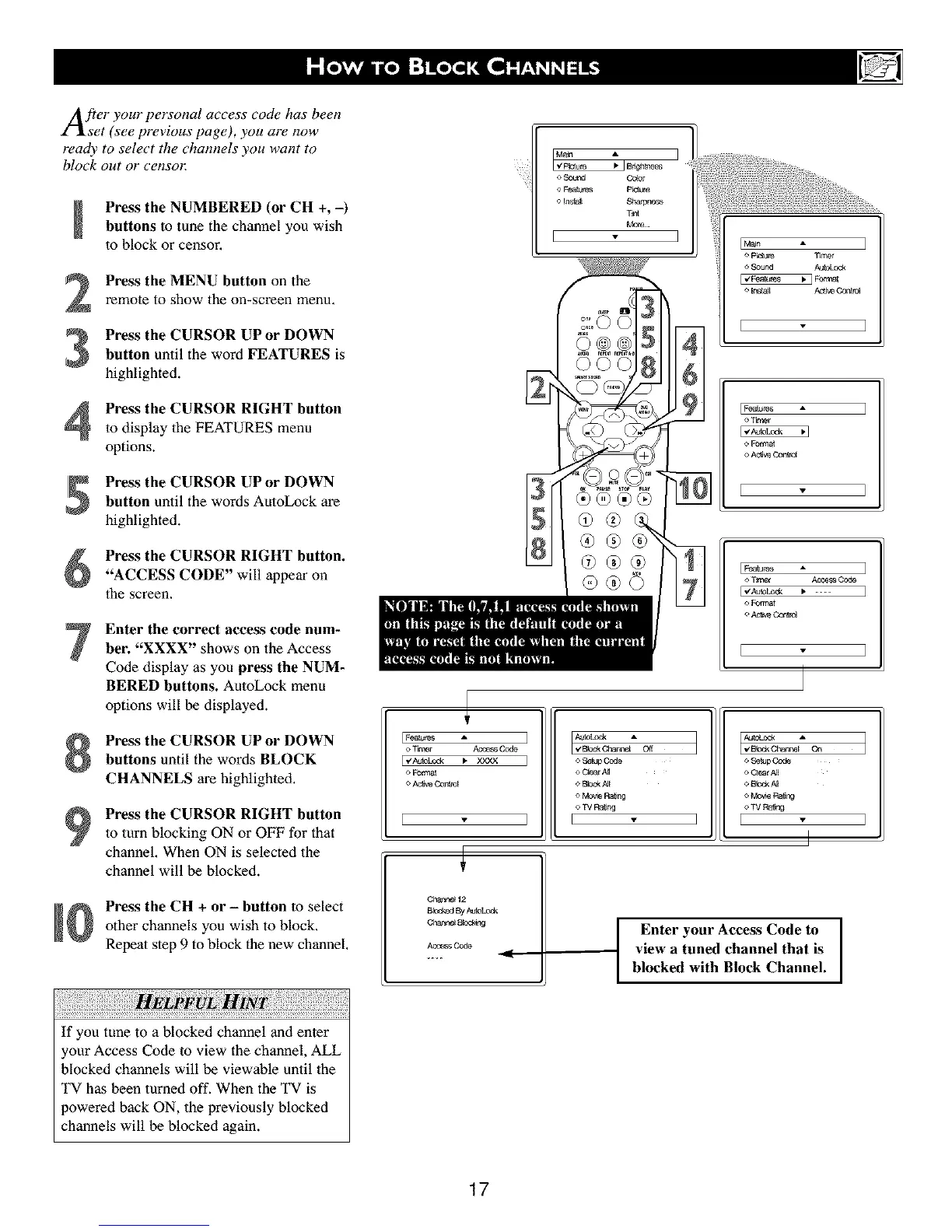
Press the NUMBERED (or CH +, -)
buttons to tune the channel you wish
to block or censor,
2
3
Press the MENU button on the
remote to show tile on-screen menu.
Press the CURSOR UP or DOWN
button until the word FEATURES is
highlighted.
Press the CURSOR RIGHT button
to display the FEATURES menu
options.
Press the CURSOR UP or DOWN
button until the words AutoLock are
highlighted.
Press the CURSOR RIGHT button.
"ACCESS CODE" will appear on
the screen.
Enter the correct access code num-
ber. "XXXX" shows on the Access
Code display as you press the NUM-
BERED buttons. AutoLock menu
options will be displayed.
Press the CURSOR UP or DOWN
buttons until the words BLOCK
CHANNELS are highlighted,
Press the CURSOR RIGHT button
to turn blocking ON or OFF for that
channel, When ON is selected the
channel will be blocked.
Press the CH + or - button to select
other channels you wish to block.
Repeat step 9 to block the new channel,
If you tune to a blocked channel and enter
tour Access Code to view the channel, ALL
blocked channels will be viewable until lhe
TV has been turned off. When the TV is
)owered back ON, the previously blocked
channels will be blocked again.
E ]
[g_alur _ A
o Ttmer ,_e_s Oode
o Format
A_w Cont_a[
I
Cha_ineH2
B_d4edBy Aut_ oek
ChanneIB_$_ng
Ace.s G_
I _Channe_ A Off
I o Se_Code
o CJear ,0dl
o BJoc__J[
o Mo_e Ra_r,,g
o W Ra_r,,g
I I
o SetepCod,e
o Qe_r N[
o BbckA_
o MOV_ Ral_zg
o TV Ra_
] E
I
I Enter your Access Code to
view a tuned channel that is
blocked with Block Channel.
17


 To Next Page