For titles and chapters, selection may
mClgHS
be included on the disc. The DVD s menu
/_ature allows you to make selections /Pom
these menus. Press the appropriate numerical
buttons or use the CURSOR UP/DOWN,
RIGHT/LEFT buttons to highlight your selec-
tion, then press the OK button to cor_irm.
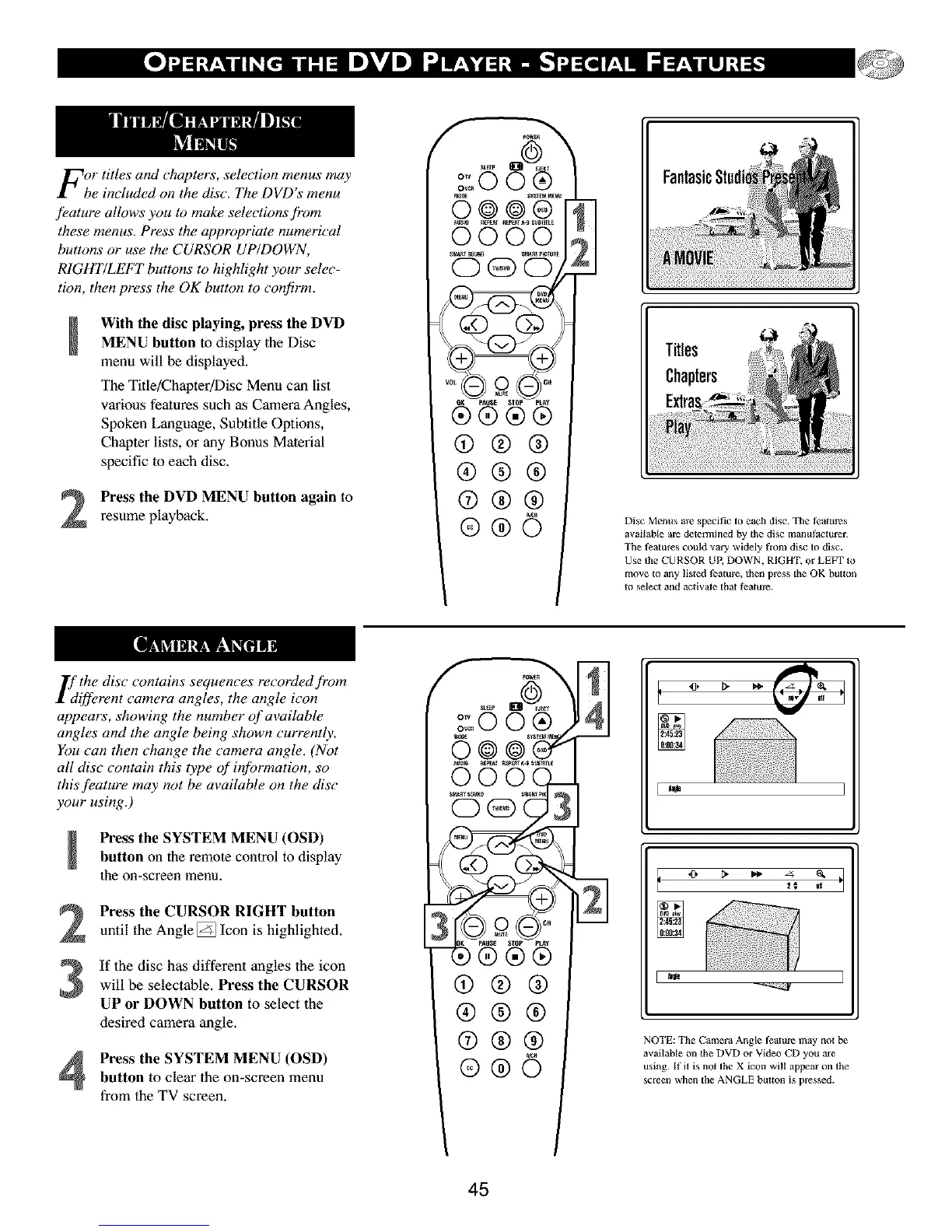
With the disc playing, pre_ the DVD
MENU button to display the Disc
menu will be displayed.
The Title/Chapter/Disc Menu can list
various features such as Camera Angles,
Spoken Language, Subtitle Options,
Chapter lists, or any Bonus Material
specific lo each disc.
Press the DVD MENU button again to
resume playback.
L' the disc" contains sequences recorded/?om
ifferent camera angles, the angle icon
appears, showing the number of available
angles and the angle being shown currently.
You can then change the camera angle. (Not
all disc contain this type of in/brmation, so
this/?ature may not be available on the disc
your using.)
Pre_ the SYSTEM MENU (OSD)
button on the remote control to display
the on-screen menu.
2
3
Press the CURSOR RIGHT button
until the Angle [] Icon is highlighted,
If the disc has different angles the icon
will be selectable, Press the CURSOR
UP or DOWN button to select the
desired camera angle.
Press the SYSTEM MENU (OSD)button to clear the on-screen menu
from the TV screen.
O_ _LEE_
o_o00 ®
@@@
0000
0@0
®®®®
@®®
®®®
@®®
®®©
II
Titles
Chapters
Disc Menus arc specific to each disc. The fealules
available a_e determined by the disc manufacture_
The features could vary widely I'rom disc to disc.
Use the CU RSOR UP, DOWN, RIGHT, or LEFT to
move to airy lis_ed _atul'¢, then press the OK buttol]
Io select and actiwte thai |_'ature.
_;:°0 0 ®-
(9®®
®®®
®®®
®®©
2:45:23
NOTE: The Camera Angle fealu_e may no_be
available on the DVD or Video CD you ate
using. If it is not the X icon will appear on the
sc_en when the ANGLE button is p]_ssed.
45


 To Next Page