5
2. Setting up the monitor
2.2 Operating the monitor
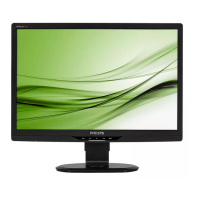
Description of the control buttons
6 3
4
2
1
578
1
Power indicator
2
Press to turn monitor’s power
ON or OFF.
3
Access the OSD menu
.
Conrm the OSD adjustment.
4
Adjust the OSD menu
5
Return to previous OSD layer
6
Adjust the brightness level.
7
Change display format
8
Automatically adjust the
monitor.
Description of the On Screen Display
What is On-Screen Display (OSD)?
On-Screen Display (OSD) is a feature in all
Philips monitors. It allows an end user to adjust
screen performance or select functions of
the monitors directly through an on-screen
instruction window. A user friendly on screen
display interface is shown as below:
Basic and simple instruction on the control
keys
In the OSD shown above, you can press ▲ or
▼ button on the front bezel of the monitor
to move the cursor, and press OK button to
conrm the choice or change.


 To Next Page