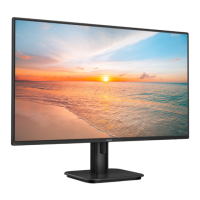
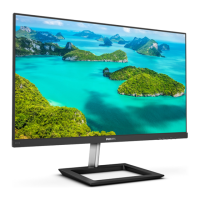
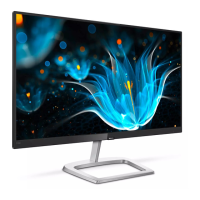
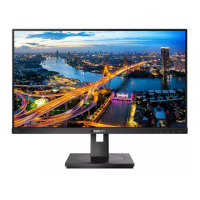
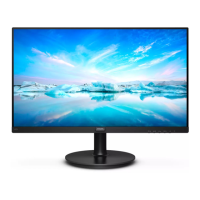
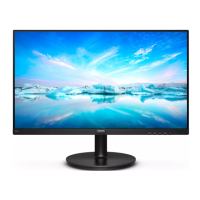
This document is a user manual for Philips 1000 Series monitors, specifically models 24E1N1100D and 27E1N1100D.
Function Description
These Philips monitors are designed for general computing use, offering a display solution for various applications. They feature SmartImage technology for optimized display settings based on content, SmartContrast for dynamic contrast adjustments, and Adaptive Sync for smooth, tear-free gaming experiences. The monitors are also designed with features to help reduce computer vision syndrome (CVS), promoting user comfort during extended use.
Important Technical Specifications
Display/Picture:
- Monitor Panel Type: IPS Technology
- Backlight: W-LED
- Panel Size: 24E1N1100D: 23.8" W (60.5 cm), 27E1N1100D: 27" W (68.6 cm)
- Aspect Ratio: 16:9
- Pixel Pitch: 24E1N1100D: 0.2745 (H) mm x 0.2745 (V) mm, 27E1N1100D: 0.3114 (H) mm x 0.3114 (V) mm
- Contrast Ratio (typical): 1300:1
- Native Resolution: 1920 x 1080 @ 60 Hz
- Maximum Resolution: 1920 x 1080 @ 100 Hz (HDMI)
- Viewing Angle: 178° (H) / 178° (V) @ C/R > 10 (typical)
- Monitor Colors: 16.7M
- Flicker Free: YES
- Picture Enhancement: SmartImage
- Vertical Refresh Rate: 48 Hz - 60 Hz (VGA/DVI), 48 Hz - 100 Hz (HDMI)
- Horizontal Frequency: 30 KHz - 85 KHz (VGA/DVI), 30 KHz - 115 KHz (HDMI)
- sRGB: YES
- LowBlue Mode: YES
- EasyRead: YES
- Adaptive Sync: YES
Connectivity:
- Connectors: 1 x HDMI 1.4 (HDCP 1.4), 1 x VGA, 1 x DVI, 1 x Audio out
- Sync input: Separate Sync
Convenience:
- OSD Languages: English, German, Spanish, Greek, French, Italian, Hungarian, Dutch, Portuguese, Brazil Portuguese, Polish, Russian, Swedish, Finnish, Turkish, Czech, Ukrainian, Simplified Chinese, Traditional Chinese, Japanese, Korean
- Other Convenience: VESA mount (100 x 100 mm), Kensington Lock
Stand:
Power (24E1N1100D):
- Consumption (typical): 18.6 W (100VAC, 60Hz), 18.2 W (115VAC, 60Hz), 18.4 W (230VAC, 50Hz)
- Sleep (Standby mode): 0.5 W
- Off mode: 0.3 W
- Power LED indicator: On mode: White, Standby/Sleep mode: White (blinking)
- Power Supply: Built-in, 100-240VAC, 50/60Hz
Power (27E1N1100D):
- Consumption (typical): 19.8 W (100VAC, 60Hz), 20.6 W (115VAC, 60Hz), 19.6 W (230VAC, 50Hz)
- Sleep (Standby mode): 0.5 W
- Off mode: 0.3 W
- Power LED indicator: On mode: White, Standby/Sleep mode: White (blinking)
- Power Supply: Built-in, 100-240VAC, 50/60Hz
Dimensions (24E1N1100D):
- Product with stand (WxHxD): 542x417x180 mm
- Product without stand (WxHxD): 542x327x46 mm
- Product with packaging (WxHxD): 610x373x124 mm
- Weight (Product with stand): 2.91 kg
- Weight (Product without stand): 2.56 kg
- Weight (Product with packaging): 4.67 kg
Dimensions (27E1N1100D):
- Product with stand (WxHxD): 617x457x211 mm
- Product without stand (WxHxD): 617x367x46 mm
- Product with packaging (WxHxD): 690x455x141 mm
- Weight (Product with stand): 3.99 kg
- Weight (Product without stand): 3.57 kg
- Weight (Product with packaging): 6.60 kg
Operating Condition:
- Temperature range (operation): 0°C to 40°C
- Relative humidity (operation): 20% to 80%
- Atmospheric pressure (operation): 700 to 1060hPa
Environmental and energy:
- ROHS: YES
- Packaging: 100% recyclable
- Specific Substances: 100% PVC BFR free housing
Usage Features
Setting up the monitor:
The monitor is easy to assemble, requiring the user to attach the base stand to the base column, and then slide the base column onto the monitor. Care should be taken to avoid scratching the screen during installation. The monitor supports VESA mounting (100 x 100 mm) for alternative installation options, such as wall mounts.
Connecting to a PC:
The monitor offers multiple input options including HDMI, DVI, and VGA. Users connect the power cord, video cable, and optionally an audio cable to the monitor and their computer.
Operating the monitor:
The monitor features on-screen display (OSD) controls, typically managed by buttons on the rear side of the display. These controls allow users to:
- Power on/off the monitor.
- Access and confirm OSD adjustments.
- Adjust brightness and contrast levels.
- Change the signal input source.
- Adjust OSD menu settings.
- Select SmartImage modes (EasyRead, Office, Photo, Movie, Game, Economy, LowBlue Mode, Off) for optimized viewing experiences.
- Adjust various picture settings like color temperature, gamma, and sharpness.
- Manage audio settings.
- Set OSD language and timeout.
- Perform setup functions like H. Position, V. Position, Clock, Phase, and Resolution Notification.
Image Optimization:
- SmartImage: This feature provides presets that dynamically optimize display for different types of content, adjusting brightness, contrast, color, and sharpness in real-time. Available modes include EasyRead (for text-based applications, enhancing readability and reducing eye strain), Office, Photo, Movie, Game, Economy, and LowBlue Mode.
- SmartContrast: This technology dynamically analyzes displayed content and automatically optimizes the monitor's contrast ratio for maximum visual clarity and viewing enjoyment, especially in dark backgrounds.
Adaptive Sync:
This feature ensures a smooth, tear-free gaming experience by synchronizing the monitor's refresh rate with the GPU's frame rate. It eliminates screen tearing and reduces stuttering, providing a more fluid visual experience. Compatible with AMD Radeon R9 290/300 Series & R7 260 Series, AMD Radeon R9 Fury X, and various other AMD Radeon and A-Series Desktop and Mobility APUs.
Designs to prevent computer vision syndrome (CVS):
Philips monitors are designed with user well-being in mind. Recommendations for preventing CVS include:
- Appropriate environment lighting: Adjusting the environment lighting similar to that of your screen brightness, avoiding fluorescent lighting, and surfaces that don't reflect too much light.
- Adjusting brightness and contrast: Setting appropriate levels for comfortable viewing.
- Good working habits: Taking short breaks (e.g., 5-10 minutes every 50-60 minutes), looking at something varying distances away, gently closing and rolling your eyes, conscious blinking, gently stretching your neck, and gently tilting your head forward, backward, and side for pain relief.
- Flicker-free technology: Regulates brightness and reduces flicker for more comfortable viewing.
- LowBlue Mode: Reduces harmful shortwave blue light to minimize eye strain.
- EasyRead Mode: Offers a paper-like reading experience, giving a more comfortable viewing experience while dealing with long documents on the screen.
Maintenance Features
Safety precautions and maintenance:
- Ventilation: Do not block ventilation holes.
- Power connection: Ensure the power plug and outlet are easily accessible. Disconnect power if turning off the monitor for 6 seconds or more. Use approved power cord.
- Power supply: Operate under the specified power supply.
- Cable protection: Protect cables from damage.
- Impact protection: Avoid severe vibration or high impact conditions.
- Panel care: To avoid potential damage, do not tilt the monitor downward by more than -5 degrees.
- Cleaning: Clean the display with a soft, clean, damp cloth. Avoid using substances like alcohol, ammonia-based liquids, or abrasive cleaners. Do not spray cleaner directly onto the screen.
- Storage: Store in a cool, dry, dark place.
- Burn-in/Ghost image: Avoid displaying static images for long periods to prevent "burn-in" or "ghost imaging." The monitor includes a screen saver program to help prevent this.
Pixel Defect Policy:
Philips adheres to a strict pixel defect policy for its TFT LCD monitors. The policy defines acceptable levels for bright dot defects, black dot defects, and total dot defects.
- Bright Dot Defects:
- 1 lit subpixel: 2 acceptable
- 2 adjacent lit subpixels: 2 acceptable
- 3 adjacent lit subpixels (one white pixel): 0 acceptable
- Distance between two bright dot defects: >15mm
- Total bright dot defects of all types: 2 acceptable
- Black Dot Defects:
- 1 dark subpixel: 3 or fewer acceptable
- 2 adjacent dark subpixels: 2 or fewer acceptable
- 3 adjacent dark subpixels: 1 acceptable
- Distance between two black dot defects: >15mm
- Total black dot defects of all types: 3 or fewer acceptable
- Total Dot Defects:
- Total bright or black dot defects of all types: 5 or fewer acceptable
Customer care and warranty:
Philips provides warranty coverage and support. Users can visit the Philips website for details or contact their local Philips Customer Care Center. Warranty periods vary by region, with options for extended warranty. The company is committed to repairing or replacing monitors with defects that fall outside the acceptable pixel defect levels.
Troubleshooting & FAQs:
The manual includes sections for common problems and general FAQs, covering issues like power problems, imaging problems (image not centered, image vibrates, vertical flicker, distorted image, color issues, burn-in), and general inquiries about resolution, refresh rate, connectivity, and OSD settings. It also provides instructions on how to lock/unlock monitor controls.

 Need help?

 To Next Page
 General