
 Need help?
Do you have a question about the Philips 241E1 and is the answer not in the manual?
Essential safety precautions and maintenance guidelines for safe operation and longevity of the monitor.
Explanation of symbols, notes, cautions, and warnings used throughout the user manual.
Information on the proper disposal of the product and packaging according to environmental directives.
Step-by-step instructions for unpacking, assembling, and connecting the monitor for initial use.
Guide on how to connect the monitor to a computer using various input ports like HDMI, DVI, and VGA.
Details on the front panel controls, OSD menu navigation, and basic monitor operation.
Instructions on how to detach the monitor's base stand for VESA-compliant wall or arm mounting.
Description and usage of Philips' SmartImage technology for optimizing display presets based on content.
Explanation of the SmartContrast feature for dynamic contrast optimization for visual clarity and power saving.
Details on maximum and recommended display resolutions, refresh rates, and other display parameters.
Philips' policy on acceptable levels of pixel and sub-pixel defects for warranty repair or replacement.
Information on warranty coverage, extended warranty options, and how to contact customer support.
Solutions for common problems such as no picture, image issues, and system errors.
Answers to frequently asked questions regarding monitor setup, resolution, cleaning, and compatibility.
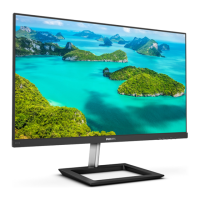
This document describes the Philips E line monitor, models 241E1 and 271E1, providing comprehensive information on its setup, operation, image optimization features, and maintenance.
The Philips E line monitor is designed for a variety of uses, from general office work to gaming and video consumption, offering features aimed at enhancing the user's visual experience and comfort.
The Philips E line monitor serves as a display unit for computers, offering a range of functionalities to optimize visual output. It supports various input signals, including VGA, HDMI, and DVI (for D models), allowing connectivity with different types of PCs and workstations, including Macs (with appropriate adapters). The monitor is Plug-and-Play compatible with Windows 10/8.1/8/7 and Mac OSX, simplifying initial setup.
A key feature of this monitor is its On-Screen Display (OSD), which provides an intuitive interface for adjusting screen performance and selecting monitor functions. The OSD is accessed via a single toggle button on the backside of the display bezel, which operates like a joystick for navigation and selection. This allows users to fine-tune various display settings directly on the screen.
The monitor incorporates SmartImage technology, which offers preset modes to optimize display settings for different types of content. These presets dynamically adjust brightness, contrast, color, and sharpness in real-time. For instance, there are modes specifically designed for FPS (First Person Shooters) games, Racing games, and RTS (Real Time Strategy) games, each enhancing specific visual aspects like black level details, response time, and color saturation. Additionally, "Gamer 1" and "Gamer 2" modes allow users to save their preferred settings. A "LowBlue Mode" is also available, designed to reduce harmful shortwave blue light, which studies suggest can cause eye damage and affect vision over time, thus promoting eye comfort during extended use.
Another significant feature is SmartContrast, a unique technology that dynamically analyzes displayed content and automatically optimizes the LCD monitor's contrast ratio. This function steps up backlighting for clearer, crisper, and brighter images, or dims it for better display of images on dark backgrounds, enhancing visual clarity and viewing enjoyment for all content types, from gaming and videos to readable text for office work. SmartContrast also contributes to energy savings by reducing power consumption and potentially extending the monitor's lifetime.
The monitor supports Adaptive Sync technology, which addresses common issues in PC gaming such as "tearing" and "jerky" images. By allowing the GPU to update the monitor the moment a new picture is ready, Adaptive Sync ensures unbelievably smooth, responsive, and tearing-free gaming experiences. This technology is compatible with specific AMD Radeon R9 and R7 series graphic cards, as well as Processor A-Series Desktop and Mobility APUs.
For power management, the monitor is VESA DPM compliance, meaning it can automatically reduce power consumption when not in use. It will "wake up" automatically upon detection of input from a keyboard, mouse, or other input device.
The Philips E line monitor is designed for ease of use from installation to daily operation.
Installation: The monitor is set up by first placing it face down on a soft, smooth surface to protect the screen. The base stand is then firmly inserted into the base column and secured with a screw. For VESA mounting, the base assembly can be removed by loosening a screw at the bottom of the base and detaching the arm/stand. The monitor supports a 100mm x 100mm VESA-Compliant mounting interface, requiring M4 screws.
Connectivity: Connecting the monitor to a PC involves firmly attaching the power cord to the monitor, turning off and unplugging the computer, connecting the monitor's signal cable to the computer's video connector, and then plugging both the computer and monitor power cords into an outlet. The monitor supports HDMI, VGA, and DVI inputs (depending on the model), along with HDMI audio out.
On-Screen Display (OSD) Navigation: The OSD menu is controlled by a single toggle button on the back of the display bezel. This button functions like a joystick, allowing users to move the cursor in four directions and press it to select desired options. This simplified control scheme makes adjusting settings straightforward.
Image Optimization with SmartImage: Users can easily launch SmartImage by toggling the control button to the left. From there, they can select various preset modes like FPS, Racing, RTS, Gamer 1, Gamer 2, LowBlue Mode, or Off, by toggling up or down. The SmartImage display remains on screen for 5 seconds or can be confirmed by toggling left.
Resolution Notification: The monitor is optimized for a native resolution of 1920x1080 (Analog/Digital) at 60Hz. If the monitor is powered on at a different resolution, an alert will be displayed, advising the user to switch to the optimal resolution for best results. This alert can be switched off via the OSD setup menu.
Physical Adjustment: The monitor offers a tilt function, allowing users to adjust the screen angle from -5° to +20° for ergonomic viewing comfort.
Troubleshooting: The manual provides solutions for common problems such as no picture (power LED not lit or white), the AUTO button not functioning (it's only for VGA-Analog mode), visible signs of smoke or sparks (requiring immediate disconnection and service contact), image not centered (adjustable via OSD), image vibration (checking signal cable), vertical flicker (checking signal cable and OSD adjustments), blurred text (setting to native resolution), and "power on" light being too strong (adjustable via OSD). It also explains how to unlock/lock the hot key by pressing the OSD button for 10 seconds.
Proper maintenance is crucial for the longevity and optimal performance of the Philips E line monitor.
Safety Precautions: Users are advised to keep the monitor away from direct sunlight, strong bright lights, and heat sources to prevent discoloration and damage. Ventilation holes should not be blocked, and no objects should fall into them to ensure proper cooling. The power plug and outlet should be easily accessible. If disconnecting the power cable, a 6-second wait is recommended before reattaching for normal operation. Only approved power cords provided by Philips should be used. Disassembling the AC adapter is cautioned against due to fire/electric shock risks. Cables should be protected from pulling, bending, or heavy objects. The monitor should not be subjected to severe vibration or high impact.
Eye Comfort: Excessive monitor usage can cause eye discomfort. Shorter, more frequent breaks (e.g., 5-10 minutes after 50-60 minutes of screen use) are recommended over longer, less frequent breaks. Users are encouraged to look at varying distances, blink consciously, gently close and roll their eyes, reposition the screen to an appropriate height and angle, adjust brightness and contrast, and match environmental lighting to screen brightness to reduce eye strain. Consulting a doctor for persistent symptoms is also advised.
Cleaning: To clean the LCD surface, a clean, soft cloth is recommended for normal cleaning. For extensive cleaning, isopropyl alcohol can be used. Organic solvents such as ethyl alcohol, ethanol, acetone, or ammonia-based liquids should never be used. The monitor should be unplugged before cleaning with a slightly damp cloth, and the screen can be wiped with a dry cloth when powered off.
Environmental Protection: The monitor should not be exposed to dust, rain, water, or excessive moisture. If it gets wet, it should be wiped with a dry cloth immediately. If foreign substances or water enter the monitor, it should be powered off and disconnected immediately, then sent to a maintenance center. The monitor should not be stored or used in locations exposed to extreme heat, direct sunlight, or extreme cold.
Optimal Operating Conditions: To maintain best performance and extend lifetime, the monitor should be used within specific temperature (0-40°C / 32-104°F) and humidity (20-80% RH) ranges.
Preventing "Burn-in" / "After-imaging": This is a critical maintenance aspect for LCD panels. Uninterrupted display of still or static images over extended periods can cause "burn-in," "after-imaging," or "ghost imaging." To prevent this, users must always activate a moving screen saver program when leaving the monitor unattended and activate a periodic screen refresh application if the monitor will display unchanging static content. Failure to do so can result in severe, irreparable symptoms not covered under warranty.
Repair and Service: The casing cover should only be opened by qualified service personnel. For any repair or integration needs, users should contact their local service center. Philips guarantees repair or replacement for monitors with an unacceptable number of pixel defects under warranty, as defined by their Pixel Defect Policy.
Disposal and Recycling: The product and its packaging materials are designed for recycling. The monitor carries a WEEE marking, indicating it should not be disposed of with normal household waste. Users are responsible for disposing of the equipment through designated waste electrical and electronic equipment collection points. Philips emphasizes making easily recyclable products and participates in national take-back initiatives and recycling programs. Information on local regulations for disposal and recycling programs is available through sales representatives and the Philips website.
 General
| Haze rate | 25 % |
|---|---|
| Pixel pitch | 0.275 x 0.275 mm |
| Screen shape | Flat |
| Pixel density | 93 ppi |
| Backlight type | W-LED |
| Display diagonal | 23.8 \ |
| Surface hardness | 3H |
| Anti-glare screen | Yes |
| Display technology | LCD |
| Native aspect ratio | 16:9 |
| Vertical scan range | 49 - 75 Hz |
| Maximum refresh rate | 75 Hz |
| NTSC coverage (typical) | 87 % |
| Viewable size, vertical | 296.5 mm |
| sRGB coverage (typical) | 102 % |
| Contrast ratio (typical) | 1000:1 |
| Display number of colors | 16.7 million colors |
| Display diagonal (metric) | 60.5 cm |
| Viewable size, horizontal | 527 mm |
| Display brightness (typical) | 250 cd/m² |
| Dynamic contrast ratio marketing name | Mega Infinity DCR |
| AMD FreeSync type | FreeSync |
| Component video sync | Separate sync, Sync-on-green (SOG) |
| Compatible operating systems | Mac OS X Windows 10 / 8.1 / 8 / 7 |
| Product color | Black |
| Heavy metals free | Hg (mercury) |
| Market positioning | Home |
| Headphone out | - |
| LED indicators | Operation, Stand-by |
| Tilt angle range | -5 - 20 ° |
| Cable lock slot type | Kensington |
| Number of OSD languages | 21 |
| Panel mounting interface | 100 x 100 mm |
| On Screen Display (OSD) languages | CHI (SIMPL), CHI (TR), CZE, DEU, DUT, ENG, ESP, FIN, FRE, GRE, HUN, ITA, JPN, KOR, POL, POR, RUS, SWE, TUR, UKR |
| AC input voltage | 100 - 240 V |
| Power supply type | External |
| AC input frequency | 50 - 60 Hz |
| Power consumption (off) | 0.3 W |
| Power consumption (standby) | 0.5 W |
| Power consumption (typical) | 14.71 W |
| Operating altitude | 0 - 3658 m |
| Non-operating altitude | 3658 - 12192 m |
| Storage temperature (T-T) | -20 - 60 °C |
| Operating temperature (T-T) | 0 - 40 °C |
| Operating relative humidity (H-H) | 20 - 80 % |
| Package depth | 157 mm |
| Package width | 594 mm |
| Package height | 481 mm |
| Package weight | 4720 g |
| Doesn't contain | Mercury |
| Sustainability certificates | CCC, ENERGY STAR, RoHS, WEEE |
| Picture enhancement | SmartImage game |
| Recyclable packaging material | 100 % |
| Mean time between failures (MTBF) | 50000 h |
 Weight and Dimensions
| Depth (with stand) | 205 mm |
|---|---|
| Width (with stand) | 537 mm |
| Height (with stand) | 414 mm |
| Weight (with stand) | 3000 g |
| Depth (without stand) | 41 mm |
| Height (without stand) | 321 mm |
| Weight (without stand) | 2430 g |





 To Next Page