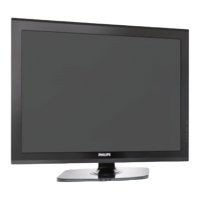
This document is a user manual for Philips LED TVs, specifically models 24PFL3457/V7, 32PFL3057/V7, and 42PFL3457/V7. It provides information on the TV's functions, technical specifications, usage, and maintenance.
Function Description
The Philips LED TV serves as a display device for various media, including broadcast television, external video sources, and content from USB storage devices. It offers a range of features for picture and sound adjustment, channel management, and connectivity with other devices.
Important Technical Specifications
Pixel Characteristics:
The LCD/LED product features a high number of color pixels, with an effective pixel rate of 99.999% or more. Minor imperfections like black dots or bright points of light (red, green, or blue) may appear, which is considered a structural property within industry standards and not a malfunction.
Supported Display Resolutions (HDMI):
- 720 x 480p - 60Hz
- 720 x 576p - 50Hz
- 1280 x 720p - 50Hz, 60Hz
- 1920 x 1080p - 50Hz, 60Hz
Supported Display Resolutions (VGA):
- 640 x 480 - 60Hz, 72Hz, 75Hz
- 800 x 600 - 56Hz, 60Hz, 72Hz, 75Hz
- 1024 x 768 - 60Hz, 70Hz, 75Hz
- 1280 x 1024 - 60Hz
Video Formats:
- 720 x 480i - 60Hz
- 720 x 480p - 60Hz
- 720 x 576i - 50Hz
- 720 x 576p - 50Hz
- 1280 x 720p - 50Hz, 60Hz
- 1920 x 1080i - 50Hz, 60Hz
- 1080p support is only for FHD models.
Tuner/Reception/Transmission:
- Antenna input: 75ohm coaxial (IEC75)
- TV system: PAL, B/G
- Video playback: NTSC, SECAM, PAL
- Tuner Bands: UHF, VHF
Remote Control:
- Type: YKF293-001
- Batteries: 2 x AAA (LR03 type)
Multimedia (USB):
- Supported USB storage device: FAT 16 or FAT 32 USB devices.
- Supported storage file formats:
- Images: JPEG, BMP, PNG
- Audio: MP3, WMA
- Text
- Video:
.avi (AVI container) with MPEG 1/2/4, H.264 video decoder.mp4 (MP4 container) with MPEG 4, H.264 video decoder.mov (MKV container) with MPEG 4, H.264 video decoder.mpg/.mpeg (PS container) with MPEG 1/2 video decoder.wmv (ASF container) with VC-1 video decoder
- USB file names should not exceed 128 characters.
- USB features/functions may vary based on file information.
Power:
- Mains power: 110-240V, 50Hz-60Hz
- Ambient temperature: 5 to 40 degrees Celsius
- Power consumption:
- 24PFL3457/V7: 55W
- 32PFL3057/V7: 100W
- 42PFL3457/V7: 150W
Dimensions and Weight (approximate):
- 24PFL3457/V7:
- With TV stand (WxHxD): 588 x 410 x 225 mm, Weight: 6 kg
- Without TV stand (WxHxD): 588 x 410 x 55 mm, Weight: 4.7 kg
- Required mounting pitch: 100 x 100 mm, Mounting bolts: 4 x M4
- 32PFL3057/V7:
- With TV stand (WxHxD): 784 x 526 x 240 mm, Weight: 13 kg
- Without TV stand (WxHxD): 784 x 526 x 49 mm, Weight: 11.3 kg
- Required mounting pitch: 200 x 100 mm, Mounting bolts: 4 x M4
- 42PFL3457/V7:
- With TV stand (WxHxD): 1017 x 667 x 240 mm, Weight: 19.4 kg
- Without TV stand (WxHxD): 1017 x 667 x 49 mm, Weight: 17.7 kg
- Required mounting pitch: 200 x 200 mm, Mounting bolts: 4 x M6
Usage Features
TV Controls and Indicators:
- LED Indicator: Indicates the TV's status.
- IR Sensor: Receives signals from the remote control.
- STAND BY: Puts the TV in standby mode or turns it on.
- SOURCE (TV/AV): Selects the input source.
- MENU: Accesses the main menu.
- CH-/CH+: Changes channels.
- VOL-/VOL+: Adjusts volume.
Connectivity:
- AC POWER IN: Power input.
- HDMI: High-Definition Multimedia Interface for digital audio/video.
- USB: For connecting USB storage devices.
- VGA AUDIO IN: Audio input for VGA.
- VGA IN: Video Graphics Array input for computers.
- YPbPr: Component video input.
- L1 IN/R1 IN (YPbPr/AV): Left/Right audio input for YPbPr/AV.
- V1 IN/AV2 IN: Video input.
- AV OUT: Audio/Video output.
- RF: Antenna input.
Remote Control Functions:
- Standby-On: Switches TV ON or OFF.
- Multimedia Control buttons: Controls video or music playback.
- FIND: (Depending on model)
- Home: Accesses the home menu.
- CH-/CH+ (Previous/Next): Switches channels, navigates menus, tracks, albums, or folders.
- SOURCE: Selects connected devices.
- Mute: Mutes or restores audio.
- +/-: Adjusts volume.
- 0-9 Numeric buttons: Selects channels.
- SUBTITLE: (Depending on model)
- TEXT: (Depending on model)
- OPTIONS: Accesses options for the current activity or selection.
- Return: Returns to the previous menu or exits a function.
- OK: Confirms an entry or selection.
- Navigation buttons (▲▼◄►): Navigates through menus and selects items (also in USB mode).
- ADJUST: Accesses the menu to adjust settings.
- Color buttons: Selects tasks or options.
Main Menu Navigation:
- Allows installation of channels, changing picture and sound settings, and accessing other TV features.
- Options include:
- Watch TV: Switches back to the antenna source if another source is selected.
- Browse USB: Views photos, plays music, and movies from USB storage devices.
- Device List: Accesses menus to change the input source.
- Setup: Accesses menus for picture, sound, and other settings.
Picture Settings:
- Smart picture: Applies predefined picture settings (Bright, Vivid, Sport, Cinema, Personal).
- Contrast: Adjusts backlight intensity.
- Brightness: Adjusts intensity and details of dark areas.
- Color: Adjusts color saturation.
- Sharpness: Adjusts image sharpness.
- Hue: Compensates for color variations (NTSC channels only).
- Color Temperature: Adjusts color balance.
- Blueback: Turns blue screen ON/OFF when no signal is present.
- Digital Crystal Clear: Enhances picture quality.
- Flesh Tone: Adjusts flesh tone.
- Noise Reduction: Filters and reduces image noise.
- Dynamic contrast: Enhances contrast.
- Color enhancement: Makes colors more vivid and improves details in bright colors.
- Geometric:
- Auto Setting: Automatically adjusts H & V-position, Phase, and Clock for VGA mode.
- H-Position/V-Position: Adjusts horizontal/vertical position (VGA only).
- Manual Clock: Adjusts clock if Auto Setting is not satisfactory (VGA only).
- Phase: Adjusts phase if Auto Setting is not satisfactory (VGA only).
- Picture Format: Selects various picture formats.
- Freeze: Freezes the picture on screen.
Sound Settings:
- Smart Sound: Applies predefined sound settings (Standard, Music, News, Personal).
- Equalizer: Adjusts equalizer for various frequencies.
- Bass: Adjusts bass level.
- Treble: Adjusts treble level.
- Balance: Adjusts balance between right and left speakers.
- Volume: Adjusts main speaker volume.
- Speakers: Turns main speakers ON/OFF.
- AVL (Auto Volume Leveler): Automatically reduces sudden volume changes.
- AV Out: Selects Fixed for default settings or Variable to adjust.
- AV Out Volume: Adjusts AV Out volume.
Sleep Timer:
- Sets the TV to turn OFF automatically after 5, 10, 30, 60, or 120 minutes.
Installation Menu:
- Channel No.: Displays current channel number.
- Color System: Changes color system (AUTO/PAL/SECAM) if picture is not reproduced properly (India: Auto or PAL).
- Sound System: Changes sound system (BG/I/DK) if sound is not reproduced properly (India: BG).
- Auto Install: Starts auto tuning for all available channels.
- Manual Install: Manually searches channels.
- Program Edit: Deletes, renames, moves, or skips programs.
Features Menu:
- Back Light: Adjusts panel brightness.
- Energy Saving: Selects power saving modes (Low/Mid/High, Audio only Mode). In Audio Only mode, only audio is ON, and picture is OFF.
- Power On Music: Turns sound ON/OFF when switching from standby.
- E-Sticker: Turns sticker ON/OFF (Shop mode only).
- EasyLink (HDMI-CEC): Controls HDMI-CEC compliant devices with the TV remote.
- Auto turn off: Turns OFF HDMI-CEC devices when TV goes to standby.
- Device Search: Searches for connected HDMI-CEC devices.
- Device Menu: Controls HDMI-CEC devices using the TV remote.
- Software Update: Updates TV software.
- Reset: Resets to factory default settings.
Parental Menu:
- Child Lock: Locks sources/channels (default password: "0000").
- Child Lock Switch: Turns child lock ON/OFF.
- Change Password: Changes password.
- Channel Block: Locks/unlocks channels.
- Video Lock: Locks/unlocks sources.
- Clear All: Resets child lock options to default.
Hotel Mode Control:
- Activates/deactivates hotel mode features (default password: "0000").
- OSD Display Disable: Disables display information.
- Key Lock: Disables panel keypad.
- Disable Search: Disables channel search.
- Max Vol.: Limits maximum volume.
- Power On Set:
- Power On Source: Sets power-on source to last selection.
- Power On Channel: Sets power-on channel to last selection (disabled when source is changed).
- Power On volume: Sets power-on volume to last selection.
- Clear All: Resets hotel mode options to default.
USB Media Playback:
- Photos: Views photos in a slide show, with options to play, pause, or navigate.
- Music: Listens to music with playback controls (play, pause, FR, FF, Prev, Next, Stop, All, Playlist, Info, Goto Time).
- Video: Plays videos with playback controls (play, pause, FR, FF, Prev, Next, Stop, All, Set A, Playlist, Info, Slow, Step, Goto Time, Zoom In, Zoom Out, Move).
- Text: Views text files with navigation (Prev Page, Next Page, Prev, Next, Stop, Music, Playlist, Info).
Maintenance Features
Safety Precautions:
- Electric Shock/Fire Risk:
- Never expose TV to rain or water; keep liquids away.
- Disconnect power if liquids are spilt; contact Philips Consumer Care.
- Keep TV, remote, and batteries away from naked flames/heat sources.
- Never insert objects into ventilation slots.
- Ensure power cord is not strained when swiveling TV.
- Protect remote/batteries from rain, water, excessive heat.
- Avoid force on power plugs; loose plugs can cause arcing/fire.
- Injury/Damage Risk:
- Two people are required to lift/carry TVs over 25 kg (55 lbs).
- Use supplied stand for stand mounting; secure tightly on a flat, level surface.
- Use appropriate wall mount for wall mounting; PE Electronics Ltd. is not responsible for improper wall mounting.
- Children Injury Risk:
- Do not place TV on surfaces covered by pullable cloths.
- Ensure no part of TV hangs over surface edge.
- Do not place TV on tall furniture without anchoring both furniture and TV to the wall.
- Educate children about climbing furniture to reach TV.
- Swallowing Batteries Risk:
- Coin-type batteries can be swallowed; keep out of reach of children.
- Overheating Risk:
- Do not install TV in confined spaces; leave at least 4 inches (10 cm) ventilation space.
- Ensure curtains/objects do not cover ventilation slots.
- Damage to TV Risk:
- Ensure power voltage matches TV's back label before connecting.
- Never place objects on power cord.
- Pull plug, not cable, when disconnecting power.
- Disconnect TV from power outlet/antenna before lightning storms.
- Do not touch TV, power cord, or antenna cable during lightning storms.
- Hearing Damage Risk:
- Avoid using earphones/headphones at high volumes for prolonged periods.
- Low Temperatures:
- If transported below 5°C (41°F), unpack and wait until TV reaches room temperature before connecting.
Screen Care:
- Avoid stationary images for extended periods to prevent screen damage (e.g., on-screen menus, black bars, time displays).
- If stationary images are necessary, reduce screen contrast and brightness.
- Unplug TV before cleaning.
- Clean TV and frame with a soft, damp cloth.
- Do not use alcohol, chemicals, or household cleaners.
- Never touch, push, rub, or strike the screen.
- Wipe off water drops as soon as possible to avoid deformations and color fading.
Disposal:
- The product is designed with high-quality recyclable materials and components.
Battery Installation:
- Remove battery compartment door.
- Install 2 "AAA" or UM-4 (1.5V) batteries with correct polarity.
- Refix battery compartment door.
- Remove batteries if exhausted or if remote is not used for a long time.
- Battery Precautions: Incorrect use can cause electrolyte leakage or bursting. Replace both batteries at the same time. Do not mix battery types (alkaline with carbon, zinc). Do not recharge.
Troubleshooting:
- TV not switching on: Disconnect/reconnect power, check cable security.
- Remote control not working: Check battery insertion/strength, clean remote/TV sensor lens.
- Standby light blinking red: Disconnect power, wait for TV to cool, contact Philips Consumer Care if issue persists.
- Creaking sound: Normal expansion/contraction, not a malfunction.
- Forgot TV lock code: Enter '8202'.
- 'e-sticker' banner displayed: Set E-Sticker to Off in Features menu.
- Channels not appearing: Check correct channel list is selected.
- No picture: Check antenna connection, correct TV source selection.
- Sound but no picture: Check picture settings.
- Poor TV reception: Check antenna connection, adjust antenna direction, move devices away from TV, fine tune channel.
- Poor picture quality from connected devices: Check device connection, picture settings.
- TV not saving picture settings: Set TV location to 'home setting'.
- Picture not fitting screen: Try different picture format.
- Incorrect picture position: Check signal output of device.
- Poor sound quality: Check all cables, volume, mute, sound settings, sound balance.
- HDMI connection issues: HDCP support delay, TV not recognizing HDMI device, intermittent sound disruptions, check HDMI output settings, use HDMI-to-DVI cable with additional audio cable for AV IN.
- Computer connection issues: Check PC uses supported resolution/refresh rate, use 'Auto Setting' in Geometric menu.


 To Next Page
 General