6
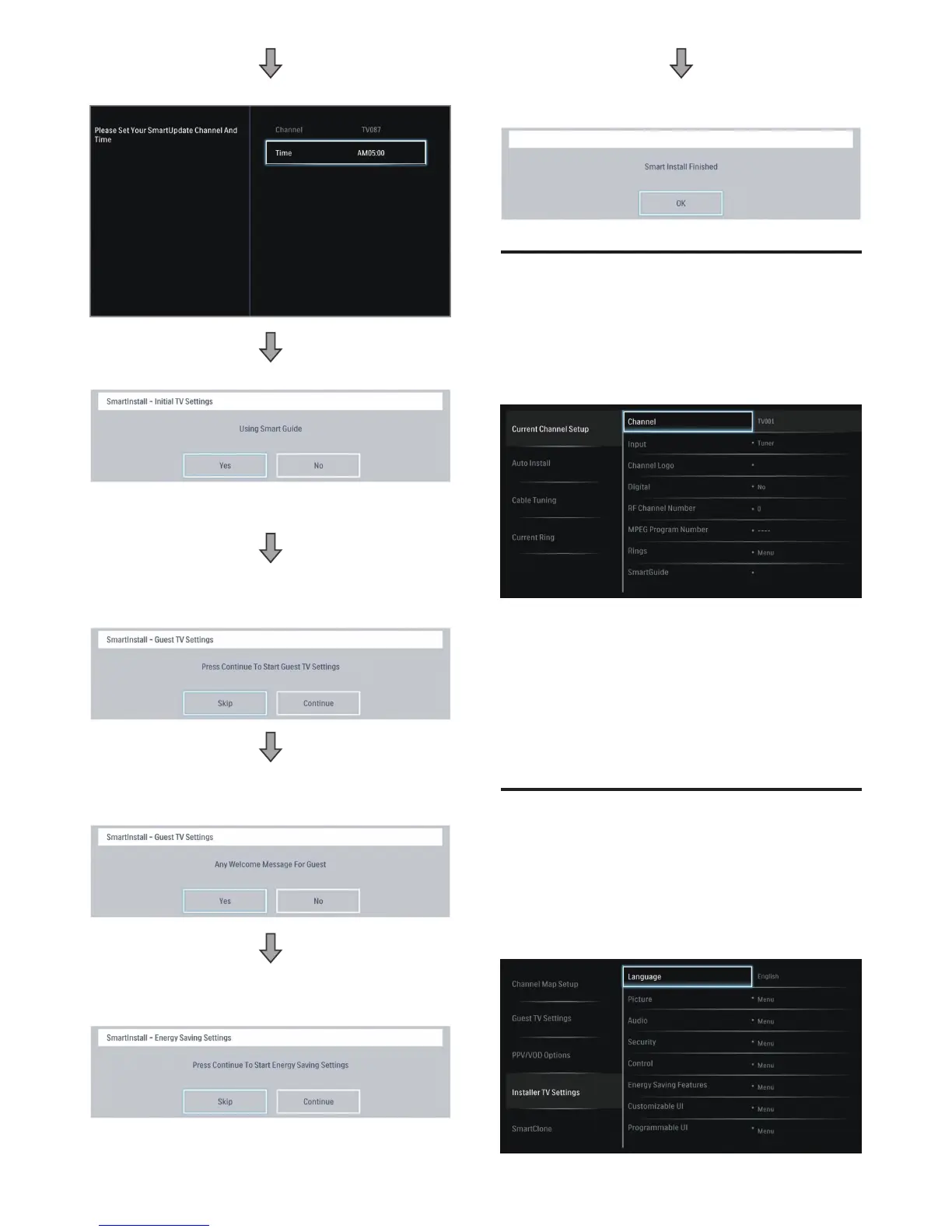
8. Please select your SmartUpdate Channel and Time.
9. SmartInstall – Using Smart Guide.
• Press Yes will enable the selection of SmartGuide
category.
10. SmartInstall - Guest TV Settings: Select this option, you can
set Guest TV Settings such as Closed Caption, Switch On
Program, Switch On Volume.
11. SmartInstall - Guest Welcome Settings: Select this option,
you can set Guest Welcome Settings such as Welcome
Message and Welcome Logo.
12. SmartInstall – Congure Advance setting such as Multi
RC, Energy Saving (Smart Power, ESP), Standby Mode
(Standard or Fast).
13. When above settings are done, press OK to conrm the
“Smart Install Finished” is OK.
Channel Setting Setup
This section describes how to change the channel settings.
1. Press M on the setup remote control to display the setup
menu.
2. Press oœpπ to select Channel Map Setup.
• Current Channel Setup options : “Channel”, “Input”,
“Channel Logo”, “Digital”, “RF Channel Number”, “MPEG
Program Number”, “Rings”, “SmartGuide”, “Label”,
“Mute”.
3. Go to SmartGuide Menu by pressing ▼▲◄►. Select
the categories of “High Denition”, “Education”, “News”,
“Kids”, “Movies”, “Network”, “Adult”, “Lifestyle”, “Other” by
pressing OK on the remote control on the box in menu.
Conguration Menu
This section describes how to change the TV general
performance settings. Switch On settings and Control
settings.
1. Press M on the setup remote control to display the setup
menu.
2. Press oœpπ to select Installer TV settings.




 To Next Page