12
Open TV Setting
Menus
12.1
Home Menu Overview
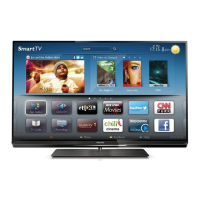
Press (Home) to select one of below menus, then
press OK.
Sources
This row contains available sources in this TV.
Watch TV
This row contains TV functions which are available for
user.
Apps
This row contains number of apps pre-installed.
Search
This row contains an interface to perform the search
within this TV.
Settings
This row contains settings which are available for
user.
You can reorder the icons on Home menus. To
reposition icons, press OK. Alternatively, you can
select the icon you want to reorder, and hold the OK
key for 3 seconds until the arrows appear around the
icon. Use navigation keys to move the highlighted
icon to another location, then press OK. Press the
BACK key to exit.
12.2
All Settings
Picture Settings
Picture Style
Select a style
For easy picture adjustment, you can select a preset
picture style.
(Home) > Settings > Picture style, press OK to
change to next available option.
The available Picture styles are ...
• Personal - The picture preferences you set during
the first start up
• Vivid - Ideal for daylight viewing
• Natural - Natural picture settings
• Standard - Most energy conscious setting
• Movie - Ideal for watching movies
• Game - Ideal for gaming*
• Monitor - Ideal for computer monitor
* Picture style - Game is not available for some video
sources.
Custom a style
You can adjust and stored picture settings in in the
currently selected picture style,
like Colour, Contrast or Sharpness.
Restore a style
To restore the style to its original setting, go
to (Home) > Settings > All
settings > Picture > Picture style, then
press Restore style.
Colour, Contrast, Sharpness, Brightness
Adjust the picture colour
(Home) > Settings > All
settings > Picture > Colour
Press the arrows (up) or (down) to adjust the
colour saturation value of the picture.
Adjust the picture contrast
(Home) > Settings > All
settings > Picture > Contrast
Press the arrows (up) or (down) to adjust the
contrast value of the picture.
You can decrease contrast value to reduce power
consumption.
Adjust the picture sharpness
(Home) > Settings > All
settings > Picture > Sharpness
Press the arrows (up) or (down) to adjust the
sharpness value of the picture.
Adjust the picture brightness
(Home) > Settings > All
settings > Picture > Brightness
Press the arrows (up) or (down) to set the
level of brightness of the picture signal.
Note: Setting of brightness much away from
32




 To Next Page