EasyManua.ls Logo

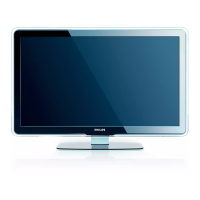
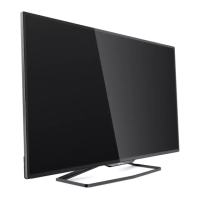
Philips 47PFL7403D - User Manual

Philips 47PFL7403D
44 pages
Print Icon
To Next Page IconTo Next Page
Loading...
Register your product and get support at
52PFL7403D
47PFL7403D
42PFL7403D
52PFL5603D
47PFL5603D
42PFL5603D
42PFL5403D
32PFL5413D
32PFL5403D
52PFL3603D
47PFL3603D
42PFL3603D
42PFL3403D
32PFL3403D /85
EN: For further assistance, call the customer support service in your country.
U.S.A., PUERTO RICO, OR U.S. VIRGIN ISLANDS:
•
1-888-PHILIPS (1-888-744-5477)
CANADA: 1-800-661-6162 (French speaking),
•
1-888-PHILIPS (1-888-744-5477) - (English or Spanish)
Enter below the Serial No. located on the rear of the cabinet.
FR: Pour obtenir de l’aide supplémentaire, communiquez avec le centre de service à la
clientèle de votre pays.
POUR OBTENIR DE L’AIDE AUX ÉTATS-UNIS, À PUERTO RICO OU AUX ÎLES
•
VIERGES AMÉRICAINES:
1-888-PHILIPS (1-888-744-5477)
CANADA : 1-800-661-6162 (pour français),
•
1-888-PHILIPS (1-888-744-5477) - (pour anglais ou en espagnol)
Entrez ci-dessous le numéro de série qui se trouve à l’arrière du boîtier du dispositif.
ES: Para obtener más información, llame al servicio de soporte al cliente de su país.
LOS ESTADOS UNIDOS, PUERTO RICO O EN LAS ISLAS VÍRGENES DE LOS
•
ESTADOS UNIDOS:
1-888-PHILIPS (1-888-744-5477)
CANADÁ: 1-800-661-6162 (en francés),
•
1-888-PHILIPS (1-888-744-5477) - (en inglés o español)
Escriba a continuación el de serie, el cual se encuentra en la parte posterior del gabinete.
Model / Modèle / Modelo :
Serial / Série / Serie:
EN User Manual
FR Manuel de l’utilisateur
ES Guía del usuario


Other manuals for Philips 47PFL7403D

Questions and Answers

  • V
    villanuevajacobAug 13, 2025
    What to do if Philips TV does not respond to the remote control?
    • M
      Mrs. Janice Grimes DDSAug 13, 2025
      If your Philips TV remote control is not working, first check if the indicator light on the TV blinks when you press the remote buttons. If not, ensure the batteries are correctly installed according to the illustration inside the remote and replace them if needed. Make sure you are using the remote control that came with the TV. As a last resort, remove the TV's power cord from the outlet, wait 60 seconds, and then plug it back in.
  • D
    Debra WalkerAug 17, 2025
    How to fix distorted picture on Philips TV?
    • J
      John WhiteAug 17, 2025
      If you're experiencing distorted picture on your Philips TV (stretched, with black bars), it might be due to the broadcast video format. Try pressing the FORMAT button on the remote to select the best picture format. For some accessory devices, the picture format settings might need to be adjusted directly on the device itself.
  • D
    Dustin MartinezAug 20, 2025
    Why is there no sound on my Philips TV loudspeaker?
    • O
      Olivia DunnAug 20, 2025
      If there's no sound coming from your Philips TV's loudspeaker, first, increase the volume to ensure it's not set to zero. Check if the sound is muted by pressing the MUTE button on the remote. Also, make sure no headphones are plugged into the TV. For AV connections, verify the Audio L/R cable is correctly connected. If using a component cable, ensure the red audio cable is not crossed with the red video cable. For HDMI connections, some accessory devices have an HDMI audio output setting that must be enabled.
  • T
    theresawatsonAug 25, 2025
    Why is there no picture or sound on my Philips TV?
    • T
      Tiffany MartinAug 25, 2025
      If you're not getting any picture or sound on your Philips TV, ensure you've selected the correct channel. If the TV receives channels via an AV connection, set the TV to the correct source input. If the TV is connected directly to the wall via a coaxial connection, perform the auto-installation again.
  • N
    neil03Aug 28, 2025
    Why is there no sound detected from the PC on my Philips TV?
    • I
      ivegaAug 28, 2025
      If you're not getting any sound from your PC on your Philips TV, it could be due to an incorrect HDMI port connection. Try connecting a DVI-HDMI cable to the HDMI 3 port on the TV. Also, ensure an audio cable is connected to the DVI AUDIO IN port on the TV. Finally, press the SOURCE button on the remote control and select the HDMI 3 source.
  • L
    Lisa RodriguezSep 1, 2025
    Why is the picture quality bad with a coaxial connection on my Philips TV?
    • D
      Douglas RamosSep 1, 2025
      If you are experiencing bad picture quality with a coaxial connection on your Philips TV, it is because standard definition channels are not as clear as high definition channels. Connect the devices via component or HDMI cables for better quality.
  • R
    rsolisSep 4, 2025
    What to do if I get an error message on Philips TV with HDMI connection?
    • B
      Becky EspinozaSep 5, 2025
      If you're getting an error message on your Philips TV screen with an HDMI connection, it might be due to HDCP authentication failure. To resolve this, ensure your HDMI cable is certified. You can also try switching to another source by pressing the SOURCE button on the remote, and then switch back to the HDMI source. Another solution is to reset both the accessory device and the TV by turning on the TV, selecting the HDMI channel, and then turning on the accessory device. Alternatively, while both devices are powered on, unplug and re-insert the HDMI cable.
  • D
    Derek GravesSep 8, 2025
    What to do if Philips TV picture is mostly red and green?
    • J
      Jacob GarciaSep 8, 2025
      If the picture on your Philips TV is mostly red and green, or missing red when connected to an accessory device via component cables, the issue might be due to an insecure or incorrect connection. Ensure all connections are made according to the color code and push the component cables all the way into the YPbPr sockets on the TV.

Summary

1. Important

Regulatory notices

Safety warnings regarding fire, electric shock, and plug usage.

3. Get started

Connect the antenna or cable

How to connect antenna, cable, DBS, or set-top box.

Connect the power cord

Instructions for connecting the power cord and disconnecting the TV.

Switch on and setup the TV

Steps for initial TV setup, language, and location selection.

4. Use your TV

5. Use more of your TV

Understand the remote control

Detailed explanation of all remote control buttons and their functions.

Change picture and sound settings

Guide to adjusting picture and sound parameters.

Change sound settings

Guide to adjusting equalizer, balance, and audio languages.

Use child control and rating locks

How to set a PIN and lock channels or the entire TV.

View photos and play music on a USB device

How to connect a USB device and access media files.

Use your TV in HDTV mode

Configure TV for high-definition video input.

Use your TV as a PC monitor

Connect and configure the TV to function as a PC monitor.

6. Change your TV installation

Tune channels automatically

Search for and store available TV channels automatically.

7. Update your TV software

Prepare for the software upgrade

Steps to prepare a USB drive with the software update file.

Upgrade software

Instructions to install new software onto the TV via USB.

8. Connect devices

Connection overview

Diagram and labels for all TV input/output connectors.

10. Troubleshooting

14. Warranty

Philips 47PFL7403D Specifications

Picture and Display IconPicture and Display
brightness500 cd/m²
dynamic screen contrast30.000:1
response time3 ms
viewing angle horizontal176º
viewing angle vertical176º
diagonal screen size47 inch / 119 cm
panel resolution1920x1080p
Power IconPower
ambient temperature5 °C to 35 °C
mains powerAC 220 - 240 V +/- 10%
power consumption278 W
power in energy saving mode190 W
standby power consumption0.15 W
Sound IconSound
output power RMS2 x 15W
built-in speakers2
Weight and Dimensions IconWeight and Dimensions
set dimensions1163 x 712 x 104 mm
set dimensions with stand786 x 310 mm
weight including packaging46.2 kg
product weight26 kg
product weight with stand33.5 kg
box dimensions1287 x 883 x 391 mm
VESA wall mount compatible400 x 400 mm

Related product manuals