
 Need help?
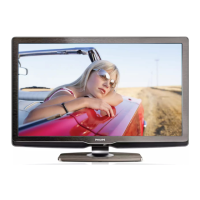
Do you have a question about the Philips 47PFL8404H/12 and is the answer not in the manual?
This TV can display High Definition programmes, but to enjoy HD TV you need to get programmes in HD first.
Make sure you have read and understood all instructions before using your TV. The warranty becomes invalid if any damage is caused by failure to follow instructions.
Carefully read the safety precautions before positioning the TV.
Position the TV at the ideal viewing distance. Benefit more from HD TV picture or any picture without straining your eyes.
Your TV is equipped with a Kensington security slot at the back of the TV.
Risk of damage to the TV screen! Never touch, push, rub or strike the screen with any object.
Disposal of your old product and batteries. Your product is designed and manufactured with high quality materials and components, which can be recycled and reused.
This TV has features that contribute to energy-efficient use. This TV was awarded the European Ecolabel for its environmental qualities.
It takes a couple of seconds for the TV to start up.
The keys on the side of the TV allow basic TV control.
The keys on the side of the TV allow basic TV control.
The keys on the side of the TV allow basic TV control.
Always take care to point the remote control at the remote control infra red sensor on the front of the TV.
Your TV is prepared for VESA compliant wall mounting. A VESA wall mount bracket is not included.
Before you lift the TV from the stand, unscrew the 4 stand screws on the back of the TV.
This TV is equipped with a full High Definition (HD) display. A full HD 1920x1080p, the highest resolution of HD sources.
Ambilight is the lighting technology that emanates from the back of the television onto the wall.
Next to normal analogue TV broadcast your TV can receive digital terrestrial (DVB-T) and in certain countries also digital cable (DVB-C) TV and radio broadcasts.
The Programme guide is an onscreen guide to scheduled TV programmes. This guide is provided by digital broadcasters or the Net TV online service.
You can link up your TV to Net TV. The Net TV start page offers you movies, pictures, music, infotainment, games and many more, all set up for your TV screen.
View or play your own multimedia files (photos, music, videos, …) from the USB connection on the side of the TV.
With Scenea, you can set a photo as a 'wallpaper' photo on your screen. Use any photo from your collection and create your own painting on the wall.
You are reading the built in user manual. This manual contains all of the information needed to install and operate this TV.
A printable version of the user manual is available on the internet.
This section describes the functions of the various keys on the remote control.
Open the battery cover on the back of the remote control to insert the 2 batteries supplied.
While watching TV, press OK to open the Channel overview. This overview shows the TV channels and possible radio stations.
The Home menu lists the activities you can do with your TV.
When you have connected a device to the TV, always add this device as an item in the Home menu.
The Setup item in the Home menu holds most TV settings. In the Setup menu you can set picture, sound or Ambilight settings.
The Options menu offers convenient settings related to what is on screen.
You can view a list of scheduled TV programmes with the Guide menu (only for digital broadcast).
To switch TV channels, press P + or — on the remote control. You can use the number keys if you know the channel number.
When watching a digital TV channel, information on the current and next programme is available.
If the TV is on, press O on the remote control to switch to standby.
You can set the TV to the predefined setting that is best for what you're watching at the moment.
If black bars appear in the screen, adjust the picture format. Ideally change the picture format to a format that fills the screen.
With Ambilight, you will enjoy a more relaxed viewing experience and improved perceived picture quality.
In the Ambilight menu you can set or adjust the following Ambilight settings …
When the TV is on standby, you can switch Ambilight on and create an Ambilight LoungeLight effect in your room.
To watch a DVD movie using your DVD player, switch on your DVD player, insert a disc and press Play on the player.
When you watch TV using a digital receiver, with a subscription from a cable or satellite company, connect the receiver and add the receiver to the Home menu.
When you have added a connected device as an item to the Home menu, you can easily and directly select that device to watch its programme.
Net TV offers Internet services and websites tailored for your TV. Use the TV remote control to browse the Net TV Internet pages.
To enjoy Net TV, you need to connect the TV to a router with a high speed connection to the Internet.
The first time you link up to Net TV, the TV asks you to agree on the Terms of Use. When you agree on these terms, the TV asks you to register for Net TV.
To browse Net TV, close this user manual and press Net TV on the remote control or select Browse Net TV in the Home menu.
The moment you link up with Net TV, the TV programme guide information comes from the Internet.
With Net TV Parental control you can lock Net TV services and service categories.
Warning: If you clear the Net TV memory with Clear history, you need to redo the first use registration.
Most TV channels broadcast information through teletext. While watching TV, press Teletext.
Some digital TV broadcasters have several teletext languages available. You can set your primary and secondary language.
A teletext page number can hold several subpages. The pages are shown on a bar next to the main page number.
You can easily jump from one subject to another without using page numbers with T.O.P. teletext.
In teletext, you can quickly jump to a subject linked to a series of page numbers. Also, you can search for specific words in teletext pages.
When in teletext, press Options on the remote control to reveal hidden info, let subpages cycle automatically.
Some digital TV broadcasters offer dedicated digital text or interactive services on their digital TV channels.
Teletext 2.5 offers more colours and better graphics, if broadcast by the TV channel.
After you have finished the installation, all TV and radio channels are added to the Channel overview.
The Programme guide is an onscreen guide of scheduled TV programmes. This guide is provided by the broadcasters or Net TV.
To select where the Programme guide information comes from, press Setup > Installation > Preferences > Programme guide.
With Sleeptimer you can switch the TV to standby or out of standby at a specified time.
To prevent children from watching TV, you can lock the TV or block age rated programmes.
Some digital broadcasters, depending on your country, have their programmes rated.
Programme subtitles are available most of the time. You can set subtitles to display constantly.
Digital TV channels can broadcast several audio languages that go with the programme. You can set your preferred languages to switch to when these audio languages are broadcast.
Watch photos or play music and videos on TV from a USB memory device.
Watch photos or play music and videos on TV from a PC or another storage device in your home network.
With Scenea, you can set a photo as a 'wallpaper' photo on your screen. Use any photo from your collection.
Some digital TV channels broadcast special audio and subtitles adapted for people who are hearing impaired.
Some digital TV channels broadcast special audio adapted for people who are visually impaired. The normal audio is mixed with extra commentary.
You can set the TV to the predefined setting that is best for what you're watching at the moment.
In the Picture menu, you can adjust all picture settings individually.
In the Sound menu, you can adjust all sound settings individually.
In the Ambilight menu, you can adjust all Ambilight settings individually.
You can return to the original factory settings. Only picture, sound and Ambilight settings will be reset.
After the first installation, you might want to reorder or rename installed channels. Organise TV channels in the Channel overview.
When the TV was switched on for the first time, a full installation of channels was performed.
You can redo this full installation all over again to set your language, country and install all available TV channels.
If you receive digital TV broadcasting (DVB) from your own antenna (DVB-T) or use the TV tuner to receive digital cable channels (DVB-C).
Analogue TV channels can be manually tuned-in channel by channel.
If the reception of an analogue TV channel is poor, you can try to fine tune the TV channel.
If both DVB-T and DVB-C reception is available in your country, you need to select DVB-T or DVB-C before you install TV channels.
In some countries, digital TV broadcasts do not send UTC information. Therefore, winter and summer time changes might be ignored.
PC network: If the TV is connected to your PC network, you can play photos, music and movies from a computer.
To connect the TV to a PC network and internet you need a router in your PC network.
The onscreen procedure helps you to install the wired network. Connect the router to the TV using a network cable.
The TV's network settings that are used to connect to your router are standard and set to automatic.
Media servers need to be set for sharing their files and folders. Follow the instructions closely to set your specific server.
To avoid bad picture quality from interference with the TV processing, the picture processing of these devices should be discarded.
When a Home Theatre System is connected, the picture on your TV and the sound from the Home Theatre System should be syncronized.
If your TV is connected to a router, which is connected to the Internet, you can update the TV software directly from the Internet.
Start the software update on the TV. Then, download the TV software from the Internet onto your PC.
Make sure the power cable is securely inserted in the TV. Make sure that the power plug in the wall socket is accessible at all times.
Locate the antenna connection at the back of the TV. Insert the antenna cable securely in the Antenna socket.
Before you connect devices to the TV, verify which connectors are available on the device. Connect the device to the TV with the highest quality connection available.
An HDMI connection has the best picture and sound quality. One HDMI cable combines video and audio signals.
Use the Component Video YPbPr connection together with an Audio Left and Right connection for sound.
A scart cable combines video and audio signals. Scart connectors can handle RGB video signals but cannot handle High Definition (HD) TV signals.
Use an S-Video cable together with an Audio Left and Right (cinch) cable.
Use a Video (cinch) cable together with an Audio Left and Right (cinch) cable.
Use a VGA cable (DE15 connector) to connect a computer to the TV. With this connection you can use the TV as a computer monitor.
Use an HDMI cable to connect the DVD player to an HDMI connector on the back of the TV.
First, use an HDMI cable to connect the device to the TV.
First, use 2 antenna cables to connect the antenna to the DVD Recorder and the TV.
First, use 2 antenna cables to connect the antenna to the receiver and the TV.
First, use 3 antenna cables to connect the digital receiver and the DVD Recorder to the TV.
First, use 3 antenna cables to connect the 2 devices and the TV.
Use an HDMI cable to connect the Blu-ray Disc player to an HDMI connector on the back of the TV.
First, use 2 antenna cables to connect the Digital HD receiver to the TV.
The most practical connections for a game console are at the side of the TV. You can use an HDMI, S-Video or Video connection.
Use an HDMI cable or YPbPr cables to connect a High Definition game console to the TV.
To view pictures stored on your digital photo camera, you can connect the camera directly to the TV. Use the USB connection at the side of the TV to connect.
The most practical connection for a camcorder is at the side of the TV. You can use an HDMI, S-Video or Video connection.
You can connect the TV to your computer as a PC monitor. Before connecting the PC, set the PC monitor refresh rate to 60 Hz.
Use a scart cable to connect a decoder which decodes analogue antenna channels. Use the EXT1 or EXT2 connectors at the back of the TV.
If a device is equipped with the HDMI-CEC standard, the device and the TV can work together.
With EasyLink Remote control, the TV remote control commands are sent directly to the device you are watching on TV.
Scrambled digital TV channels can be decoded with a Conditional Access Module (CAM).
This TV can handle the CI+ conditional access. CI+ allows service providers to offer premium HD digital programmes with a high level of copy protection.
To set up the wired network connection, read all chapters in Setup > Network.
Warning: If your TV breaks down, NEVER try to repair the TV yourself.
The TV does not switch on. Verify the power cable connection. Verify that the batteries of the remote control are not empty or weak.
Some TV channels are gone. Verify if the correct list for the Channel overview is selected.
The Ambilight is on but there is no picture. Verify if the antenna is connected properly.
There is a picture but no sound. Verify the volume is not set to 0.
HDMI connections: The HDMI-HDCP procedure might take a few seconds before the TV shows the picture from a device.
USB device content is not shown. Set your device (camera) to ‘Mass Storage Class’ compliant.
Home network not found. Verify if the router is switched on and set to DHCP On.
Product specifications are subject to change without notice.
Picture / Display: Display type: LCD Full HD W-UXGA. Sound: Output power (RMS) : 2 x 10 W.
Video formats: Resolution — Refresh rate. Computer formats: Resolution — Refresh rate.
Connections: USB, Ethernet UTP5. Supported USB / memory device formats: FAT 16, FAT 32, NTFS.
Rear: EXT1 (scart): Audio L/R, CVBS in, RGB. Side: HDMI side in, S-Video in (Y/C).
Dimensions and weights for 32PFL8404, 37PFL8404, 42PFL8404.
 General
| Screen Size | 47 inches |
|---|---|
| Resolution | 1920 x 1080 pixels |
| Display Type | LCD |
| Backlight Type | LED |
| HDMI Ports | 4 |
| USB Ports | 2 |
| Screen Format | 16:9 |
| Supported Video Modes | 1080p, 1080i, 720p, 576p, 576i, 480p, 480i |
| Comb Filter | 3D |
| RMS Rated Power | 20 W |
| Component Video (YPbPr/YCbCr) in | 1 |
| SCART Ports Quantity | 1 |
| S-Video Inputs Quantity | 1 |
| PC in (D-Sub) | 1 |
| Common Interface (CI) | Yes |
| HDMI | Yes |
| Refresh Rate | 100 Hz |
| Smart TV | No |
| 3D Capability | No |
| Built-in Wi-Fi | No |
| Energy Efficiency Class | B |
| Viewing Angle, Horizontal | 176 degrees |
| Viewing Angle, Vertical | 176 degrees |
| Audio System | Stereo |



 To Next Page
