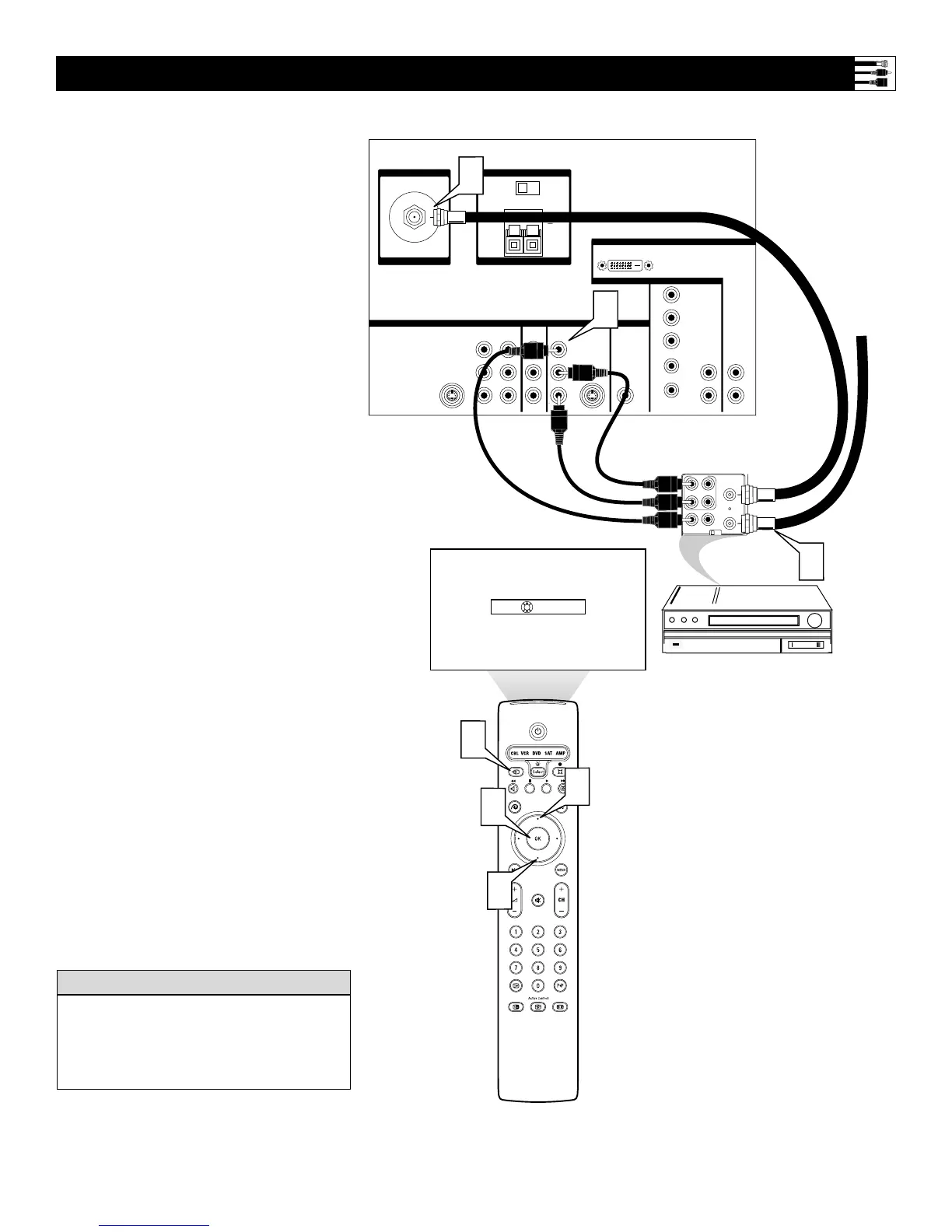
Back of TV
Incoming
Cable TV
or
Antenna
Signal
Back of VCR
(example only)
1
Connect the incoming antenna or cable
TV signal to the ANT IN jack on the
back of the VCR.
2
Using a coaxial cable, connect the
ANT OUT jack on the back of the
VCR to the ANTENNA IN 75Ω jack
on the back of the TV.
3
Using A/V cables, connect the AUDIO
and VIDEO OUT jacks on the back of
the VCR to the corresponding INPUT-
AV 2 audio (L and R) and video (V)
jacks on the back of the TV.
4
Press the Source button on the remote
control to access the Source list.
5
Press the Cursor Up or Down button to
select the AV2 input source.
6
Press the OK button to confirm your
choice. The set is now switched to the
AV2 input source for the viewing of pro-
grams from the VCR.
NOTE: Since you’ve connected the
cable TV signal directly to the TV’s
tuner (step 2 above), you can watch the
unscrambled programs by simply tun-
ing to the desired channel. To store
channels in the TV’s memory, you
must use Autoprogram, which you can
access through “Install” in the TV’s
on-screen menu. See the Autoprogram
section in the Quick Use and Setup
Guide that came with the TV. If you
use Autoprogram, you can select chan-
nels by pressing the CH + or – buttons
on the TV remote control (in TV
mode). Otherwise, you must press the
digit (number) buttons to tune directly
to the channel you desire.
Connecting a VCR
Color Coding Used on Jacks and Plugs to
simplify connections:
Yellow: VIDEO (Composite Video)
Red: Right AUDIO
White: Left AUDIO.
HELPFUL HINT



 To Next Page