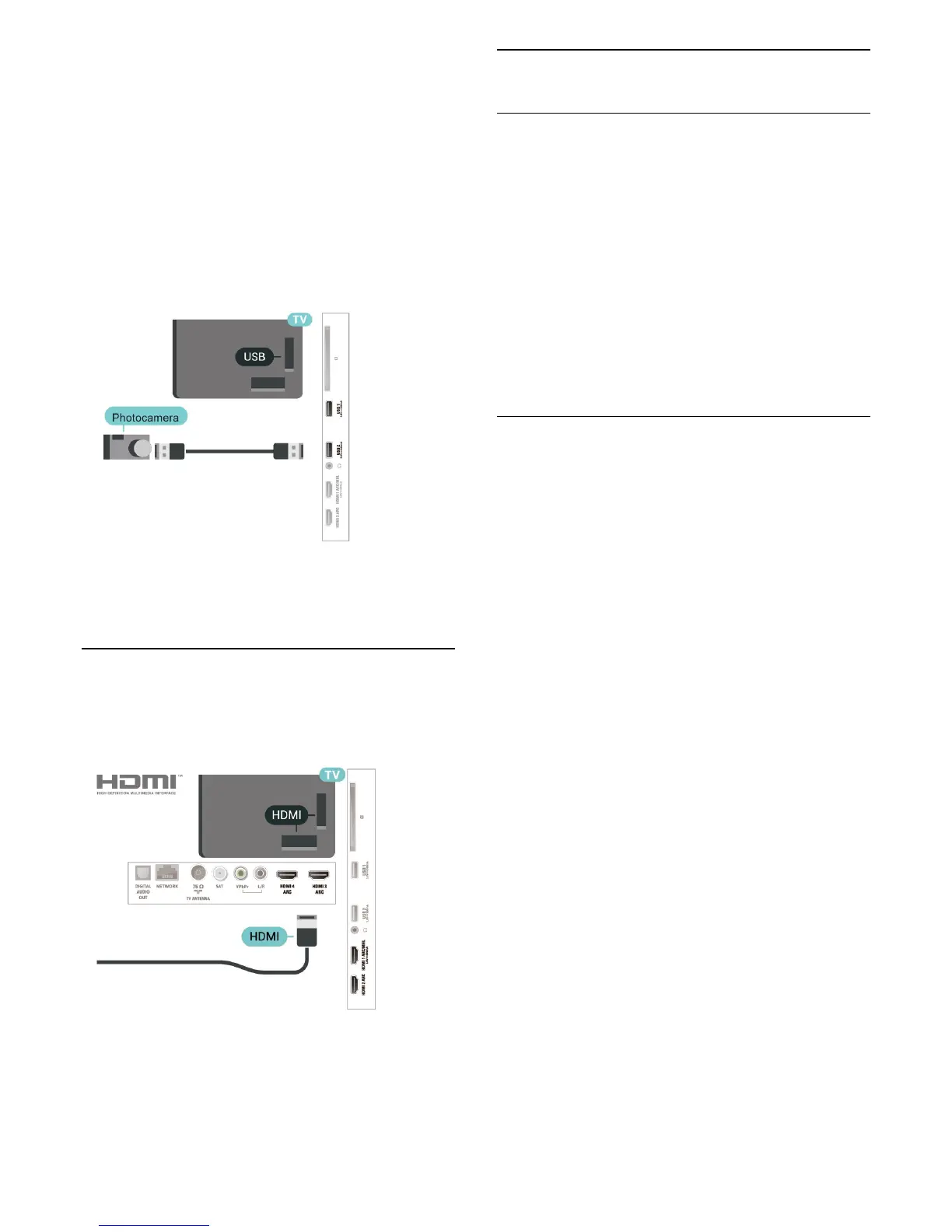
connection.
If the contents list does not appear automatically,
press
SOURCES , and select USB.
Your camera might need to be set to transfer its
content with PTP (Picture Transfer Protocol). Read
the user manual of the digital photo camera.
Ultra HD on USB
You can view photos in Ultra HD resolution from a
connected USB device or flash drive. The TV will
downscale the resolution to Ultra HD if the resolution
of the photo is higher. You cannot play a native Ultra
HD video on any of the USB connections.
For more information on viewing photos, in Help,
press the colour key
Keywords and look
up Photos, Videos and Music.
6.14
Camcorder
For best quality, connect the game console with a
High speed HDMI cable to the TV.
6.15
Computer
Connect
You can connect your computer to the TV and use
the TV as a PC monitor.
With HDMI
Use an HDMI cable to connect the computer to the
TV.
With DVI to HDMI
Alternatively, you can use a DVI to HDMI adapter
(sold separately) to connect the PC to HDMI and an
audio L/R cable (mini-jack 3.5mm) to AUDIO IN L/R
on the back of the TV.
Ideal Setting
If you connect a computer, we advice you to give the
connection, on which the computer is connected, the
correct device type name in the Source menu. If you
then switch to Computer in the Source menu, the TV
is set to the ideal Computer setting automatically.
To set the TV to the ideal setting…
1 - Press
, select All Settings and press OK.
2 - Select Picture and press
(right) to enter the
menu.
3 - Select Advanced > Computer, and press OK.
4 - Select On or Off, and press OK.
5 - Press
(left) repeatedly if necessary, to close
the menu.
29



 To Next Page