General Settings
Connection Related Settings
USB Keyboard Settings
(Home) > Settings > All settings > General
settings > USB keyboard settings
To install the USB keyboard, switch on the TV and
connect the USB keyboard to one of
the USB connections on the TV. When the TV
detects the keyboard for the first time, you can select
your keyboard lay-out and test your selection.
Mouse Settings
(Home) > Settings > All settings > General
settings > Mouse settings
Adjust the motion speed of the USB mouse.
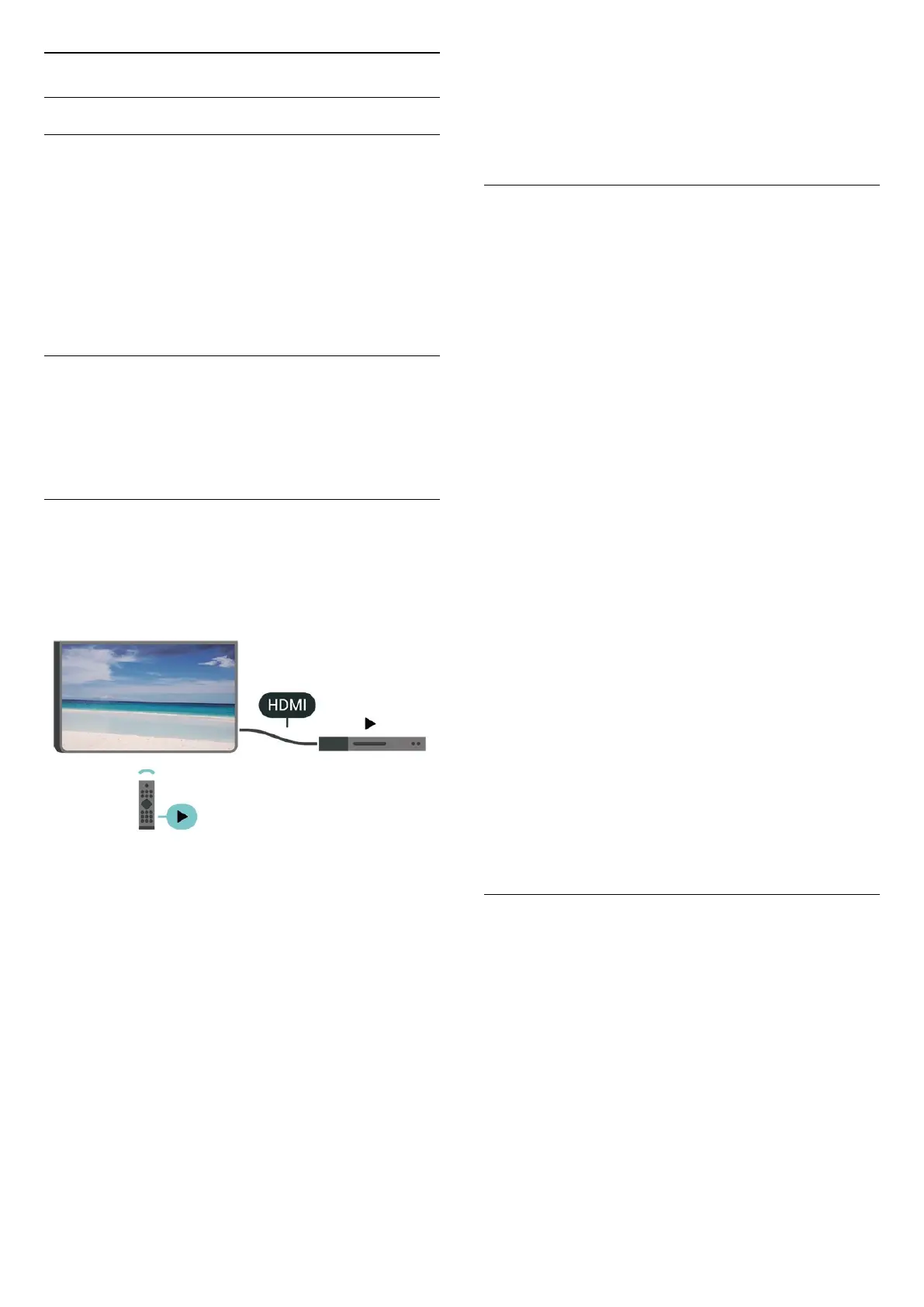
HDMI-CEC Connection - EasyLink
Connect HDMI CEC-compatible devices to your TV,
you can operate them with the TV remote
control. EasyLink HDMI CEC must be switched on on
the TV and the connected device.
Switch on EasyLink
(Home) > Settings > All settings > General
settings > EasyLink > EasyLink > On
Operate HDMI CEC-compatible devices with TV
remote control
(Home) > Settings > All settings > General
settings > EasyLink > EasyLink remote
control > On
Note:
- EasyLink might not work with devices from other
brands.
- The HDMI CEC functionality has different names on
different brands. Some examples are: Anynet, Aquos
Link, Bravia Theatre Sync, Kuro Link, Simplink and
Viera Link. Not all brands are fully compatible with
EasyLink. Example HDMI CEC branding names are
property of their respective owners.
HDMI Ultra HD
(Home) > Settings > All settings > General
settings > Input sources > HDMI (port) > HDMI Ultra
HD
This TV can display Ultra HD signals. Some devices -
connected with HDMI - do not recognise a TV with
Ultra HD and might not work correctly or show
distorted picture or sound.
To avoid the malfunctioning of such a device, you can
set the signal quality to a level the device can handle.
• The setting Optimal allows maximum up to Ultra HD
(50Hz or 60Hz) RGB 4:4:4 or YCbCr 4:4:4/4:2:2/4:2:0
signals.
• The setting Standard allows maximum up to Ultra
HD (50Hz or 60Hz) YCbCr 4:2:0 signals.
Supported format for HDMI Ultra HD options:
• Resolution: 3840 x 2160
• Frame rate (Hz): 50Hz, 59.94Hz, 60Hz
• Video data sub-sampling (bit-depth)
- 8 bit: YCbCr 4:2:0, YCbCr 4:2:2*, YCbCr 4:4:4*, RGB
4:4:4*
- 10 bit: YCbCr 4:2:0*, YCbCr 4:2:2*
- 12 bit: YCbCr 4:2:0*, YCbCr 4:2:2*
* Supported only when HDMI Ultra HD is set
to Optimal.
Note: To watch HDR10+ or Dolby Vision content from
HDMI source, you may need to power off your player
and power on again when the player connected to TV
playing such content for the first time.
HDMI Auto game mode
(Home) > Settings > All settings > General
settings > Input sources > HDMI (port) > HDMI Auto
game mode
Set HDMI Auto game mode to On, if you want TV to
automatically set Picture style to Game whenever it is
informed by the HDMI device connected to TV. This
feature is only selectable when HDMI Ultra HD set to
Optimal.
32




 To Next Page