BDL5530QL
25
Volume: Adjust to increase or decrease the volume. 0(minimum) to 60
(maximum).
Treble: Adjust to increase or decrease higher-pitched sounds.
-8(minimum) to 8(maximum).
Bass: Adjust to increase or decrease lower-pitched sounds. -8(minimum)
to 8(maximum).
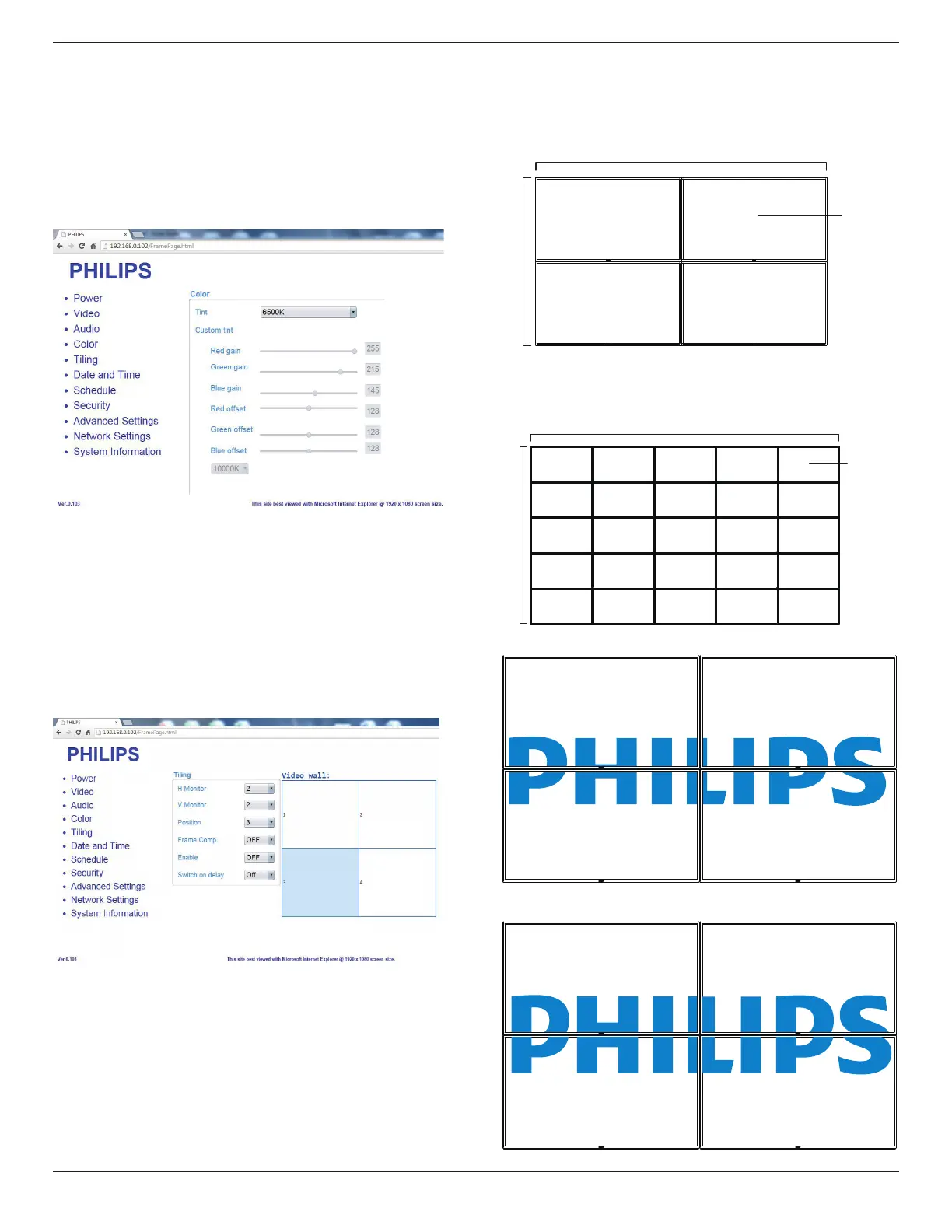
6. Click on Color to switch to Color Page. It provides you an easy way
to adjust color settings.
Tint: Change the color balance. Choose from Cool/Normal/Warm/
Custom
Custom tint: With this function you can adjust the color tones of the
image precisely by changing the R(Red), G(Green) and B(Blue) settings,
respectively.
Note: Custom tint only available when Tint is set to Custom.
7. Click on Tiling to switch to Tiling Page. With this function you can
create a single large-screen matrix (video wall) that consists of up to
225 sets of this display (up to 15-sets on the vertical and 15-sets on
the horizontal sides).
H Monitor: Adjust displays on the horizontal side.
V Monitor: Adjust displays on the vertical side.
Position: Adjust the position of this display in the screen matrix.
Frame Comp.: Choose to turn the frame compensation function on or
off.
Enable: Choose to {On} or {Off} the Tiling function.
Switch on delay: Adjust the power-on delaying time allows a sequential
powering-on for each display
Note:
Example:2x2screenmatrix(4displays)
H monitors = 2 displays
V monitors = 2 displays
1 2
3 4
H monitors
V monitors
Position
Example:5x5screenmatrix(25displays)
H monitors = 5 displays
V monitors = 5 displays
1 2
6 7
3 4
8 9
5
10
11 12 13 14 15
16 17 18 19 20
21 22 23 24 25
H monitors
V monitors
Position
Frame comp. {On}
Frame comp. {On}







 To Next Page