10 EN
4 Select [On] under the options: [EasyLink],
[One Touch Play] and [One Touch
Standby].
» EasyLink function is turned on.
One Touch Play
When a video disc is in the disc compartment,
press to wake up the TV from standby, and
then play a disc.
One Touch Standby
When a connected device (for example TV)
is put to standby with its own remote control,
this player is put to standby automatically.
2 Change settings
This section helps you change the settings of
this player.
Note
• You cannot change a menu option that is grayed out.
• To return to the previous menu, press . To exit the
menu, press .
Picture
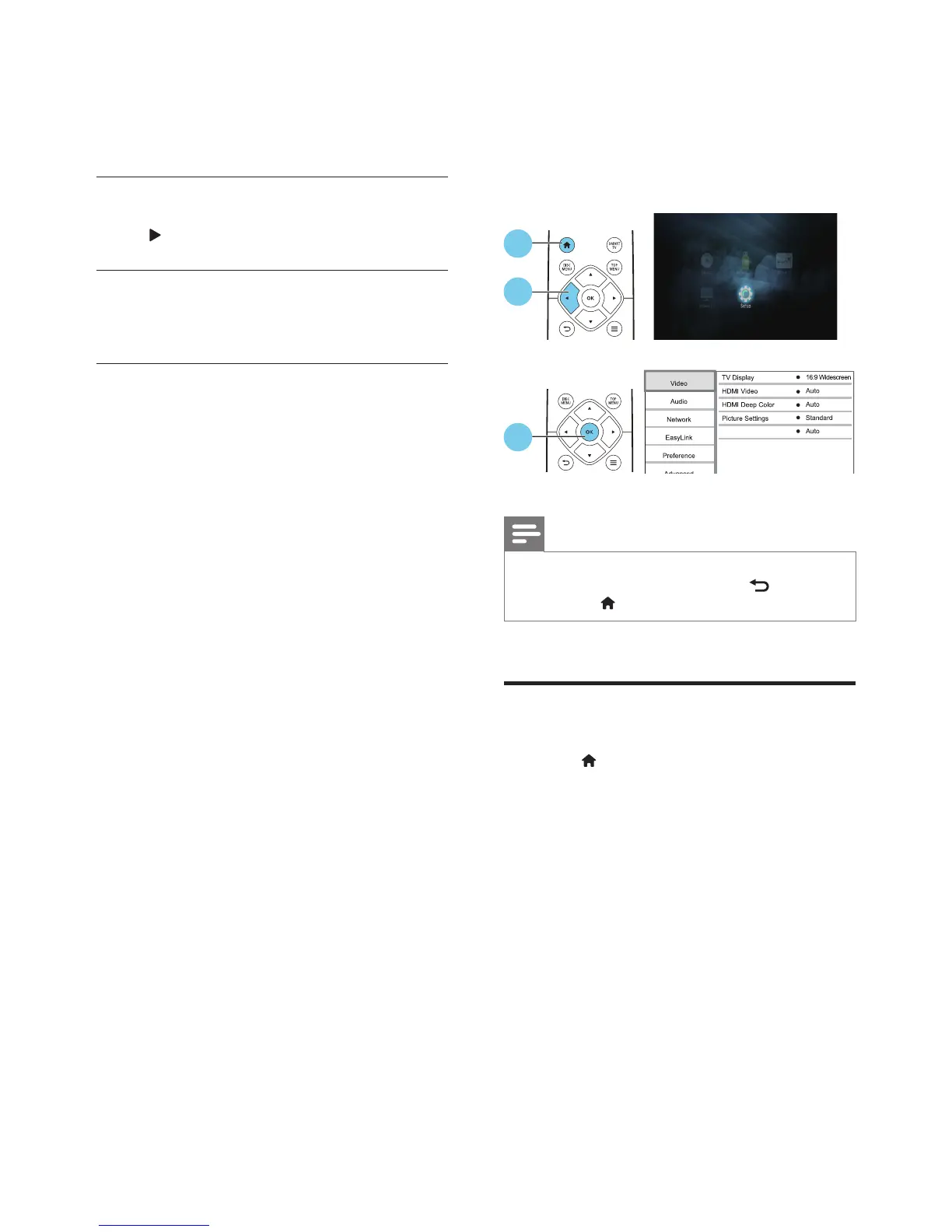
1 Press .
2 Select [Setup] > [Video] to access the
video setup options.
• [TV display]: Select a picture display format
tottheTVscreen.
• [HDMI video]: Select an HDMI video
resolution.
• [HDMI Deep Color]: Display colors with
more shades and hues when the video
content is recorded in Deep Color and the
TV supports this feature.
• [Picture settings]:Selectapredened
color setting.
• [Watch 3D video]: Set to 3D or 2D
output when playing a Blu-ray 3D disc.
The player must be connected to a 3D TV
through HDMI.
Watch 3D video
1
2
3



 To Next Page