EasyManua.ls Logo

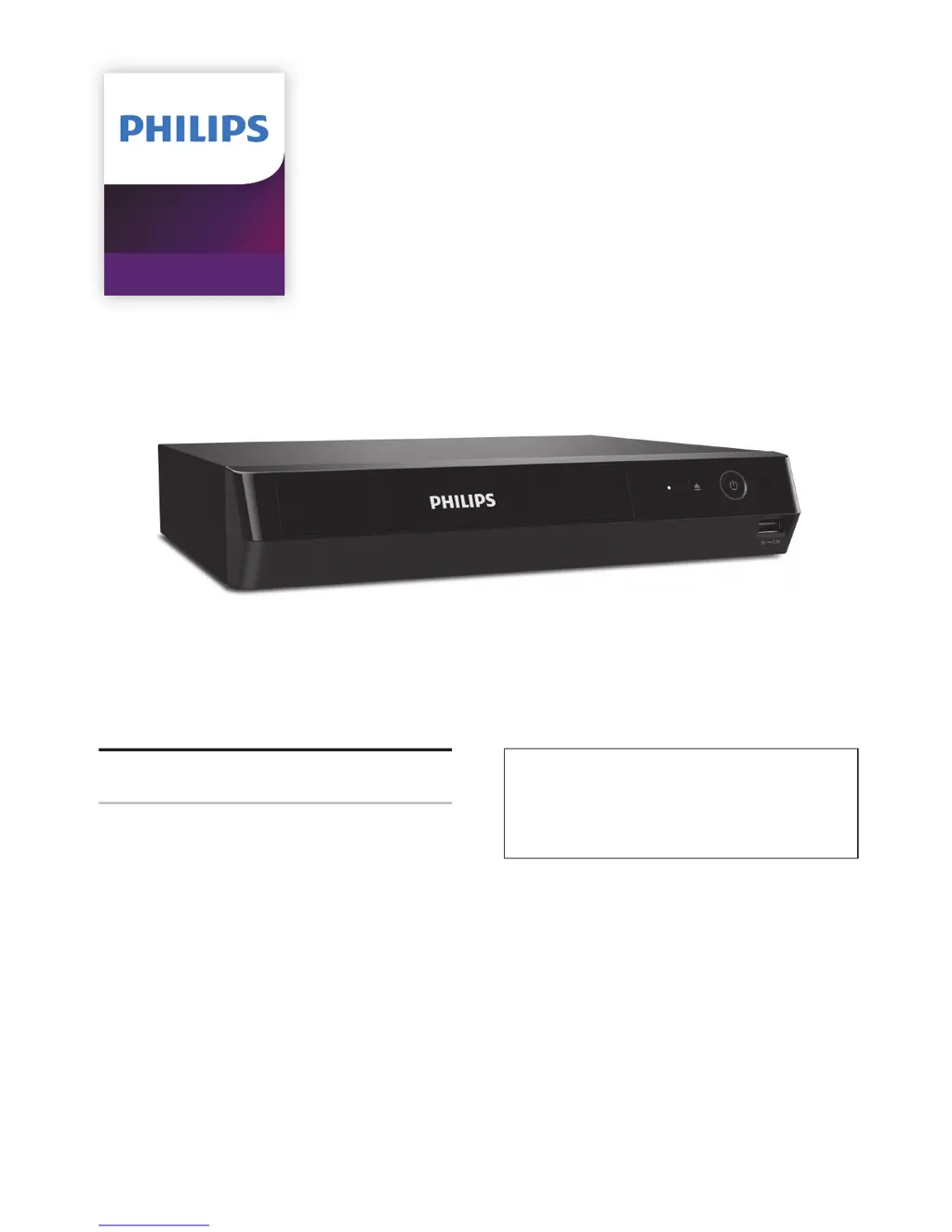
Philips BDP5502 - User Manual

Philips BDP5502
60 pages
Print Icon
To Next Page IconTo Next Page
Loading...
Register your product and get support at
www.philips.com/welcome
User Manual
BDP5502
4K Ultra HD
Blu-ray Player
For further assistance, call the customer
support service in your country.
To obtain assistance, contact Philips Customer
Care Center;
In the U.S.A., Canada, Puerto Rico, or the U.S.
Virgin Islands; 1- 866-515-1124

Table of Contents

Other manuals for Philips BDP5502

Questions and Answers

  • S
    Stephanie VargasSep 12, 2025
    Why Philips BDP5502 Blu-ray Player has no high-definition video signal?
    • S
      Shannon AndersonSep 12, 2025
      If you're not getting a high-definition video signal on your TV screen from your Philips Blu-ray Player, make sure the disc contains high-definition video, as it's only available when the disc supports it. Also, ensure that your TV supports high-definition video.
  • D
    Dr. Catherine ParkerAug 25, 2025
    Why is there no sound or picture from my Philips BDP5502?
    • L
      Lisa YoungAug 25, 2025
      If there is no sound or picture from your Philips Blu-ray Player, ensure that both the TV and the Blu-ray Player are turned on. Also, confirm that the connections to the TV are correctly made. Finally, verify that the connected TV or device supports HDCP, as the unit will not output a video signal without HDCP support.
  • A
    Andrew OdonnellAug 25, 2025
    Why Philips Blu-ray Player not responding to remote control?
    • N
      nfigueroaAug 26, 2025
      If your Philips Blu-ray Player is not responding to the remote control, try reducing the distance to the infrared sensor window. Ensure the player’s AC power cord is plugged into a power outlet. Check the batteries in the remote control, ensuring they are inserted correctly (+/-). You may also need to check the IR signal.
  • A
    Angela JacobsNov 25, 2025
    Why is my Philips BDP5502 Blu-ray Player not connecting to the network?
    • S
      Stacy WeeksNov 25, 2025
      There could be several reasons why your Philips Blu-ray Player isn't connecting to the network. First, ensure that the modem and router are powered on and that the Ethernet cable is properly connected to both. Check if the Internet light is active on the modem and router. Review the network settings on the Blu-ray player. As a troubleshooting step, turn off the Blu-ray player, modem, and router (if it has a power button), unplug their AC cords for 30 seconds, then plug them back in and turn them back on. If you're using a cable service with a telephone/internet modem, you might need to use its reset button or remove the backup battery. Also, verify the cable connection to the router if using an Ethernet cable, confirm the network settings in the Setup menu, and ensure that the DHCP functio...
  • D
    David GaySep 12, 2025
    What does BD-ROM Data (USB) Check mean on Philips BDP5502?
    • L
      Linda McdowellSep 12, 2025
      When the “BD-ROM Data(USB) Check” message appears on your Philips Blu-ray Player when trying to play a Blu-ray Disc™, connect a USB memory stick first, and then insert the Blu-ray Disc™. The unit checks the USB memory stick for BD-Live™ content storage when loading a Blu-ray Disc™.
  • C
    Connie PachecoSep 18, 2025
    What format should disc be for Philips BDP5502 Blu-ray Player?
    • E
      Edward OrozcoSep 18, 2025
      If your Philips Blu-ray Player cannot playback a disc, ensure that the disc was recorded in the UDF, ISO9660, or JOLIET format.
  • M
    Megan WilsonSep 6, 2025
    What to do if Philips Blu-ray Player cannot play back photo files from a disc?
    • D
      Dr. Tracy BrownSep 6, 2025
      If your Philips Blu-ray Player cannot play back photo files from a disc, make sure that the disc is recorded in the UDF, ISO9660, or JOLIET format.
  • E
    Elizabeth EvansSep 6, 2025
    What to do if Philips Blu-ray Player cannot play back music files from a disc?
    • R
      Robert HillSep 6, 2025
      If your Philips Blu-ray Player cannot play back music files from a disc, ensure that the disc was recorded in the UDF, ISO9660, or JOLIET format. Also, confirm that the Bitrate and Sampling Frequency are compatible with this unit.
  • B
    Brandon ConleySep 18, 2025
    Why Philips Blu-ray Player cannot find photo file?
    • D
      dyoungSep 18, 2025
      If your Philips Blu-ray Player cannot find a photo file, make sure that the file extension is .jpg (.JPG), .jpeg (.JPEG), .png (.PNG), or .gif (.GIF).
  • L
    Laurie ParkerAug 31, 2025
    Why Philips BDP5502 Blu-ray Player cannot play back a disc?
    • L
      Laura Davidson MDAug 31, 2025
      If your Philips Blu-ray Player cannot play back a disc, first ensure that the disc is playable on the unit. Check the region code of the disc. For DVD-RW/-R discs, make sure that the disc is finalized. Try cleaning the disc.

Summary

INTRODUCTION

Safety Instruction

Provides safety instructions and warnings for product usage.

IMPORTANT SAFETY INSTRUCTIONS

LASER SAFETY

Information regarding Class 1 Laser Product safety precautions.

FCC WARNING

Details on radio frequency energy and potential interference.

Location and Handling

Dew Condensation Warning

Warning about potential damage from dew condensation.

Warranty

Supplied Accessories

Lists the items included with the product.

FEATURES

Features

Overview of the Blu-ray Player's capabilities and functions.

System Information

FUNCTIONAL OVERVIEW

Front Panel

Identifies and describes the controls and ports on the front of the unit.

Rear Panel

Identifies and describes the ports and connections on the rear of the unit.

Remote Control

Installing the Batteries in the Remote Control

Guide to On-Screen Display

Home Menu

Explains the main menu structure and navigation options.

Setup Menu

Details the categories and options available in the Setup menu.

Play Menu

Describes the options available during playback.

CONNECTIONS

HDMI Video;Audio Connection

Explains how to connect the unit to a TV or AV receiver via HDMI.

HDMI Audio Output

Connection to the Network

BEFORE YOU START

Initial Setup

Guides through the initial setup process upon first use.

INFORMATION ON PLAYBACK

Information on Playback

Lists playable disc types and file formats supported by the unit.

Recommended Specifications

Unplayable Media and Files

Guide to File List

How to Insert a Disc

BASIC PLAYBACK

Playing Back a Disc

General steps for playing back various types of discs.

Playing Back an Ultra HD Blu-ray Disc

Playing Back a Blu-ray 3 D Disc

Playing Back Content from a USB Memory Stick

Using the Title; Disc; Pop Menu

SPECIAL PLAYBACK

Fast Forward; Fast Reverse

How to fast forward or rewind playback.

Slow Forward Playback

How to play back video in slow motion.

Repeat Playback

Shuffle; Random Playback

PiP (BONUSVIEW) Setting

Enjoying BD-Live Discs Using Internet

Title; Chapter Search

Time Search

Switching Subtitles

Switching Audio Soundtrack

Switching Camera Angles

Noise Reduction

LIST OF SETTINGS

SETUPS

Network Connection

Detailed guide for setting up network connection.

EasyLink (HDMI CEC)

HDMI Video Resolution

Parental Controls

Software Update

Voice Guide

Restore Default Settings

TROUBLESHOOTING

SPECIFICATIONS

NETWORK SERVICE DISCLAIMER

MAINTENANCE

TRADEMARK INFORMATION

GLOSSARY

IMPORTANT HEALTH AND SAFETY INFORMATION FOR 3 D TELEVISIONS

PHILIPS LIMITED WARRANTY ONE (1) YEAR

Philips BDP5502 Specifications

General IconGeneral
3DYes
Depth207 mm
Width260 mm
Height51 mm
Weight1300 g
Device typeBlu-Ray player
Product colorBlack
Audio decodersDTS, DTS 2.0, Dolby Digital
Package weight1800 g
DVD region code1
AC input voltage120 V
AC input frequency60 Hz
Blu-ray region codeA
Playback disc typesCD, DVD
Disc types supportedBD, BD-R, BD-RE, BD-ROM, CD, CD-R, CD-RW, DVD, DVD+R, DVD+RW, DVD-R, DVD-RW
Playback disc formatsBlu-Ray video, DVD-Video
Supported video modes480p, 720p, 1080i, 1080p, 2160p
Card reader integratedNo
USB 2.0 ports quantityUSB 2.0 ports have a data transmission speed of 480 Mbps, and are backwards compatible with USB 1.1 ports. You can connect all kinds of peripheral devices to them.
Audio formats supportedAIFF, APE, DTS, FLAC, PCM, WAV
Gross weight (imperial)4 lbs
Image formats supportedJPG, PNG
Video formats supportedAVC, AVCHD, H.264, H.265, MPEG2, MPEG4, VP9
Digital audio coaxial out0
Dimensions (W x D x H) (imperial)10.3 x 8.2 x 2.1 \
On Screen Display (OSD) languagesENG, ESP, FRE
Network streaming services supportedNetflix, YouTube
Audio output channels- channels
Depth (imperial)8.2 \
Width (imperial)10.3 \
Height (imperial)2.1 \

Related product manuals