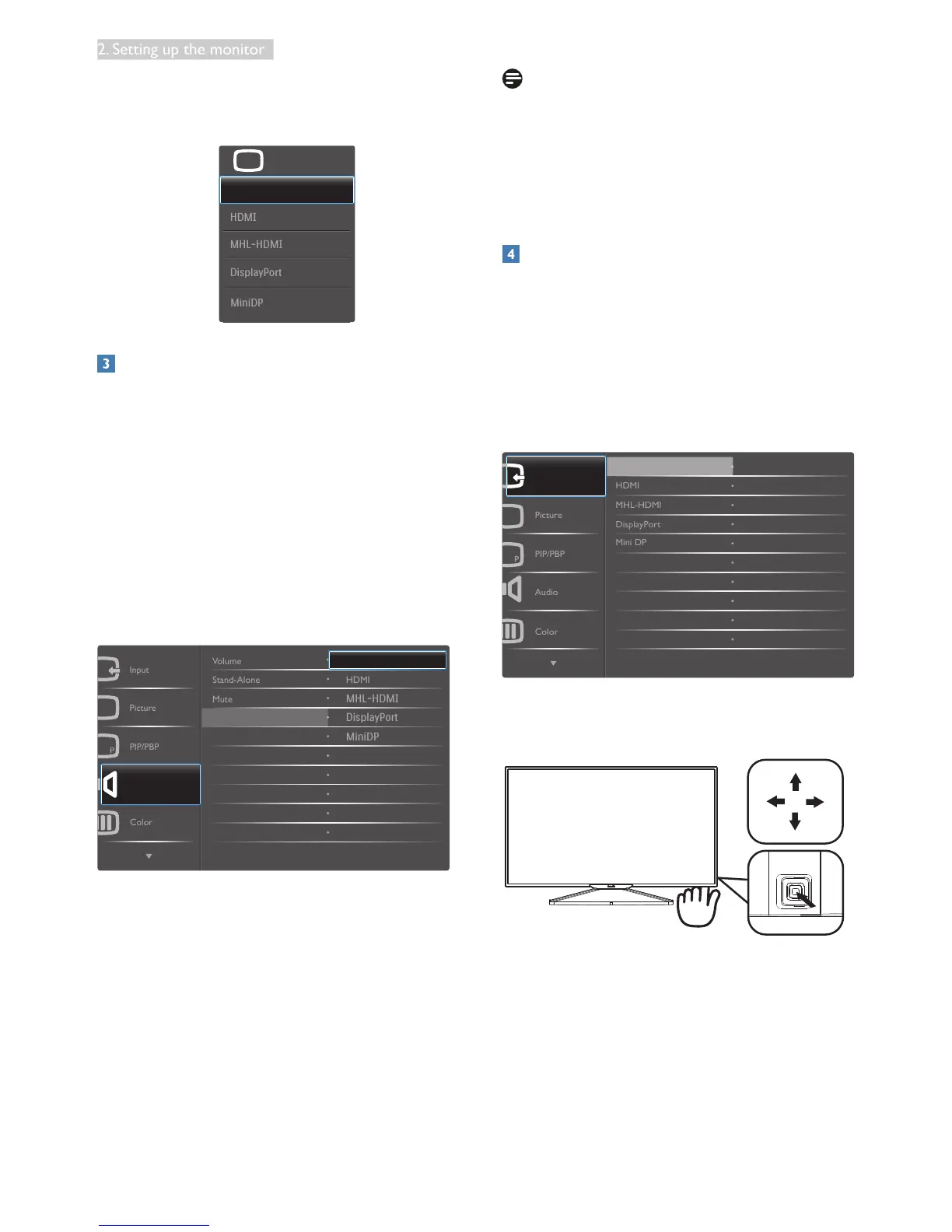
For example, if you selected [Audio Source] as
the function, toggle down , the [Audio Source]
menu appears.
U
Independent audio playback, regardless of
video input
Your Philips monitor can play the audio
source independently under PIP / PBP mode,
regardless of which video input. For example,
you can play your MP3 player from the audio
source connected to the [Audio In] port of
this monitor, and still watch your video source
connected from [HDMI], [DisplayPort] or [Mini
DisplayPort].
1. Toggle to the right to enter OSD menu
screen.
2. Toggle to the up and down to select main
menu [Audio], then toggle to the right to
conrm.
3. Toggle to the up and down to select
[Audio Source], then toggle to the right to
conrm.
4. Toggle to the up and down to select your
preferred audio source: [Audio In], [HDMI],
[MHL-HDMI], [DisplayPort] or [Mini DP].
5. Toggletotherighttoconrmyour
selection.
Note
The next time you turn on this monitor, it
will by default select the audio source you
previously selected. In case you want to change
it, you will have to go through the selection
steps again to select your new preferred audio
source as the default.
Description of the On Screen Display
What is On-Screen Display (OSD)?
On-ScreenDisplay(OSD)isafeatureinall
Philips LCD Displays. It allows an end user to
adjust screen performance or select functions
of the Displays directly through an on-screen
instruction window. A user friendly on screen
display interface is shown as below:
Input
Basic and simple instruction on the control
keys
To access the OSD menu on this Philips Display
simply use the single toggle button on the
backside of the Display bezel. The single button
operates like a joystick. To move the cursor,
simply toggle the button in four directions.
Press the button to select desired option.





 To Next Page