
 Need help?
Do you have a question about the Philips Brilliance 439P9 and is the answer not in the manual?
This document describes the Philips Brilliance 439P9 monitor, a display device designed for various applications, including office, photo, movie, game, economy, and SmartUniformity modes. It features a built-in webcam with IR face identification, a MultiClient Integrated KVM, and MultiView capabilities for enhanced productivity and versatility.
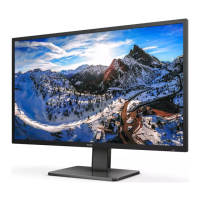
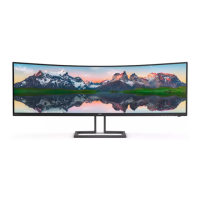
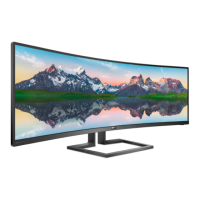
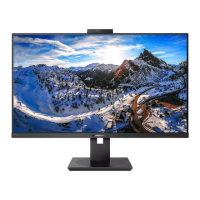
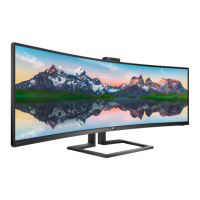
The Philips Brilliance 439P9 is a large-format curved display designed to provide an immersive viewing experience. It supports a wide range of input sources and offers features to optimize image quality, manage power consumption, and ensure user comfort. The monitor includes a built-in 2.0-megapixel webcam with microphone and LED indicator, supporting Windows Hello™ for secure facial recognition login. The MultiClient Integrated KVM allows users to control two separate PCs with one monitor-keyboard-mouse setup, enabling seamless switching between sources. MultiView functionality enables active dual connect and view, allowing users to work with multiple devices like PC and Notebook side-by-side simultaneously, making complex multi-tasking work a breeze. The monitor also supports Adaptive Sync for smooth, tear-free gaming experiences.
Display Panel Type: VA Backlight: W-LED system Panel Size: 43.4" W (110.2 cm) Aspect Ratio: 32:10 Pixel Pitch: 0.274 x 0.274 mm Optimum Resolution: 3840 x 1200 @ 60 Hz Viewing Angle: 178° (H) / 178° (V) @ C/R > 10 (Typ.) Picture Enhancement: SmartImage Display Colors: 1.07G (8bit+FRC) Vertical Refresh Rate: 48–100 Hz (HDMI2.0/DP1.4/USB-C) Horizontal Frequency: 30–150kHz (HDMI2.0/DP1.4/USB-C) sRGB: YES Color Gamut: DCI-P3 overlap (CIE1976): 95% HDR: PC HDR400 certified (DP/HDMI) SmartUniformity: YES Delta E: YES LowBlue Mode: YES EasyRead: YES Adaptive sync: YES
Connectivity:
Power Consumption:
Dimensions (WxHxD):
Weight:
Operating Condition:
Storage Condition:
Environmental and energy:
Compliance and standards:
Setting up the display: The monitor comes with a base that needs to be installed. This involves attaching the neck to the VESA mount area and then securing the base to the neck. The display also supports VESA mounting (100mm x 100mm) for alternative installations.
Connecting to PC: The monitor offers multiple connectivity options, including USB-C, DisplayPort, and HDMI. For USB-C connections, ensure the correct cable is used to support video, data, and power delivery. The monitor features a USB hub with multiple downstream ports for connecting peripherals.
Operating the display: The monitor has control buttons on the front bezel for power, OSD menu access, input selection, and SmartImage modes. A remote control is also provided for convenient operation, offering additional controls for brightness, volume, and OSD navigation.
On-Screen Display (OSD): The OSD menu provides a comprehensive interface for adjusting various display settings, including input, picture, audio, color, OSD settings, USB settings, and setup options. Users can customize settings like LowBlue Mode, Picture Format, Contrast, Brightness, Gamma, SmartResponse, SmartContrast, SmartUniformity, and more.
Webcam: The built-in webcam supports Windows Hello™ facial recognition. To enable it, users need to connect the webcam to their PC via USB-C and configure it through Windows settings. The webcam can be used for secure login and video conferencing.
MultiClient Integrated KVM: This feature allows users to control two different PCs with a single keyboard and mouse connected to the monitor. Switching between PCs is done through the OSD menu, enhancing productivity in multi-PC setups.
MultiView: The MultiView function enables simultaneous display of content from two different sources on the screen (Picture-by-Picture or Picture-in-Picture mode). This is useful for multitasking, such as viewing content from a PC and a notebook side-by-side.
SmartImage: This feature provides various preset modes (EasyRead, Office, Photo, Movie, Game, Economy, LowBlue Mode, SmartUniformity) that optimize display settings for different types of content. Users can select the most suitable mode for their current activity.
SmartContrast: Dynamically adjusts the display's contrast based on the content being viewed, enhancing black levels and overall image quality.
Adaptive Sync: Ensures a smooth, tear-free gaming experience by synchronizing the monitor's refresh rate with the graphics card's frame rate.
HDR: Supports High Dynamic Range (HDR) content, providing a wider range of colors and contrast for a more immersive viewing experience. HDR settings can be adjusted through Windows settings.
Ergonomics: The monitor offers tilt, swivel, and height adjustment for comfortable viewing.
Important Safety Precautions:
Cleaning:
Pixel Defect Policy: Philips monitors adhere to strict quality standards regarding pixel defects. The manual provides detailed information on acceptable levels of bright and dark dot defects, as well as sub-pixel defects.
Customer Care & Warranty: Philips offers a warranty for its products. Users can find detailed information about warranty coverage and support requirements on the Philips website. The manual also provides contact information for local Philips Customer Care Centers.
Troubleshooting & FAQs: The manual includes a comprehensive troubleshooting section to help users resolve common issues such as power problems, image display issues, and sound problems. It also provides answers to frequently asked questions regarding resolution, screen scratches, color settings, and MultiView.
Environmental and Energy Information: The product is designed with environmental considerations, including recyclable packaging and compliance with various environmental standards like RoHS and EPEAT. Users are encouraged to dispose of the product and packaging responsibly.




 To Next Page
 General