17EN
7 Phonebook
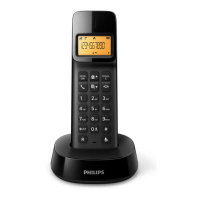
This phone has a phonebook that
stores up to 50 records. You can
access the phonebook from the
handset. Each record can have a name
up to 12 characters long and a number
up to 24 digits long.
View the phonebook
Note
• You can view the phonebook on one
handset only each time.
1
Press or press MENU/OK >
[PHONEBOOK] > [VIEW] to access
the phonebook list.
2
Select a contact and view the
available information.
Search a record
You can search the phonebook
records in these ways:
• Scroll the contacts list.
• Enter the rst character of the
contact.
Scroll the contact list
1
Press or press MENU/OK >
[PHONEBOOK] > [VIEW] to access
the phonebook list.
2
Press and to scroll
through the phonebook list.
Enter the rst character of a
contact
1
Press or press MENU/OK >
[PHONEBOOK] > [VIEW] to access
the phonebook list.
2
Press the alphanumerical key that
matches the character.
» The rst record that starts with
this character is displayed.
Call from the
phonebook
1
Press or press MENU/OK >
[PHONEBOOK] > [VIEW] to access
the phonebook list.
2
Select a contact in the phonebook
list.
3
Press to make the call.
Add a record
Note
• If your phonebook memory is full, the
handset displays a notication message.
Delete some records to add new ones.
• When you change the number of a record,
the new number will overwrite the old
number.
1
Press MENU/OK.
2
Select [PHONEBOOK] > [ADD
NEW], then press MENU/OK to
conrm.
3
Enter the name, then press
MENU/OK to conrm.
4
Enter the number, then press
MENU/OK to conrm
» Your new record is saved.



 To Next Page