9
Preparation
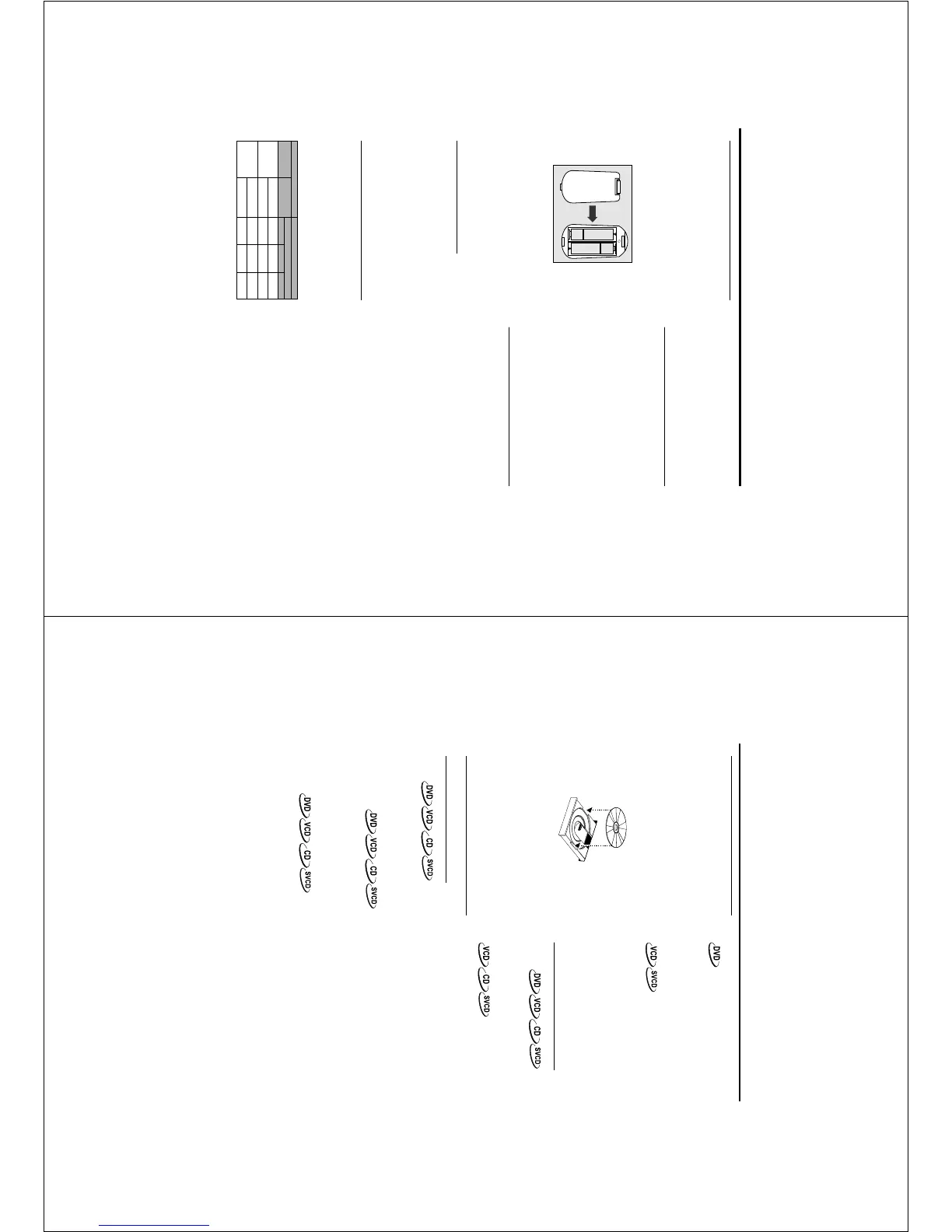
Inserting batteries into the
Remote Control
1
Open the battery cover by pressing in the tab,
then lifting off the cover.
2 Insert batteries with the correct polarity as
indicated by the + and - symbols inside the
battery compartment.
3 Close the cover.
+
-
+
-
CAUTION!
– Remove batteries if they are exhausted
or not to be used for a long time.
– Do not use old and new or different
types of batteries in combination.
– Batteries contain chemical substances,
so they should be disposed off properly and
kept away from children.
Using the Remote Control
● Direct the remote control at the remote sensor
of the DVD player.
● Do not drop or give the remote control a shock.
● Do not leave the remote control near extremely
hot or humid place.
● Do not spill water or put anything wet on the
remote control.
NTSC/PAL Conversion
This player is equipped with a NTSC/PAL
conversion feature to convert the video output
of the disc to match your TV system. The
conversions supported are as below:
NTSC
PAL
NTSC
NTSC
PAL
PAL
NTSC
PAL
NTSC
NTSC
PAL
PAL
Disc
Output format
Type
DVD
VCD
NTSC
Format
Selected mode
PAL
NTSC
PAL
NTSC
PA L
AUTO
Notes:
– AUTO can only be selected when using a TV
that has both the NTSC and PAL systems.
– Slight picture distortions may occur due to this
conversion. This is normal. Thus, the AUTO format is
most suitable for the best picture quality.
Switching On
1
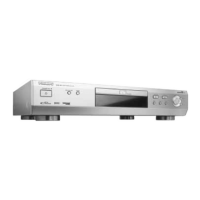
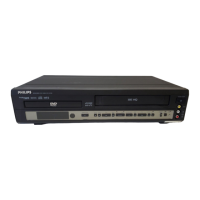
Be sure that the DVD player has well connected
to the TV and audio equipment.
2 Switch on the TV and DVD player.
3 Set the TV to the correct Video In channel. (eg.
EXT1, EXT2, AV1, AV2, AUDIO/VIDEO, etc.
Please refer to your TV owner’s manual for detail)
➜ The player display lights and the default screen
appears on the TV.
4 If you are using an external equipment (eg. audio
system or receiver), turn them on and select the
appropriate input source that was used to
connect to the DVD player output. Refer to the
equipment owner’s manual for detail.
Smart Power On/Off
At STOP or NO DISC mode, the DVD player will
switch to standby mode after 15 minutes without
any operations for saving energy. It is easily
reactivated by pressing the POWER key on the
remote control or the STANDBY-ON button on
the front panel.
10
Slow Motion
1 To get slow motion effect during playback, press
3 or 4.
2 Press 3 or 4 again, you can get different playback
forward/backward speeds.
3 Press PLAY to return to the normal play back.
1 To get slow motion effect during playback, press
4.
2 Press 4 again, you can get different playback
forward speeds.
3 Press the PLAY key to return to the normal play
back.
NOTE:
- The SLOW BACKWARD function is not available
for the Super VCD/VCD/CD disc.
Audio control during playback
MUTE
1 Press the MUTE key to disable the sound output.
2 Press the MUTE key again to remove the mute.
Audio channel selection
1 Super VCD has two stereo audio channels which
are used for playing karaoke or the audio
language selection. ( for instance, you can choose
one channel for only the music background of the
song while you play the karaoke.)
2 Press the AUDIO key on the remote control to
select the audio channels you want.
3 VCD has only one stereo audio channel, you can
select STEREO, LEFT MONO, RIGHT MONO or
MIX-MONO by pressing the AUDIO key on the
remote control.
➜ STEREO: Output the left and right audio
channels of the disc through the left and right
audio jack accordingly.
➜ LEFT MONO: Output the left audio channels
of the disc through the left and right audio jack.
➜ RIGHT MONO: Output the right audio
channels of the disc through the left and right
audio jack.
➜ MIX-MONO: each of the audio jacks can
output the same audio effect as stereo.
Note: If you choose digital audio output and set
DIGITAL OUTPUT to ALL, you can not select LEFT
MONO and RIGHT MONO by AUDIO key.
Operation
Basic Playback
1
Press STANDBY-ON on the front panel.
2 Press OPEN/CLOSE on the front panel to open
disc loading tray.
3 Place the chosen disc in the tray, with the label
facing up.
4 Press OPEN/CLOSE again to close the tray.
➜ After recognizing this disc the player begin to
playback automatically.
POWER ON/OFF
Notes:
– DVDs may have a region code. Your player will
not play discs that have a region code different
from the region code of your player.
– If ‘Disc Lock’ is set to LOCK and the disc
inserted is not authorized, the 6-digit code must be
entered and/or the disc must be authorized (see
‘Disc Lock’).
General Operation
Video control during playback
STOP
1 You can resume the play from the point at which
you stopped last time, if you just press the STOP
key once. It will start from the beginning if you
press the STOP key twice to stop playback.
PAUSE/STEP
1 To get a still picture, press PAUSE key during
playback.
2 To step forward to the next frame picture, press
PAUSE key again.
3 To resume normal playback, press PLAY.
SEARCH
1 To search the contents in fast speed, press the 2
or 1 for fast forward/backward searching.
2 Press the 1 or
2 again to increase the speed for
searching.
3 Press PLAY to return to the normal playback.



 To Next Page