24
Allocating a decoder
Some TV channels send coded TV signals that can only be viewed properly with a purchased or
rented decoder. You can connect such a decoder (descrambler) to your DVD recorder. The
following function automatically activates the connected decoder for the TV channel you want to
watch.
How do I allocate the decoder for Easy Link?
If your TV set supports 'Easy Link' the decoder must be assigned to the
relevant TV channel on the TV set (see the operating instructions for your TV
set). Settings cannot then be made in this menu.
?
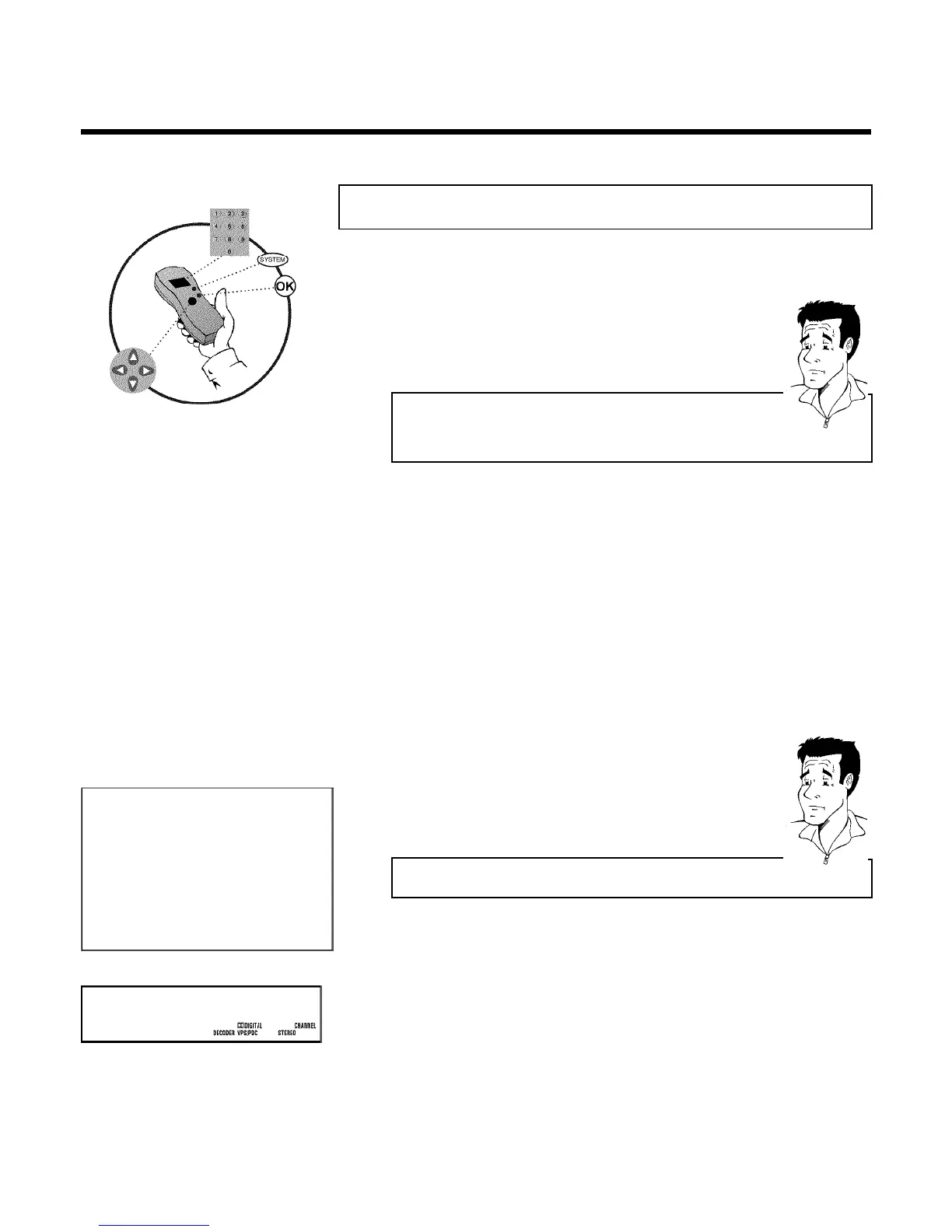
1 Switch on the TV set. If required, select the programme number for
the DVD recorder.
2 Switch on the DVD recorder using STANDBY/ON .
3 Use the CHANNEL q and CHANNEL r buttons on the DVD
recorder or the number buttons 0..9 on the remote control to select
the TV channel for which you want to use the decoder. If necessary,
use the MONITOR button to switch to the internal tuner.
4 Press the SYSTEM-MENU button on the remote control. The menu
bar will appear at the top of the screen.
5 Select '
A
' using D or C .
6 Select line 'Installation' using B or A and confirm with C .
7 Select line 'Manual search' using B or A and confirm with C .
Installation
Manual search
Channel/freq. CH
Entry/search 01
Programme number 01
TV channel name BBC1
Decoder Off
TV system PAL-BG
NICAM On
Fine tuning 0
To store
Press OK
8 Select line 'Decoder' using B or A .
9 Select function 'On' with D or C .
How can I switch the decoder off again?
Select 'Off' (decoder off) on the TV screen in the line 'Decoder' using C .
?
0 Confirm with OK .
A To end, press SYSTEM-MENU .
MTV
Your decoder has now been allocated to this TV channel.
When this TV channel is selected, the 'DECODER' symbol will appear in the DVD recorder
display.
Installing your DVD recorder


 To Next Page