68
JUser preferences
In this section you will learn how to set your user preferences on the DVD recorder. The
symbols have the following meanings:
-
Picture setting
.
Sound setting
/
Language setting
0
Additional settings
1
Remote control settings
2
Recording settings
3
Installation
1 Switch on the TV set. If required, select the programme number for
the DVD recorder.
2 Press SYSTEM-MENU on the remote control. The menu bar
appears.
3 Select the '
A
' icon using D or C and confirm with B .
4 Select the appropriate feature using B or A and confirm with C .
5 Select the corresponding line using B or A and confirm with C .
6 Select the appropriate feature using B or B or the setting using
D or C .
7 Confirm the setting with OK .
8 Quit the menu item using D .
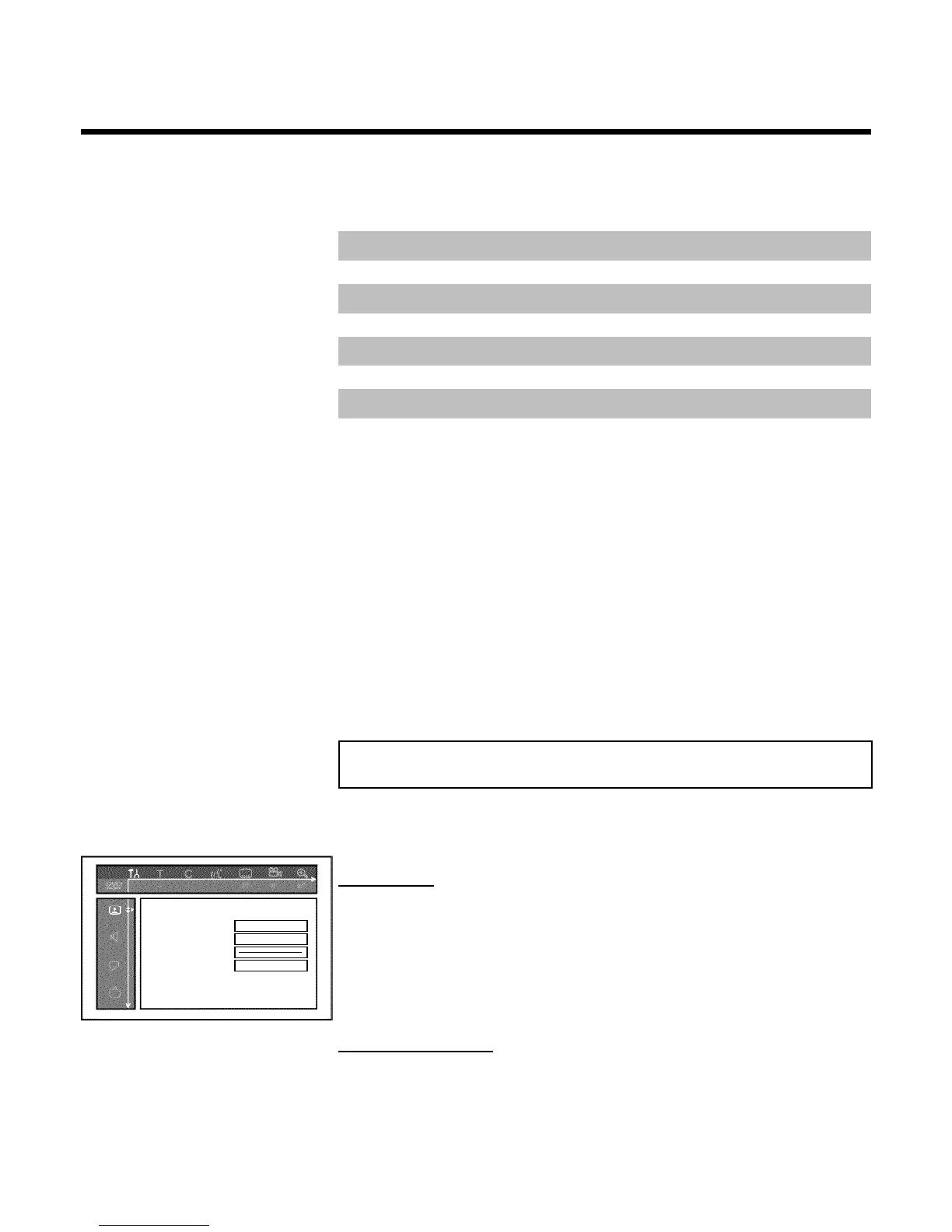
Picture settings
You can choose the following features in this menu:
Picture
TV shape 16:9
Black level shift Off
Video shift ï
SCART video RGB
'TV shape'
The picture signal from your DVD Recorder can be set to match your TV screen:
'4:3 letterbox' : for a 'wide-screen' picture with black bars at the top and bottom
'4:3 panscan' : for a full-height picture with the sides trimmed
'16:9' : for a wide-screen TV set (screen edge ratio 16:9)
'Black level shift'
Adapts the colour dynamics for NTSC playback
User preferences


 To Next Page