EasyManua.ls Logo

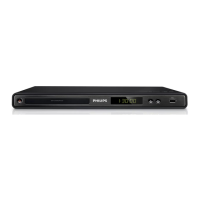
Philips DVP3380 - User Manual

Philips DVP3380
2 pages
Print Icon
To Next Page IconTo Next Page
Loading...
2009 © Koninklijke Philips N.V.
All rights reserved.
12 NC 8670 000 53345
sgptt_913/58_1
Register your product and get support at
www.philips.com/welcome
DVP3380
Off
On
Audio Sync
Volume
Digital Audio
Analogue Output
HDMI Audio
Audio Setup
Sound Mode
CD Upsampling
Night Mode
3
/

Questions and Answers

  • P
    patriciajohnsonAug 14, 2025
    Why is there no sound on HDMI connection with my Philips DVD Player?
    • P
      Patrick FoxAug 14, 2025
      If you're not getting any sound from your Philips DVD Player via the HDMI connection, it might be because the connected device isn't HDCP compliant or is only DVI-compatible. To resolve this, make sure that the [ HDMI Audio ] setting is turned on in your DVD player's settings.
  • B
    Brian FrostAug 17, 2025
    What to do if there is no picture on HDMI connection with my Philips DVD Player?
    • L
      Lynn MontesAug 18, 2025
      If you're not getting any picture on your Philips DVD Player when using an HDMI connection, first check if the HDMI cable is working correctly and replace it with a new one if necessary. Also, if this issue occurs after changing the HDMI video resolution, reset to the default mode by opening the disc compartment (press Z) and then pressing the numeric button ‘1’.
  • R
    Ryan CurryAug 21, 2025
    How to fix no sound on Philips DVP3380 DVD Player?
    • B
      beardandreaAug 21, 2025
      If you are experiencing a 'no sound' issue with your Philips DVD Player, ensure that the audio cables are correctly connected. Also, verify that the connected device is powered on and set to the appropriate input source.
  • J
    Jordan HernandezAug 25, 2025
    How to fix Philips DVP3380 buttons not working?
    • A
      Andrew JohnsonAug 26, 2025
      If the buttons on your Philips DVD player aren't working, try disconnecting the DVD player from the power outlet for a few minutes, and then reconnect it.
  • R
    Ryan TorresAug 28, 2025
    What to do if there is no picture on my Philips DVP3380?
    • T
      Thomas NashAug 28, 2025
      If you're experiencing a 'no picture' issue with your Philips DVD Player, consult your TV manual to ensure you've selected the correct video input channel. Try changing the TV channel until you see the DVD screen.
  • S
    Shelia SmithAug 31, 2025
    Why is there no sound during DivX movies play on Philips DVP3380 DVD Player?
    • B
      Brittany RobertsAug 31, 2025
      If you're not getting any sound during DivX movie playback on your Philips DVD Player, it's possible that the audio codec used in the DivX file isn't supported by the DVD player.
  • M
    Matthew ConnerSep 3, 2025
    How to fix DivX subtitles that are not displayed correctly on Philips DVP3380?
    • K
      kconleySep 3, 2025
      To display DivX subtitles correctly on your Philips DVD Player: - Ensure that the subtitle file name is exactly the same as the movie file name. - Select the correct character set by pressing SETUP, then navigate to [ Preferences ] > [ DivX Subtitle ] in the menu, and choose the character set that supports the subtitle.
  • J
    Joanna FaulknerSep 7, 2025
    Why is the aspect ratio of the screen not aligned with the TV display setting on Philips DVP3380 DVD Player?
    • D
      David PrinceSep 7, 2025
      The aspect ratio on your Philips DVD Player screen may not align with your TV display setting because the aspect ratio is fixed on the DVD.
  • A
    andrea70Sep 10, 2025
    Why Philips DVP3380 cannot read the contents of the USB flash drive?
    • D
      davidleeSep 10, 2025
      The contents of your USB flash drive cannot be read by the Philips DVD player if the USB flash drive format is not compatible with this DVD player or if the drive is formatted with a file system not supported by this DVD player (e.g. NTFS).

Philips DVP3380 Specifications

General IconGeneral
Picture FormatsJPEG
Progressive ScanYes
Parental ControlYes
Weight1.3 kg
Disc Types ReadDVD, DVD-R, DVD-RW, CD, CD-R, CD-RW
Video FormatsMPEG-2, MPEG-1
Audio FormatsMP3, WMA
Video D/A Converter12 bit / 108 MHz
Audio D/A Converter24 bit / 192 kHz
OutputsComposite video, Component video, S-Video
Screen Fit Adjustments4:3, 16:9
Dimensions360 x 37 x 209 mm
Output Resolution1080i

Related product manuals