6
q OK
Confi rm an entry or selection.•
r SETUP
Access or exit the setup menu.•
3 Connect
Make the following connections to use this product.
Basic connections:
Video•
Audio•
Optional connections:
Route audio to other devices:•
Digital amplifi er/receiver•
Analog stereo system•
USB fl ash drive•
Connect audio/video cables
Select the best video connection that TV can
support.
• Option 1: Connect to the component video
jacks (for a standard TV or Progressive Scan TV).
• Option 2: Connect to the video (CVBS) jack
(for a standard TV).
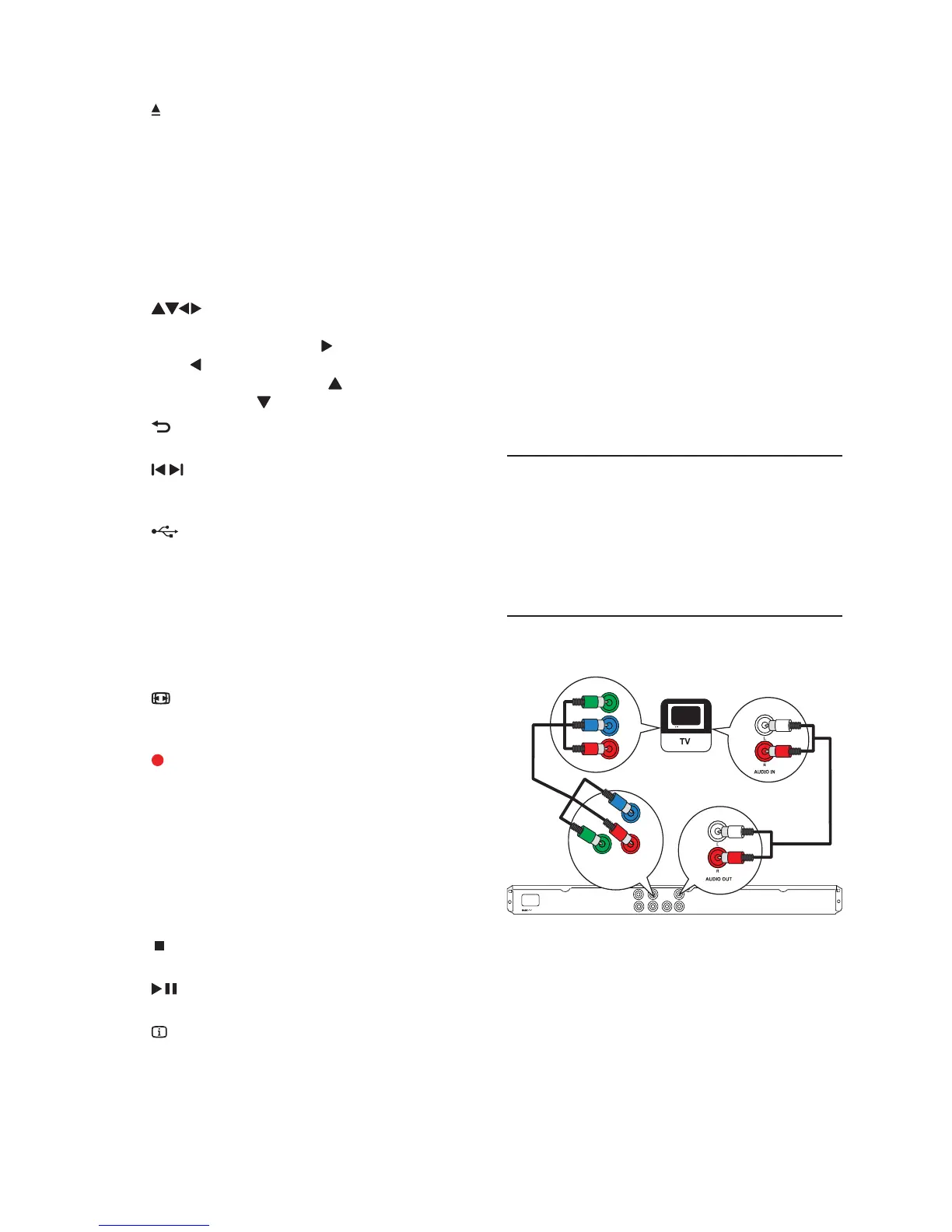
Option 1: Connect to the component
video jacks
1
Connect the component video cables (not
supplied) to:
the • Y Pb Pr jacks on this product.
the COMPONENT VIDEO input jacks •
on the TV.
2 Connect the audio cables (supplied) to:
the • AUDIO OUT L/R jacks on this
product.
the audio input jacks on the TV.•
Pb
Y
Pr
Pb
COMPONENT VIDEO OUT
Y
Pr
b
Open or close the disc compartment. •
c DISC MENU
Access or exit the disc menu. •
Switch to the disc mode.•
During a photo slideshow, switch •
between the Fun Mode (color) and
Simple Mode (black and white).
For VCD and SVCD, turn on or off PBC •
(playback control).
d
Navigate the menus.•
Search fast-forward ( • ) or fast-backward
( ).
Search slow-forward ( • ) or slow-
backward ( ).
e
BACK
Return to the previous display menu.•
f
/
Skip to the previous or next title, chapter, •
or track.
g
Switch to the USB mode.•
h Numeric buttons
Select an item to play.•
i SUBTITLE
Select a subtitle language on a disc.•
Access the menu of copying/deleting USB •
audio fi les.
j
ZOOM
Fit the picture display to the TV screen.•
Zoom the picture in or out.•
k
KOK RECORD
Record the voice and music during •
karaoke into a USB fl ash drive.
l KARAOKE
Access or exit the Karaoke setup menu.•
m AUDIO/CREATE MP3
Select an audio language or channel on •
a disc.
Access the menu of creating MP3 fi les.•
n
Stop play.•
o
Start, pause or resume disc play.•
p
INFO
For discs, access the play options or •
display the current disc status.
For slideshows, display a thumbnail view •
of photo fi les.
EN



 To Next Page