6 EN
4 Set-up
You can see and hear what is happening in
your room from anywhere in the world with a
smartphone.
What you need
1 Make sure your Wi-Fi router is turned
on and that your Smartphone or Tablet is
wirelessly connected to your Wi-Fi router
network.
2 Have your Wi-Fi network name (SSID) and
Wi-Fi network password available as you
need to ll these in. You can look up your
Wi-Fi network name in the settings of your
phone or tablet.
3 Download ‘Philips In.Sight’ App from
Android Market (Google Play).
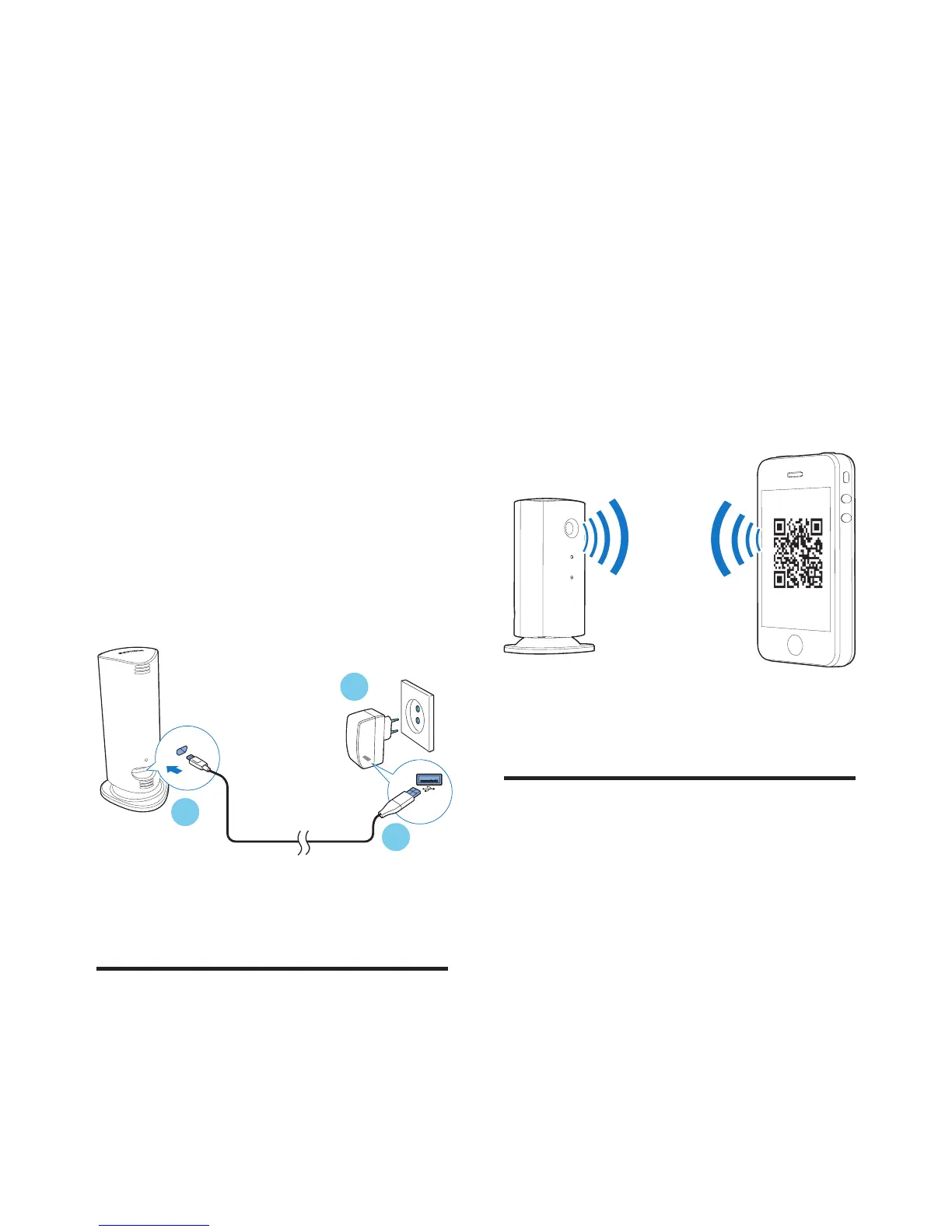
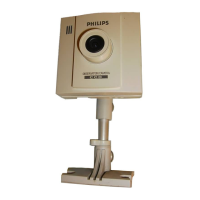
4 Connect the monitor to power. When
power is connected, wait till the Monitor
light ashes Amber.
Connect Monitor to Wi-Fi
network
1 Make sure that your smartphone or tablet
is connected to your Wi-Fi network.
2 Start the App.
1
2
3
3 Log in with your Philips In.Sight account –
or create a new account if you don’t have
an account.
4 Press MENU button on your smart phone
or tablet and tap ‘Add monitor’.
5 Follow the on-screen App instructions.
6 When prompted, input your Wi-Fi
password.
• If you want to set-up another monitor,
repeat the steps of ‘4– Set-up’.
7 In.Sight App will generate a QR code, hold
the smartphone or tablet approx. 15 cm
(0.5 ft) in front of the monitor lens.
Use the monitor
After set-up, you are ready to use the monitor.
Launch the Philips In.Sight App on your
smartphone or tablet.
You can use the monitor when it is connected
to your own Wi-Fi network or any other Wi-Fi
network. If there is no Wi-Fi network available,
it will work over 3G. Please note that 3G data
charges can occur.
After log-in, you can see a thumbnail of the
monitor(s). Tap the thumbnail for full screen
viewing.



 To Next Page