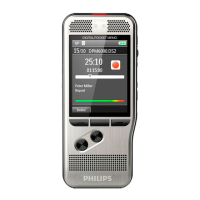
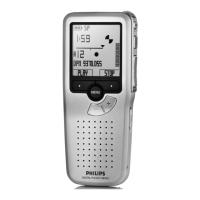
Quick Reference Guide for Philips Pocket Memo Recorder & Software
Page 4 of 6
Buttons or Task Description User Actions
Finish (Lock) recording
(EOL) End of Letter
button
Right side of recorder
Once a user is finished recording
then lock the file to protect it from
being deleted.
A file with a checkmark in the
display is a locked recording file.
1. Slide Switch in the ‘Stop’ position.
2. Press the [EOL] End of Letter button.
3. The recorder will advance to a new file ready for
recording.
Unlock a recording file
(EOL) End of Letter
button
Right side of recorder
Recording file has a checkmark in
the display window.
1. Slide Switch in the ‘Stop’ position.
2. Use the + (plus) and – (minus) buttons to move
between the recording files to find the locked file.
3. Press the [EOL] End of Letter button. This will
remove the checkmark – file is no longer locked.
Delete part of
Recording file
This function is used to delete part of
the recording file.
1. Slide Switch in the ‘Stop’ position.
2. Press the [Menu] button. Use the + (plus) and –
(minus) buttons to scroll to Delete section.
3. Press the [OK] smart button to select this function.
4. Use the rewind/fast rewind, play, forward/fast
forward to locate the begin section to delete.
5. Press the [Mark 1] smart button, an X appears on
the display window.
6. Use the rewind/fast rewind, play, forward/fast
forward to locate the end of section to delete.
7. Press the [Mark 2] smart button, and a second X
appears on the display window.
8. Press the [Delete] smart button to select this
function.
9. Press the [OK] smart button to accept deletion.



 To Next Page
 Loading...