Quick Reference Guide for Philips Pocket Memo Recorder & Software
Page 5 of 6
Buttons or Task Description User Actions
Delete a recording file This function will delete the entire
recording file.
1. Slide Switch in the ‘Stop’ position.
2. Use the + (plus) and – (minus) buttons to move
through the recording files to find the file to delete.
3. Press the [Menu] button. Use the + (plus) and –
(minus) buttons to scroll to Delete dictation.
4. Press the [Enter] smart button to select this
function.
5. Press the [OK] smart button to accept deletion.
Download a file The program is configured to
download files automatically when
connected to the computer. But if
the file is too large you will have to
manually download the files.
1. Connect the docking station to the computer using
the USB cable.
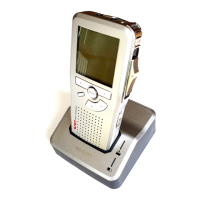
2. Turn the recorder to the ON position and place in the
docking station.
3. Wait few seconds to see if program will download file.
If the program downloads, you will see a download
complete pop-up message.
4. If the program does not download, then click on File
from the menu bar’Start DMP download’.
5. System will prompt you to choose a download
source. Select ‘From connected DPM device’ and
click the [Download] button.
6. DPM File Download screen appears; select which
files you want to download.
a. Check the checkbox ‘Delete files on the DPM
after download is finished’.
b. Then click on the [Download] button.
7. You will see a download complete pop-up message
that you can safely disconnect the recorder.
8. Recording files should be in the Court Hearings-DPM
folder.



 To Next Page
 Loading...