8 User Manual
Ramp Feature
The device is equipped with an optional ramp feature that your home care provider can enable or disable. This
feature reduces the air pressure when you are trying to fall asleep and then gradually increases (ramps) the pressure
until your prescription setting is reached, allowing you to fall asleep more comfortably.
If ramp is enabled on your device, after you turn on the airow, press the RAMP ( ) button on the top of the
device. You can use the RAMP button as often as you wish during the night.
Note: If the Ramp feature is on, the Ramp icon ( ) will display in the lower right corner of the Therapy screen.
Note: If the Ramp feature is disabled, nothing will happen when you press the RAMP button.
Flex Screen
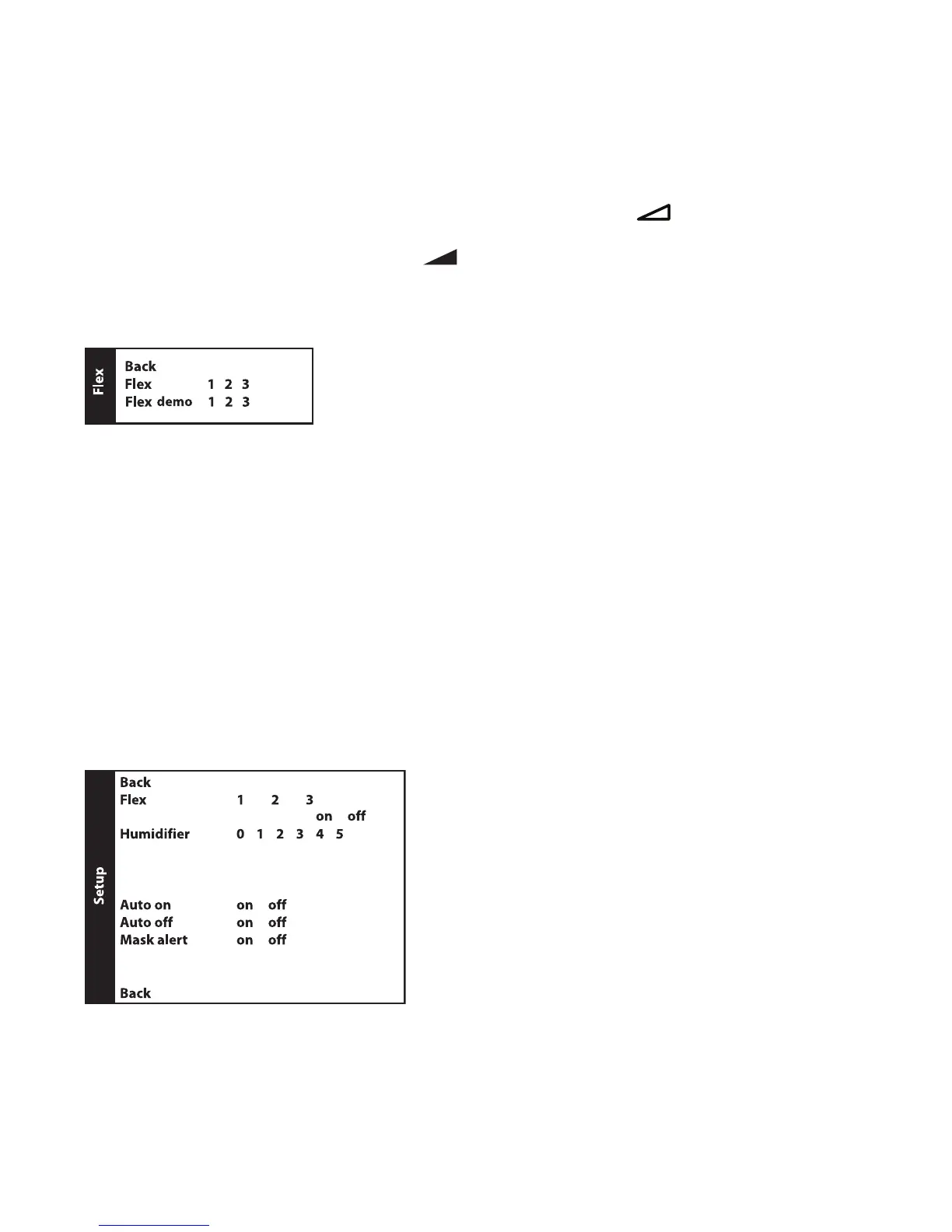
From the Home screen, highlight “Flex” and press the wheel. The following Flex screen will appear.
Flex Screen
Note: “Flex” shown above will display as the current Flex setting chosen by the provider.
• Flex - The Flex comfort feature allows you to adjust the level of air pressure relief that you feel when you exhale
during therapy. Your home care provider can enable or disable this feature. When your provider enables Flex, a
level will already be set for you on the device. If this is not comfortable, you can increase or decrease the setting.
The setting of “1” provides a small amount of pressure relief, with higher numbers providing additional relief. If the
provider has disabled this feature, the ex screen will display “Flex is disabled”.
Note: This same setting is also available under the “Setup” screen.
• Flex demo - The Flex setting allows you to set the Flex level prior to beginning therapy. The Flex demo setting
allows you to try out the different Flex settings in real time. After a period of time of inactivity, the device will
stop therapy and will use the last Flex demo setting as the new Flex setting for your device. When therapy is again
started from the Home screen, the device will operate using the new Flex setting.
Setup Screen
From the Home screen, highlight “Setup” and press the wheel. The following Setup screen will appear. The user can
change settings in the Setup menu.



 To Next Page