13EN
4 Music
Transfer music to the player
You can transfer music from your PC media
library to VIBE in the following ways:
Sync through Philips Songbird (see
'Sync with PC music library through
Philips Songbird' on page 25);
With the media management software,
you can access online music stores,
create playlists, or edit your music
collection by song information.
Explorer.
By doing so, you can organize your
Explorer,
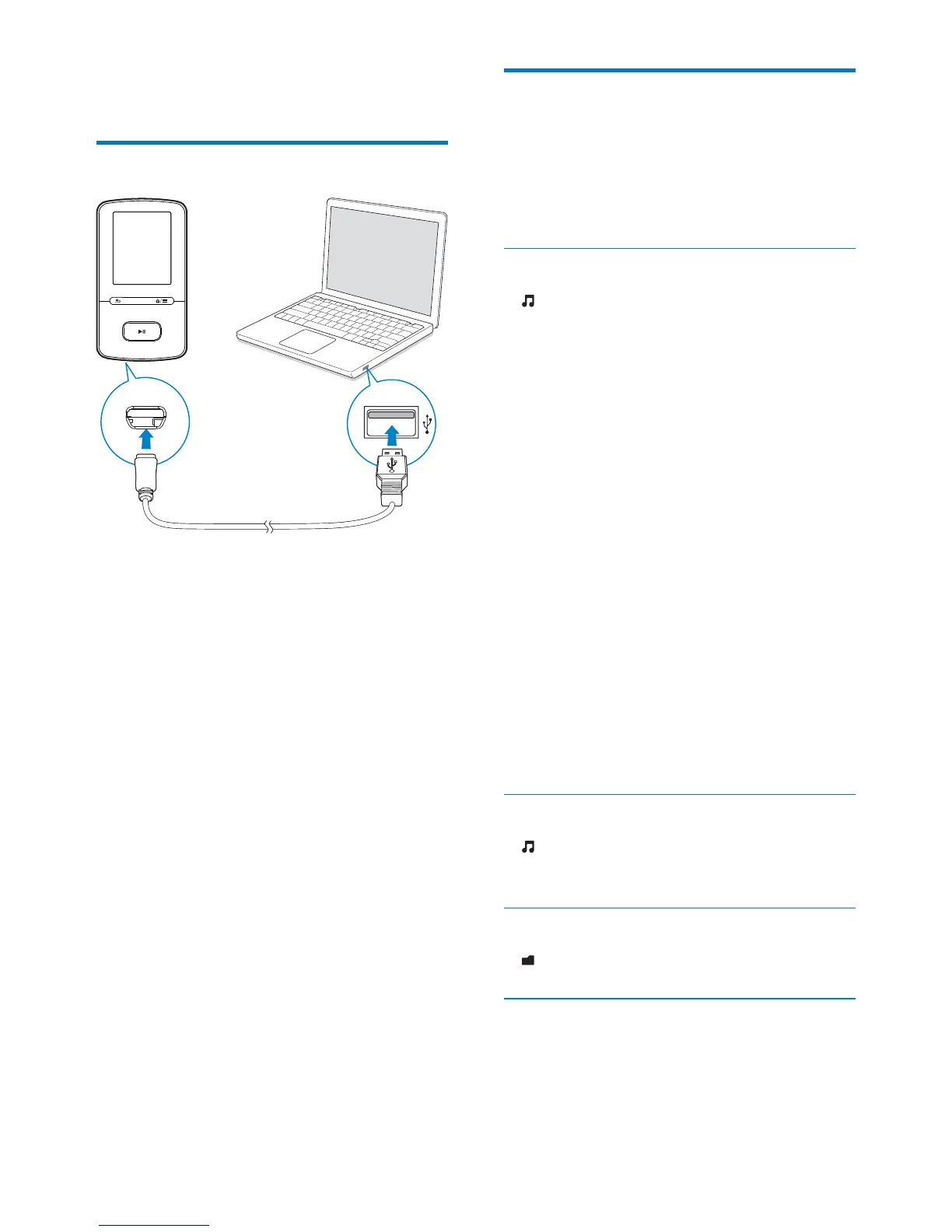
1 Connect VIBE to a PC.
2 On the PC, under My Computer or
Computer,
select VIBE
3
VIBE.
from the PC to VIBE.
Find music on the player
On VIBE
Superscroll, you can quickly browse through
the music library by initial.
Find music by song information
In , songs are sorted by metadata or ID3 tag
under different collections: [All songs], [Artists],
[Albums], or [Genres].
[All songs]
Songs are sorted by song title in
alphabetical order.
[Artists]
Songs are sorted by artist in alphabetical
order;
Under each artist, songs are sorted by
album in alphabetical order.
[Albums]
Songs are sorted by album in alphabetical
order.
[Genres]
Songs are sorted by genre, such as pop,
rock.
Find music by playlist
In > [Playlists]
transfer from the PC media library.
In
Superscroll
In a list of options that are sorted by alphabet,
Superscroll allows you to browse the options
by initial.



 To Next Page